@dsisolutions/react-toastify
v4.4.0TypeScript
React notification made easy
0/weekUpdated 3 years agoMITUnpacked: 332.5 KB
Published by Fadi Khadra
npm install @dsisolutions/react-toastifyReact Toastify  ![npm]() ![npm]() ![license]() 
🎉 React-Toastify allow you to add notification to your app with ease. No bullshit !
- Demo
- Installation
- Features
- From v3 to v4
- Usage
- One component to rule them all
- Positioning toast
- Set autoclose delay or disable it
- Render a component
- Remove a toast programmatically
- Usage with redux
- Pause toast timer when the window loses focus
- Use a custom id
- Prevent duplicate
- Update a toast
- Basic example
- Update the content
- Apply a transition
- Reset option or inherit from ToastContainer
- Define callback
- Listen for change
- Set a custom close button or simply remove it
- Override the default one
- Define it per toast
- Remove it
- Add an undo option to a toast like google drive
- Replace the default transition
- Define a custom enter and exit transition
- Ease your life with the cssTransition helper
- Different duration for enter and exit
- Handle transition based on the toast position
- Create a transition from scratch
- Swipe to remove
- Define the width percentage to remove the toast
- Disable it
- Le style
- style with css classes
- style with glamor
- Define style globally
- Right to left support
- Mobile
- Api
- ToastContainer
- toast
- cssTransition
- Browser Support
- Release Notes
- Contribute
- License
Demo
Installation
``
$ npm install --save react-toastify
$ yarn add react-toastify
Features
- Easy to setup for real, you can make it works in less than 10sec!
- Super easy to customize
- RTL support
- Swipe to close 👌
- Can display a react component inside the toast!
- Has `onOpen` and `onClose` hooks. Both can access the props passed to the react component rendered inside the toast
- Can remove a toast programmatically
- Define behavior per toast
- Pause toast when window loose focus 👁
- Fancy progress bar to display the remaining time
- Possibility to update a toast
From v3 to v4
Glamor has been dropped to switch back to scss due to user's feedback. You can read more about that choice if you take a look at the issues history.
- Passing glamor rule to className is still working 😎.
- A css file needs to be imported now.
- Toast are now draggable, you can swipe to close
- New built-in transition added
- Playground for contributor
- You may use glamorous or any other css-in-js library that relies on glamor. (Haven't been fully tested)
Usage
$3
The toasts inherit ToastContainer's props. Props defined on toast supersede ToastContainer's props.
`javascript
import React, { Component } from 'react';
import { ToastContainer, toast } from 'react-toastify';
import 'react-toastify/dist/ReactToastify.css';
// minified version is also included
// import 'react-toastify/dist/ReactToastify.min.css';
class App extends Component {
notify = () => toast("Wow so easy !");
render(){
return (
);
}
}
`
$3
By default, all the toasts will be positionned on the top right of your browser. If a position is set on a toast, the one defined on ToastContainer will be replaced.
The following values are allowed: top-right, top-center, top-left, bottom-right, bottom-center, bottom-left
For convenience, toast expose a POSITION property to avoid any typo.
javascript
// toast.POSITION.TOP_LEFT, toast.POSITION.TOP_RIGHT, toast.POSITION.TOP_CENTER
// toast.POSITION.BOTTOM_LEFT,toast.POSITION.BOTTOM_RIGHT, toast.POSITION.BOTTOM_CENTER import React, { Component } from 'react';
import { toast } from 'react-toastify';
class Position extends Component {
notify = () => {
toast("Default Notification !");
toast.success("Success Notification !", {
position: toast.POSITION.TOP_CENTER
});
toast.error("Error Notification !", {
position: toast.POSITION.TOP_LEFT
});
toast.warn("Warning Notification !", {
position: toast.POSITION.BOTTOM_LEFT
});
toast.info("Info Notification !", {
position: toast.POSITION.BOTTOM_CENTER
});
toast("Custom Style Notification with css class!", {
position: toast.POSITION.BOTTOM_RIGHT,
className: 'foo-bar'
});
};
render(){
return ;
}
}
`$3
- Set the default delay
js
  import React from 'react';
  import { ToastContainer } from 'react-toastify';  // close toast after 8 seconds
  const App = () => (

  );
`- Set the delay per toast for more control
js
import React from 'react';
import { ToastContainer, toast } from 'react-toastify'; class App extends Component {
closeAfter15 = () => toast("YOLO", { autoClose: 15000 });
closeAfter7 = () => toast("7 Kingdoms", { autoClose: 7000 });
render(){
return (
);
}
}
`- Disable it by default
js
`- Disable it per toast
js
    toast("hello", {
      autoClose: false
    })
`$3
When you render a component, a
function is passed as a props. That way you can close the toast on user interaction for example.`js
import React from 'react';
import { ToastContainer, toast } from "react-toastify";const Msg = ({ closeToast }) => (
Lorem ipsum dolor
)const App = () => (
);
`You can also render a component using a function. More or less like a "render props":
js
toast(({ closeToast }) => Functional swag 😎);
`$3
An id is returned each time you display a toast, use it to remove a given toast programmatically by calling
toast.dismiss(id)`Without args, all the displayed toasts will be removed.
javascript
import React, { Component } from 'react';
import { toast } from 'react-toastify'; class Example extends Component {
toastId = null;
notify = () => this.toastId = toast("Lorem ipsum dolor");
dismiss = () => toast.dismiss(this.toastId);
dismissAll = () => toast.dismiss();
render(){
return (
);
}
}
`#### Usage with redux
"Talk is cheap. Show me the code"

$3
The default behavior is to pause the toast timer whenever the window loses focus. You can opt-out by setting the
props to false:`js
// Opt-out for all toast
// Opt-out per toast
toast('Hello', {
pauseOnFocusLoss: false
})
`$3
A custom
can be used to replace the one generated. You can use a number or a string.`javascript
import React, { Component } from 'react';
import { toast } from 'react-toastify'; class Example extends Component {
notify = () => {
toast("I cannot be duplicated !", {
toastId: 13
});
}
render(){
return (
);
}
}
`$3
To prevent duplicates, you can check if a given toast is active by calling
like the snippet below. Or, you can use a custom toastId:`javascript
import React, { Component } from 'react';
import { toast } from 'react-toastify'; class Example extends Component {
toastId = null;
customToastId = 'xxx-yyy';
notify = () => {
if (! toast.isActive(this.toastId)) {
this.toastId = toast("I cannot be duplicated !");
}
toast("xxx-yyy cannot be duplicated", {
toastId: customToastId
});
}
render(){
return (
);
}
}
`$3
When you update a toast, the toast options and the content are inherited but don't worry you can update them.
#### Basic example
js
import React, { Component } from 'react';
import { toast } from 'react-toastify';class Update extends Component {
toastId = null;
notify = () => this.toastId = toast("Hello", { autoClose: false });
update = () => toast.update(this.toastId, { type: toast.TYPE.INFO, autoClose: 5000 });
render(){
return (
)
}
}
`#### Update the content
If you want to change the content it's straightforward as well. You can render any valid element including a react component. Pass your value to a
option as follow:`js
// With a string
toast.update(this.toastId, {
render: "New content",
type: toast.TYPE.INFO,
autoClose: 5000
});// Or with a component
toast.update(this.toastId, {
render:
type: toast.TYPE.INFO,
autoClose: 5000
});
`#### Apply a transition
By default, when you update a toast, there is no transition applied. If you want to apply a transition, it can be done via the
or the transition option:`js
// with css
toast.update(this.toastId, {
render: "New Content",
type: toast.TYPE.INFO,
//Here the magic
className: 'rotateY animated'
})// with glamor
toast.update(this.toastId, {
render: "New Content",
type: toast.TYPE.INFO,
//Here the magic
className: css({
transform: "rotateY(360deg)",
transition: "transform 0.6s"
})
})
// with transition
toast.update(this.toastId, {
render: "New Content",
type: toast.TYPE.INFO,
//Here the magic
transition: Rotate
})
`#### Reset option or inherit from ToastContainer
If you want to inherit props from the
, you can reset an option by passing null.
It's particulary usefull when you remove the
closeButton from a toast and you want it back during the update:`js
class Update extends Component {
toastId = null; notify = () => this.toastId = toast("Hello", {
autoClose: false,
closeButton: false // Remove the closeButton
});
update = () => toast.update(this.toastId, {
type: toast.TYPE.INFO,
autoClose: 5000,
closeButton: null // The closeButton defined on ToastContainer will be used
});
render(){
return (
)
}
}
`$3
You can define two callback on toast. They are really useful when the toast are not used only to display messages.
- onOpen is called inside componentDidMount
- onClose is called inside componentWillUnmount
javascript
import React, { Component } from 'react';
import { toast } from 'react-toastify'; class Hook extends Component {
notify = () => toast(
onOpen: ({ foo }) => window.alert('I counted to infinity once then..'),
onClose: ({ foo }) => window.alert('I counted to infinity twice')
});
render(){
return ;
}
}
`$3
If you want to know when a toast is displayed or removed,
expose a onChange method:`js
toast.onChange( numberOfToastDisplayed => {
// Do whatever you want
});
`$3
#### Override the default one
You can pass a custom close button to the
to replace the default one.⚠️ **When you use a custom close button, your button will receive a
`closeToast` function.
You need to call it in order to close the toast.** ⚠️`javascript
import React, { Component } from 'react';
import { toast, ToastContainer } from 'react-toastify'; const CloseButton = ({ YouCanPassAnyProps, closeToast }) => (
onClick={closeToast}
>
delete
);
class CustomClose extends Component {
notify = () => {
toast("The close button change when Chuck Norris display a toast");
};
render(){
return (
;
);
}
}
`#### Define it per toast
javascript
import React, { Component } from 'react';
import { toast } from 'react-toastify'; // Let's use the closeButton we defined on the previous example
class CustomClose extends Component {
notify = () => {
toast("The close button change when Chuck Norris display a toast",{
closeButton:
});
};
render(){
return ;
}
}
`#### Remove it
Sometimes you don't want to display a close button. It can be removed globally or per toast. Pass
to closeButton props:- remove it by default
`js
`- remove it per toast
js
    toast("hello", {
      closeButton: false
    })
`$3
See it in action:

javascript
const ToastUndo = ({ id, undo, closeToast }) => {
function handleClick(){
undo(id);
closeToast();
} return (
Row Deleted
);
}class App extends Component {
state = {
collection: data,
// Buffer
toRemove: []
};
// Remove the row id from the buffer
undo = id => {
this.setState({
toRemove: this.state.toRemove.filter(v => v !== id)
});
}
// Remove definetly
cleanCollection = () => this.setState({
// Return element which are not included in toRemove
collection: this.state.collection.filter(v => !this.state.toRemove.includes(v.id)),
//Cleanup the buffer
toRemove: []
});
// Remove row from render process
// then display the toast with undo action available
removeRow = e => {
const id = e.target.dataset.rowId;
this.setState({
toRemove: [...this.state.toRemove, id]
});
toast(
// hook will be called whent the component unmount
onClose: this.cleanCollection
});
};
renderRows() {
const { collection, toRemove } = this.state;
// Render all the element wich are not present in toRemove
// Im using data-attribute to grab the row id
return collection.filter(v => !toRemove.includes(v.id)).map(v => (
{v.firstName}
{v.lastName}
{v.email}
));
} render() {
// Dont close the toast on click
return (
name
firstname
gender
{this.renderRows()}
);
}
}
`$3
There is 4 built-in transition provided:
Bounce
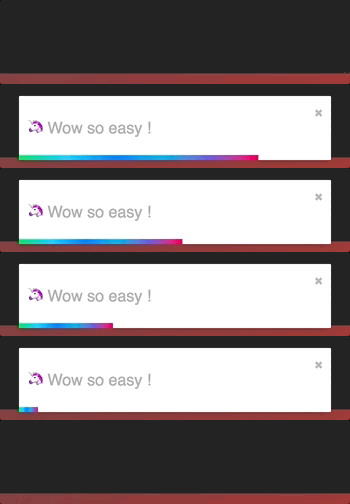
Slide
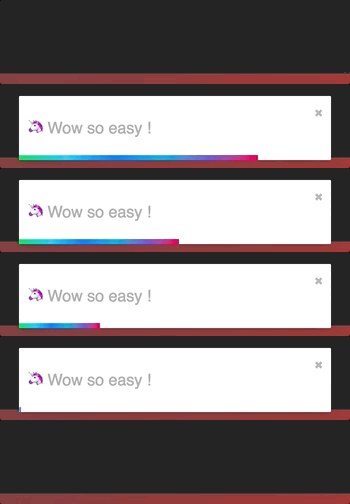
Zoom
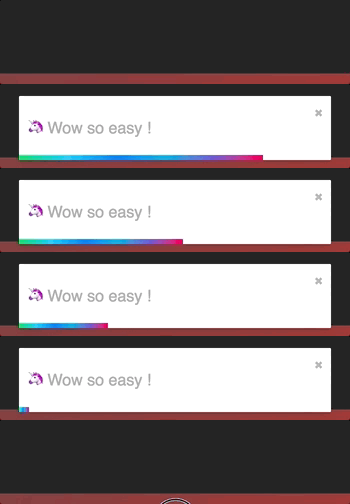
Flip
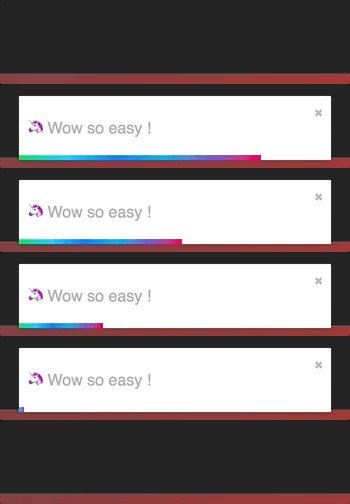
Bounce is used by default but you can replace it by your own transition or by one of the list above:
js
import { Slide, Zoom, Flip, Bounce } from 'react-toastify';
/>
//...
/>
`
You get the idea...$3
The toast relies on
for the enter and exit transition. Any transition built with react-transition-group should work !
I'll use the zoom animation from animate.css. Of course, you could create your own animation.
`css
/ style.css/
@keyframes zoomIn {
from {
opacity: 0;
transform: scale3d(.3, .3, .3);
} 50% {
opacity: 1;
}
}
.zoomIn {
animation-name: zoomIn;
}
@keyframes zoomOut {
from {
opacity: 1;
}
50% {
opacity: 0;
transform: scale3d(.3, .3, .3);
}
to {
opacity: 0;
}
}
.zoomOut {
animation-name: zoomOut;
}
/ Not needed with the cssTransition helper /
.animate {
animation-duration: 800ms;
}
`#### Ease your life with the cssTransition helper
The easiest way to roll your own transition is by using the
helper. Doing so you don't need to deal with react-transition-group. You only need to provide the enter and the exit class name, the transition duration is set
to 750ms by default but it can be overridden:`js
import React, { Component } from 'react';
import { toast, cssTransition } from 'react-toastify';
import './style.css';const Zoom = cssTransition({
enter: 'zoomIn',
exit: 'zoomOut',
// default to 750ms, can be omitted
duration = 750,
});
class App extends Component {
notify = () => {
toast("ZoomIn and ZoomOut", {
transition: Zoom,
autoClose: 5000
});
};
render(){
return ;
}
}
`##### Different duration for enter and exit
If you want the transition duration to be different between the enter and exit transition pass an array:
js
import React, { Component } from 'react';
import { toast, cssTransition } from 'react-toastify';
import './style.css';const Zoom = cssTransition({
enter: 'zoomIn',
exit: 'zoomOut',
duration: [500, 800]
});
class App extends Component {
notify = () => {
toast("ZoomIn and ZoomOut", {
transition: Zoom,
autoClose: 5000
});
};
render(){
return ;
}
}
`##### Handle transition based on the toast position
Some transitions are based on the toast position. This is the case for the default one. If you pass
to the cssTransition helper as shown below, the current position will be appended to the enter and exit class name:`js
import React, { Component } from 'react';
import { toast, cssTransition } from 'react-toastify';
import './style.css';const Zoom = cssTransition({
// zoomIn will become zoomIn--top-right or zoomIn--top-left and so on
enter: 'zoomIn',
// zoomIn will become zoomOut--top-right or zoomOut--top-left and so on
exit: 'zoomOut',
// default to false
appendPosition: true
});
class App extends Component {
notify = () => {
toast("ZoomIn and ZoomOut", {
transition: Zoom,
autoClose: 5000
});
};
render(){
return ;
}
}
`#### Create a transition from scratch
js
import React, { Component } from 'react';
import { toast } from 'react-toastify';
import Transition from 'react-transition-group/Transition';
import './style.css';const ZoomInAndOut = ({ children, position, ...props }) => (
{/ Same as the animation duration /}
timeout={800}
onEnter={ node => node.classList.add('zoomIn', 'animate')}
onExit={node => {
node.classList.remove('zoomIn', 'animate');
node.classList.add('zoomOut', 'animate');
}}
>
{children}
);
class App extends Component {
notify = () => {
toast("ZoomIn and ZoomOut", {
transition: ZoomInAndOut,
autoClose: 5000
});
};
render(){
return ;
}
}
`$3
You can swipe the toast to remove it:
!drag
#### Define the width percentage to remove the toast
You need to drag 80% of the toast width to remove it. This can be changed to fit your need:
- Replace the default one:
js
`- Replace per toast:
js
toast('Hello', {
  draggablePercent: 60
});
`#### Disable it
- Disable by default for all toast:
js
`- Disable per toast:
js
toast('Hello', {
  draggable: false
});
`
$3
#### style with css classes
javascript
toast("Custom style",{
  className: 'black-background',
  bodyClassName: "grow-font-size",
  progressClassName: 'fancy-progress-bar'
});
`#### style with glamor
javascript
import { css } from 'glamor';toast("Custom style",{
  className: css({
    background: 'black'
  }),
  bodyClassName: css({
    fontSize: '60px'
  }),
  progressClassName: css({
    background: "repeating-radial-gradient(circle at center, red 0, blue, green 30px)"
  })
});
`#### Define style globally
js
toastClassName="dark-toast"
progressClassName={css({
height: "2px"
})}
/>
`#### Right to left support
Your app need to support rtl content? Set the rtl props to
:`javascript
render(){
return(
{/Component/}
{/Component/}
);
}
`$3
On mobile the toast will take all the available width.
Api
$3
| Props | Type | Default | Description |
|-------------------------|------------------------|-----------|-----------------------------------------------------------------------------------------------------|
| position | string | top-right | One of top-right, top-center, top-left, bottom-right, bottom-center, bottom-left |
| autoClose | false or number | 5000 | Delay in ms to close the toast. If set to false, the notification need to be closed manualy |
| closeButton | React Element or false | - | A React Component to replace the default close button or
to hide the button |
| transition | function | - | A reference to a valid react-transition-group/Transition component |
| hideProgressBar | bool | false | Display or not the progress bar below the toast(remaining time) |
| pauseOnHover | bool | true | Keep the timer running or not on hover |
| pauseOnFocusLoss | bool | true | Pause the timer when the window loses focus |
| rtl | bool | false | Support right to left content |
| closeOnClick | bool | true | Dismiss toast on click |
| newestOnTop | bool | false | Display newest toast on top |
| className | string\|object | - | Add optional classes to the container |
| style | object | - | Add optional inline style to the container |
| toastClassName | string\|object | - | Add optional classes to the toast |
| bodyClassName | string\|object | - | Add optional classes to the toast body |
| progressClassName | string\|object | - | Add optional classes to the progress bar |
| progressStyle | object | - | Add optional inline style to the progress bar |
| draggable | bool | true | Allow toast to be draggable |
| draggablePercent | number | 80 | The percentage of the toast's width it takes for a drag to dismiss a toast(value between 0 and 100) |
$3
All the method of toast return a toastId except
dismiss and isActive.
The toastId can be used to remove a toast programmatically or to check if the toast is displayed.
| Parameter | Type | Required | Description |
| --------- | ------- | ------------- | ------------------------------------------------------------- |
| content | string or React Element | ✓ | Element that will be displayed |
| options | object | ✘ | Options listed below | |
- Available options :
-
type: Kind of notification. One of "default", "success", "info", "warning", "error". You can use toast.TYPE.SUCCESS and so on to avoid any typo.
- onOpen: Called inside componentDidMount
- onClose: Called inside componentWillUnmount
- autoClose: same as ToastContainer.
- closeButton: same as ToastContainer.
- transition: same as ToastContainer.
- closeOnClick: same as ToastContainer.
- hideProgressBar: same as ToastContainer.
- position: same as ToastContainer
- pauseOnHover: same as ToastContainer
- pauseOnFocusLoss: same as ToastContainer
- className: same as ToastContainer toastClassName
- bodyClassName: same as ToastContainer
- progressClassName: same as ToastContainer
- draggable: same as ToastContainer
- draggablePercent: same as ToastContainer
- toastId: optional integer or string to manually set a toastId. If an invalid type is provided a generated toastId will be used
- render: string or React Element, only available when calling update:warning:️ Toast options supersede ToastContainer props :warning:
:warning:️ Manually setting a toastId overwrite automatically generated toastIds :warning:
`javascript
const Img = ({ src }) =>  ;
;
const options = {
onOpen: props => console.log(props.foo),
onClose: props => console.log(props.foo),
autoClose: 6000,
closeButton:
type: toast.TYPE.INFO,
hideProgressBar: false,
position: toast.POSITION.TOP_LEFT,
pauseOnHover: true,
transition: MyCustomTransition,
// and so on ...
};const toastId = toast(![]() , options) // default, type: 'default'
, options) // default, type: 'default'
toast(({ closeToast }) =>
Render props like, options);
toast.success("Hello", options) // add type: 'success' to options
toast.info("World", options) // add type: 'info' to options
toast.warn(![]() , options) // add type: 'warning' to options
, options) // add type: 'warning' to options
toast.error(![]() , options) // add type: 'error' to options
, options) // add type: 'error' to options
toast.dismiss() // Remove all toasts !
toast.dismiss(toastId) // Remove given toast
toast.isActive(toastId) //Check if a toast is displayed or not
toast.update(toastId, {
type: toast.TYPE.INFO,
render: ![]()
});
`$3
| Parameter | Type | Required | Default | Description |
|----------------|--------|----------|---------|------------------------------------------------------------------------------------------------------------|
| enter | string | ✓ | - | The class name that will be used when the toast enter |
| exit | string | ✓ | - | The class name that will be used when the toast exit |
| duration | number\| Array | ✘ | 750 | The transition duration in ms. |
| appendPosition | bool | ✘ | false | Append or not the position to the class name:
, yourClassName--bottom-left... |`js
import { cssTransition } from 'react-toastify';const Zoom = cssTransition({
enter: 'zoomIn',
exit: 'zoomOut',
duration: 750,
appendPosition: false
});
const Zoom = cssTransition({
enter: 'zoomIn',
exit: 'zoomOut',
duration: [500, 600],
appendPosition: false
});
`Browser Support
!IE | !Chrome | !Firefox | !Opera | !Safari | !Edge
--- | --- | --- | --- | --- | --- |
IE 11+ ✔ | Latest ✔ | Latest ✔ | Latest ✔ | Latest ✔ | Latest ✔ |
Release Notes
You can find the release note for the latest release here
You can browse them all here
Contribute
Show your ❤️ and support by giving a ⭐. Any suggestions and pull request are welcome !
Try the playground:
js
npm start
``License
Licensed under MIT