A spell checker for JupyterLab.
npm install @ijmbarr/jupyterlab_spellchecker


A JupyterLab extension highlighting misspelled words in markdown cells within notebooks and in the text files.
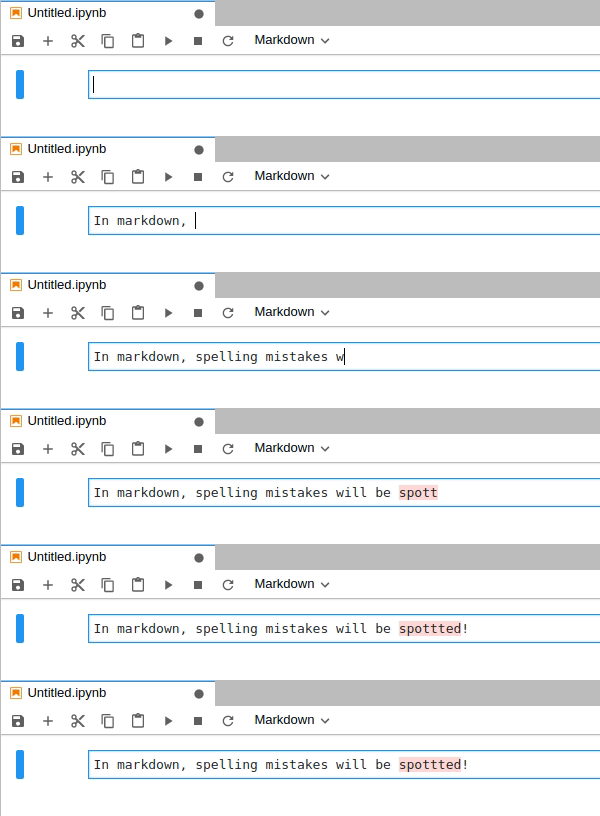
The JupyterLab extension is based on the spellchecker Jupyter Notebook extension and relies on Typo.js for the actual spell checking.
Spellchecker suggestions are available from the context menu. The style of the highlights can be customized in the Advanced Settings Editor.
The extension provides (Hunspell) SCOWL dictionaries for:
- American, British, Canadian, and Australian English
- French,
- German (Germany, Austria, Switzerland)
- Portuguese,
- Spanish
and will also use the Hunspell dictionaries installed in known paths which vary by operating systems.
If you use JupyterLab in a browser running on a different computer than the jupyter server, please note that the dictionaries need to be installed on the server machine.
You can add custom dictionary by placing Hunspell files it in dictionaries folder in one of the data locations as returned by:
``bash`
jupyter --paths
You should place two files with extensions .aff and .dic, and name following BCP 47 standards.
For more details, please see the example below.
For JupyterLab 3.x:
`bash`
pip install jupyterlab-spellchecker
or
`bash`
conda install -c conda-forge jupyterlab-spellchecker
For JupyterLab 2.x:
`bash`
jupyter labextension install @ijmbarr/jupyterlab_spellchecker
If jupyter --paths looks like:
`
config:
    /home/your_name/.jupyter
    /usr/local/etc/jupyter
    /etc/jupyter
data:
    /home/your_name/.local/share/jupyter
    /usr/local/share/jupyter
    /usr/share/jupyter
runtime:
    /home/your_name/.local/share/jupyter/runtime
and you want to add Polish language, you would put pl_PL.aff and pl_PL.dic in /home/your_name/.local/share/jupyter/dictionaries (you will need to create this folder), so that the final structure looks similar to:
`
/home/your_name/.local/share/jupyter
├── dictionaries
│   ├── pl_PL.aff
│   └── pl_PL.dic
├── kernels
│   └── julia-1.5
│       ├── kernel.json
│       ├── logo-32x32.png
│       └── logo-64x64.png
├── nbconvert
│   └── templates
│       ├── html
│       └── latex
├── nbsignatures.db
├── notebook_secret
└── runtime
#### Where to get the dictionaries from?
Some good sources of dictionaries include:
- LibreOffice/dictionaries GitHub repository
- Chromium repository
- (if you know of any other quality resources please send a PR to add them here)
#### Using online dictionaries
An alternative to saving the dictionary on your own disk (or more accurately on the disk where jupyter-server is set up)
is fetching the dictionaries from a remote URL. This requires an Internet connection to load the dictionary
(each time when you open JupyterLab or change the dictionary), and might be useful if you are not able
to save dictionaries on disk (e.g. when using JupyterLab on JupyterHub configured by someone else).
To configure the online dictionaries go to Advanced Settings Editor → Spellchecker
and set onlineDictionaries to an array of JSON objects like in the example below:
`json`
[
{
"id": "en_US-online",
"aff": "https://cdn.jsdelivr.net/codemirror.spell-checker/latest/en_US.aff",
"dic": "https://cdn.jsdelivr.net/codemirror.spell-checker/latest/en_US.dic",
"name": "My favorite variant of English"
}
]
Note: You will need NodeJS to build the extension package.
The jlpm command is JupyterLab's pinned version ofyarn
yarn that is installed with JupyterLab. You may use or npm in lieu of jlpm below.
`bash`Clone the repo to your local environment
Change directory to the jupyterlab_spellchecker directory
Install package in development mode
pip install -e .Link your development version of the extension with JupyterLab
jupyter labextension develop . --overwriteRebuild extension Typescript source after making changes
jlpm run build
pip install pytest
You can watch the source directory and run JupyterLab at the same time in different terminals to watch for changes in the extension's source and automatically rebuild the extension.
`bash`Watch the source directory in one terminal, automatically rebuilding when needed
jlpm run watchRun JupyterLab in another terminal
jupyter lab
Make sure that eslint passes:
`bash`
jlpm run eslint:check
If there are any issues it might be possible to autofix them with:
`bash`
jlpm run eslint
Run tests:
`bash``
python -m pytest