@innovatrics/dot-auto-capture-ui
v8.0.2
Digital onboarding UI
0/weekUpdated 3 weeks agoInnovatrics proprietary licenseUnpacked: 1.4 MB
Published by ddragun
npm install @innovatrics/dot-auto-capture-uiAuto Capture Ui Component
Overview
Innovatrics Auto Capture UI Component. Does not work as a standalone component. Recommended to be used with:
- Face Auto Capture Component
- Document Auto Capture Component
- Multi-Range Liveness Component
- MagnifEye Liveness Component
- Smile Liveness Component
- Palm Capture Component
Innovatrics Auto Capture UI Component is a web component that renders an overlay over the video stream. The overlay includes a placeholder, camera control buttons and instructions to guide the user to position their face, their palm or their ID document correctly.
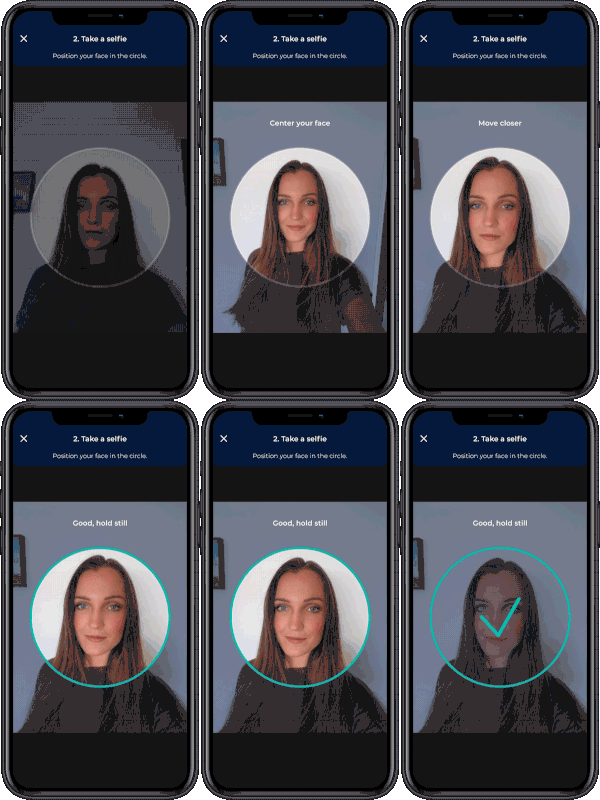
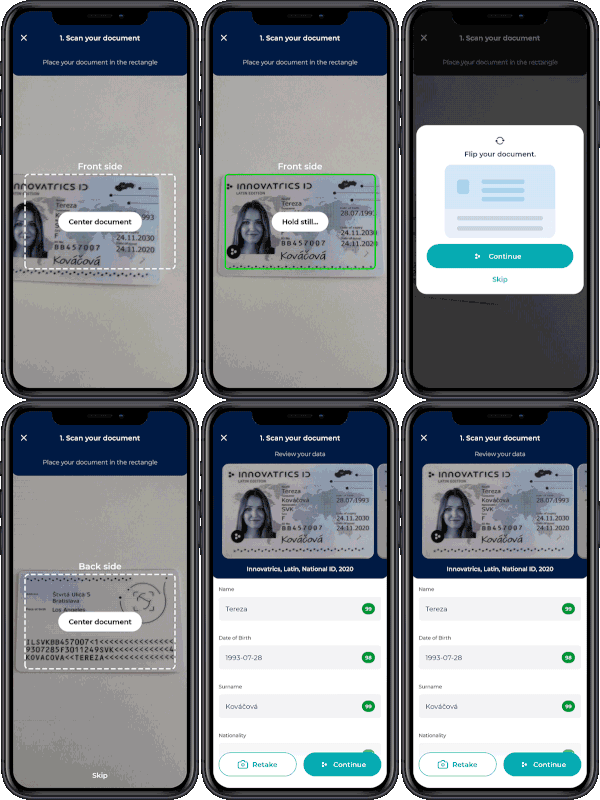
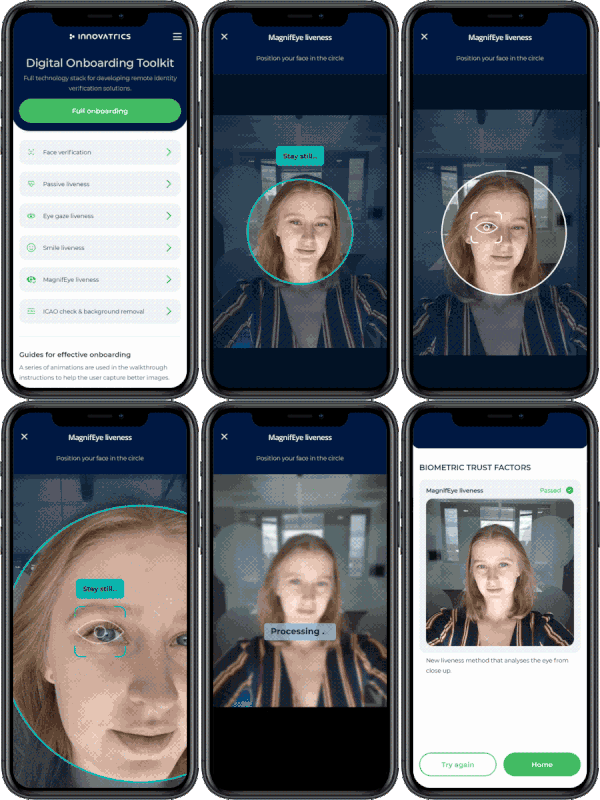
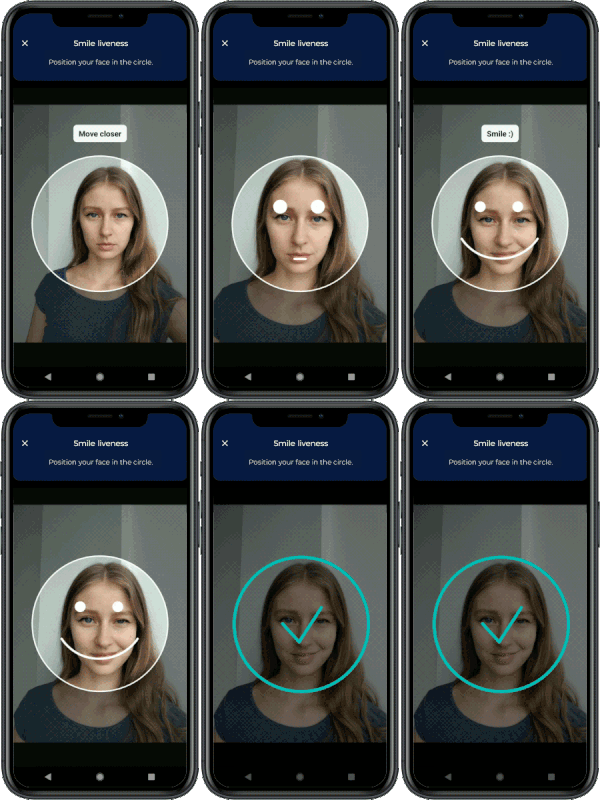
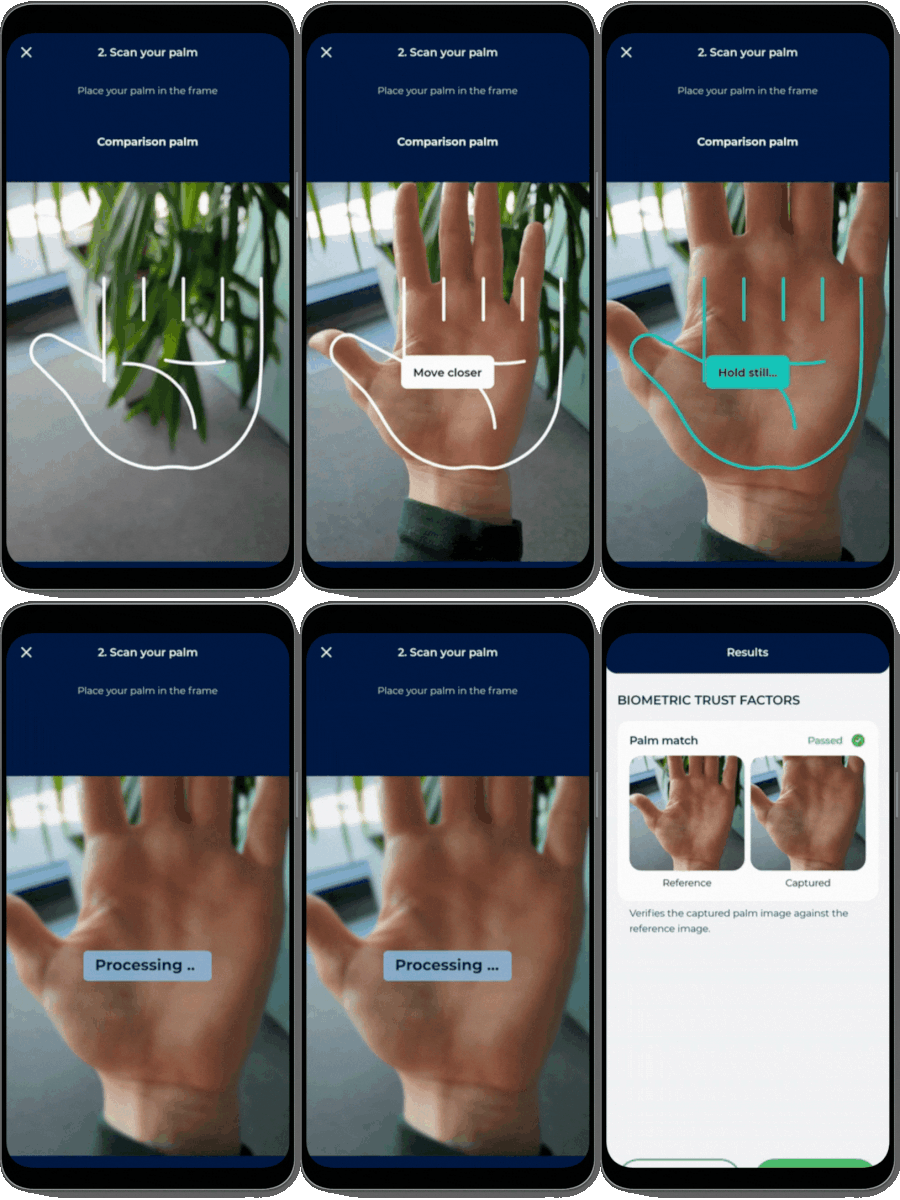
The Auto Capture UI Component can be used alongside other components to develop remote identity verification or digital onboarding solutions, as demonstrated in this demo application.
You can also check out the integration samples in various technologies (React, Vue, Angular, jQuery).
Pre-requisites
1. Core Components
IMPORTANT: For this component to work, it is highly recommended to be used along with
Face Auto Capture Component, Document Auto Capture Component, Multi-Range Liveness Component, MagnifEye Liveness Component, Smile Liveness Component or Palm Capture Component installed in your project. You can learn more about why this is important on our developers portal.
Integration with Face Auto Capture Component:
Both components must be wrapped in parent div with position: relative.
`` typescript`
onError={onError}
/>
Or you can see an example in documentation
Integration with Document Auto Capture Component:
Both components must be wrapped in parent div with position: relative.
` typescript`
onError={onError}
/>
Or you can see an example in documentation
Integration with Multi-Range Liveness Component:
Both components must be wrapped in parent div with position: relative and overflow: hidden.
` typescript`
onError={handleError}
challengeSequence={["ONE", "THREE", "FIVE", "ZERO"]} // Challenge needs to be obtained from the API call to the Digital Identity Service
transactionCountingToken="provide-the-token-here"
/>
Or you can see an example in documentation
Integration with MagnifEye Liveness Component:
Both components must be wrapped in parent div with position: relative and overflow: hidden.
` typescript`
onError={handleOnError}
/>
Or you can see an example in documentation
Integration with Smile Liveness Component:
Both components must be wrapped in parent div with position: relative and overflow: hidden.
` typescript`
onError={handleOnError}
/>
Or you can see an example in documentation
Integration with Palm Capture Component:
Both components must be wrapped in parent div with position: relative.
` typescript`
onError={handleOnError}
/>
Or you can see an example in documentation
Installation
Installation of the package is available via NPM, PNPM or Yarn:
Using NPM:
`bash`
$ npm install @innovatrics/dot-auto-capture-ui
Using PNPM:
`bash`
$ pnpm add @innovatrics/dot-auto-capture-ui
Using Yarn:
`bash``
$ yarn add @innovatrics/dot-auto-capture-ui
Usage
The Auto Capture UI Component is a web component which uses custom HTML tag. Properties need to be passed into the component after the tag was rendered.
Head to our developers portal to learn more about:
- Initial setup
- Usage with TypeScript
- Properties
- Custom events - communication between the Auto Capture UI Component and the Face Auto Capture Component or the Document Auto Capture Component
- Examples of using the Auto Capture UI Component and the Face Auto Capture Component, the Document Auto Capture Component, the Multi-Range Liveness Component, the MagnifEye Liveness Component, the Smile Liveness Component or the Palm Capture Component together
Changelog
Face Auto Capture Component changelog here.
Document Auto Capture Component changelog here.
Multi-Range Liveness Component changelog here.
MagnifEye Liveness Component changelog here.
Smile Liveness Component changelog here.
Palm Capture Component changelog here.
License
The Auto Capture UI Component is available under Innovatrics proprietary license.
The component can be used in a freemium mode without a license agreement. However, please note that the free version includes a watermark overlay in the component.
To obtain a license agreement and use the component without the overlay, please contact us at support@innovatrics.com.