@microsoft/connected-workbooks
v3.4.1TypeScript
Microsoft backed, Excel advanced xlsx workbook generation JavaScript library
0/weekUpdated 1 weeks agoMITUnpacked: 660.7 KB
Published by Microsoft
npm install @microsoft/connected-workbooksOpen In Excel


Open your data directly in Excel for the Web with zero installation - A JavaScript library that converts web tables and data into interactive Excel workbooks with Power Query integration and custom branded templates

---
✨ Key Features & Benefits
Transform your web applications with enterprise-grade Excel integration that goes far beyond simple CSV exports.
$3
Convert raw data or HTML tables arrays to Excel tables while preserving data types, ensuring your data maintains its structure and formatting. instead of basic CSV exports that lose all structure and functionality.
$3
Launch workbooks directly in Excel for the Web through any browser without requiring Excel desktop installation, making your data accessible to any user anywhere. No installation required, works on any device.
$3
Inject your data into pre-built Excel templates containing your company branding, PivotTables, charts, and business logic while preserving all formatting and calculations. Use your own branded Excel templates with PivotTables and charts to maintain corporate identity and pre-built analytics.
$3
Create workbooks that automatically refresh from your web APIs, databases, or data sources using Microsoft's Power Query technology, eliminating manual data updates. Create workbooks that refresh data on-demand using Power Query for real-time data updates and automated reporting.
$3
Full control over document properties including title and description for professional document management, allowing you to customize metadata and maintain enterprise standards.
---
🏢 Where is this library used?
Open In Excel powers data export functionality across Microsoft's enterprise platforms:
|
|:---:|:---:|:---:|:---:|
|Azure Data Explorer|Log Analytics|Datamart|Viva Sales|
---
🚀 Quick Start
$3
``
bash

npm install @microsoft/connected-workbooks
`
---


💡 Usage Examples


$3


Perfect for quick data exports from existing web tables.
`typescript
import { workbookManager } from '@microsoft/connected-workbooks';
// One line of code to convert any table
const blob = await workbookManager.generateTableWorkbookFromHtml(
document.querySelector('table') as HTMLTableElement
);
// Open in Excel for the Web with editing enabled
workbookManager.openInExcelWeb(blob, "QuickExport.xlsx", true);
`
$3


Transform raw data arrays into professionally formatted Excel tables.
`typescript
import { workbookManager } from '@microsoft/connected-workbooks';
const salesData = {
config: {
promoteHeaders: true, // First row becomes headers
adjustColumnNames: true // Clean up column names
},
data: [
["Product", "Revenue", "InStock", "Category", "LastUpdated"],
["Surface Laptop", 1299.99, true, "Hardware", "2024-10-26"],
["Office 365", 99.99, true, "Software", "2024-10-26"],
["Azure Credits", 500.00, false, "Cloud", "2024-10-25"],
["Teams Premium", 149.99, true, "Software", "2024-10-24"]
]
};
const blob = await workbookManager.generateTableWorkbookFromGrid(salesData);
workbookManager.openInExcelWeb(blob, "SalesReport.xlsx", true);
`

$3
Transform your data using pre-built Excel templates with your corporate branding.
Steps:
1. Prepare Your Template File
Open Excel and create (or open) your branded file.
2. Pick one sheet that will hold your data.
The default "Sheet1"(3)
3. Inside that sheet, choose were you want your data to be populated(1) and create a table (Insert → Table).
The default table name is Table1(2)
The table need to have the same column structure as your incoming data.
4. Add any charts, formulas, or formatting that reference this table.
Example: Pie chart using Gross column(4).
5. Save the Excel file (e.g., my-template.xlsx).
6. Use the saved file as the template for your incoming data
The library will then populate the designated table with your data. Any functions, figures, or references linked to this table within the Excel template will automatically reflect the newly exported data.

#### 📁 Loading Template Files
`typescript
// Method 1: File upload from user
const templateInput = document.querySelector('#template-upload') as HTMLInputElement;
const templateFile = templateInput.files[0];
// Method 2: Fetch from your server
const templateResponse = await fetch('/assets/templates/sales-dashboard.xlsx');
const templateFile = await templateResponse.blob();
// Method 3: Drag and drop
function handleTemplateDrop(event: DragEvent) {
const templateFile = event.dataTransfer.files[0];
// Use templateFile with the library
}
`
#### 📊 Generate Branded Workbook
`typescript
const quarterlyData = {
config: { promoteHeaders: true, adjustColumnNames: true },
data: [
["Region", "Q3_Revenue", "Q4_Revenue", "Growth", "Target_Met"],
["North America", 2500000, 2750000, "10%", true],
["Europe", 1800000, 2100000, "17%", true],
["Asia Pacific", 1200000, 1400000, "17%", true],
["Latin America", 800000, 950000, "19%", true]
]
};
// Inject data into your branded template
const blob = await workbookManager.generateTableWorkbookFromGrid(
quarterlyData,
undefined, // Use template's existing data structure
{
templateFile: templateFile,
TempleteSettings: {
sheetName: "Dashboard", // Target worksheet
tableName: "QuarterlyData" // Target table name
}
}
);
// Users get a fully branded report
workbookManager.openInExcelWeb(blob, "Q4_Executive_Dashboard.xlsx", true);
`

> 💡 Template Requirements: Include a query named "Query1" connected to a Table.


$3


Create workbooks that automatically refresh from your data sources.
`typescript
import { workbookManager } from '@microsoft/connected-workbooks';
// Create a workbook that connects to your API
const blob = await workbookManager.generateSingleQueryWorkbook({
queryMashup: let
Source = {1..10}
in
Source
,

  refreshOnOpen: true

});


workbookManager.openInExcelWeb(blob, "MyData.xlsx", true);
`
> 📚 Learn Power Query: New to Power Query? Check out the official documentation to unlock the full potential of live data connections.

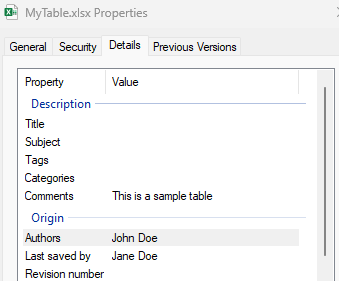
$3
Add metadata and professional document properties for enterprise use.
`typescript
const blob = await workbookManager.generateTableWorkbookFromHtml(
document.querySelector('table') as HTMLTableElement,
{
docProps: {
createdBy: 'John Doe',
lastModifiedBy: 'Jane Doe',
description: 'Sales Report Q4 2024',
title: 'Quarterly Sales Data'
}
}
);
// Download for offline use
workbookManager.downloadWorkbook(blob, "MyTable.xlsx");
`
📚 Complete API Reference


$3


#### 🔗
generateSingleQueryWorkbook()
Create Power Query connected workbooks with live data refresh capabilities.
`typescript
async function generateSingleQueryWorkbook(
query: QueryInfo,
grid?: Grid,
fileConfigs?: FileConfigs
): Promise
`
| Parameter | Type | Required | Description |

|-----------|------|----------|-------------|

|
query | QueryInfo | ✅ Required | Power Query configuration |
| grid | Grid | Optional | Pre-populate with data |
| fileConfigs | FileConfigs | Optional | Customization options |
#### 📋 generateTableWorkbookFromHtml()
Convert HTML tables to Excel workbooks instantly.
`typescript
async function generateTableWorkbookFromHtml(
htmlTable: HTMLTableElement,
fileConfigs?: FileConfigs
): Promise
`
| Parameter | Type | Required | Description |

|-----------|------|----------|-------------|

|
htmlTable | HTMLTableElement | ✅ Required | Source HTML table |
| fileConfigs | FileConfigs | Optional | Customization options |
#### 📊 generateTableWorkbookFromGrid()
Transform raw data arrays into formatted Excel tables.
`typescript
async function generateTableWorkbookFromGrid(
grid: Grid,
fileConfigs?: FileConfigs
): Promise
`
| Parameter | Type | Required | Description |

|-----------|------|----------|-------------|

|
grid | Grid | ✅ Required | Data and configuration |
| fileConfigs | FileConfigs | Optional | Customization options |
#### 🌐 openInExcelWeb()
Open workbooks directly in Excel for the Web.
`typescript
async function openInExcelWeb(
blob: Blob,
filename?: string,
allowTyping?: boolean
): Promise
`
| Parameter | Type | Required | Description |

|-----------|------|----------|-------------|

|
blob | Blob | ✅ Required | Generated workbook |
| filename | string | Optional | Custom filename |
| allowTyping | boolean | Optional | Enable editing (default: false) |
#### 💾 downloadWorkbook()
Trigger browser download of the workbook.
`typescript
function downloadWorkbook(file: Blob, filename: string): void
`
#### 🔗 getExcelForWebWorkbookUrl()
Get the Excel for Web URL without opening (useful for custom integrations).
`typescript
async function getExcelForWebWorkbookUrl(
file: Blob,
filename?: string,
allowTyping?: boolean
): Promise
`
---


🔧 Type Definitions


$3

Power Query configuration for connected workbooks.
`typescript
interface QueryInfo {
queryMashup: string; // Power Query M language code
refreshOnOpen: boolean; // Auto-refresh when opened
queryName?: string; // Query identifier (default: "Query1")
}
`
$3

Data structure for tabular information.
`typescript
interface Grid {
data: (string | number | boolean)[][]; // Raw data rows
config?: GridConfig; // Processing options
}
interface GridConfig {
promoteHeaders?: boolean; // Use first row as headers
adjustColumnNames?: boolean; // Fix duplicate/invalid names
}
`
$3

Advanced customization options.
`typescript
interface FileConfigs {
templateFile?: File | Buffer; // Custom Excel template
docProps?: DocProps; // Document metadata
hostName?: string; // Creator application name
TempleteSettings?: TempleteSettings; // Template-specific settings
}
interface TempleteSettings {
tableName?: string; // Target table name in template
sheetName?: string; // Target worksheet name
}
`
$3

Document metadata and properties.
`typescript
interface DocProps {
title?: string; // Document title
subject?: string; // Document subject
keywords?: string; // Search keywords
createdBy?: string; // Author name
description?: string; // Document description
lastModifiedBy?: string; // Last editor
category?: string; // Document category
revision?: string; // Version number
}
`
---


Contributing


This project welcomes contributions and suggestions. Most contributions require you to agree to a

Contributor License Agreement (CLA) declaring that you have the right to, and actually do, grant us

the rights to use your contribution. For details, visit https://cla.opensource.microsoft.com.


When you submit a pull request, a CLA bot will automatically determine whether you need to provide

a CLA and decorate the PR appropriately (e.g., status check, comment). Simply follow the instructions

provided by the bot. You will only need to do this once across all repos using our CLA.


This project has adopted the Microsoft Open Source Code of Conduct.

For more information see the Code of Conduct FAQ or

contact opencode@microsoft.com with any additional questions or comments.


$3

1. Fork the repository

2. Create a feature branch

3. Make your changes

4. Add tests for new functionality

5. Submit a pull request


$3
`bash
git clone https://github.com/microsoft/connected-workbooks.git
cd connected-workbooks
npm install
npm run build
npm test
``
---
📄 License
This project is licensed under the MIT License - see the LICENSE file for details.
🔗 Related Resources
- 📖 Power Query Documentation
- 🏢 Excel for Developers
- 🔧 Microsoft Graph Excel APIs
---
Trademarks
This project may contain trademarks or logos for projects, products, or services. Authorized use of Microsoft
trademarks or logos is subject to and must follow
Microsoft's Trademark & Brand Guidelines.
Use of Microsoft trademarks or logos in modified versions of this project must not cause confusion or imply Microsoft sponsorship.
Any use of third-party trademarks or logos are subject to those third-party's policies.
---
Keywords
Power Query, Excel, Office, Workbook, Refresh, Table, xlsx, export, CSV, data export, HTML table, web to Excel, JavaScript Excel, TypeScript Excel, Excel template, PivotTable, connected data, live data, data refresh, Excel for Web, browser Excel, spreadsheet, data visualization, Microsoft Office, Office 365, Excel API, workbook generation, table export, grid export, Excel automation, data processing, business intelligence