angular-keypad
v2.0.4
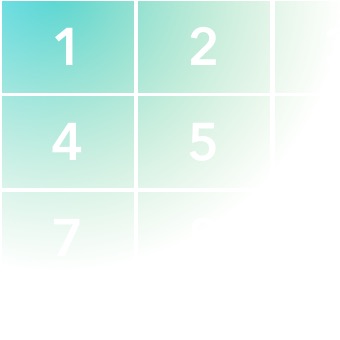
An Angular directive that creates a numeric keypad.
17/weekUpdated 3 years agoMIT
Published by Benjamin Charity
npm install angular-keypadangular-keypad
An Angular directive that creates a numeric keypad.
[![MIT License][license_image]][license_url] [![Coverage Status][coveralls_badge]][coveralls_link] [![NPM version][npm_version_image]][npm_url]
> [:tv: Plunker demo][demo_custom_theme]
_[Comments and Pull Requests welcome!][issues]_
---
Contents
- Installation
- Dependencies
- Usage
- Directive
- Attributes
- bc-number-model
- bc-max-length
- bc-right-button
- bc-left-button
- Custom Methods
- bc-right-button-method
- bc-left-button-method
- bc-empty-backspace-method
- Plug'n'Play Buttons
- bcKeypadConfigProvider
- setBackspaceTemplate
- setSubmitTemplate
- setMaxLength
- Styles
- angular-ripple
- Development
Installation
#### NPM
``bash`
npm install angular-keypad --save
#### Bower
`bash`
bower install angular-keypad --save
#### Manually
Add the script and styles to your HTML:
`html`
Dependencies
- Angular.js (>=1.4.0)
Usage
Include bc.AngularKeypad as a dependency in your project:
`javascript`
angular.module('YourModule', ['bc.AngularKeypad']);
Use the directive anywhere in your HTML. The keypad will expand to fill the width of it's container
while maintaining the aspect ratio of the keypad buttons.
`html
{{ vm.numbers }}
`
> [:tv: Simple Plunker demo][demo_basic]
#### bc-number-model
Required: String
The directive will store the current string of numbers here. This is the only required
attribute.
`html`
#### bc-max-length
Optional: Integer
The directive will use this number to set a hard limit on how many characters are allowed in the
number model (vm.numbers in the example below).
> [:tv: Plunker demo for max-length][demo_length]
`html`
bc-max-length="4"
>
#### bc-left-button
Optional: String
You can define a custom Plug'n'Play button type by passing in the name of
any valid (PnP) button.
> [:tv: Plunker demo for Plug'n'Play button types with custom methods][demo_pnp_with_methods]
`html`
bc-left-button="backspace"
>
#### bc-right-button
Optional: String
You can define a custom Plug'n'Play button type by passing in the name of
any valid (PnP) button.
> [:tv: Plunker demo for Plug'n'Play button types with custom methods][demo_pnp_with_methods]
`html`
bc-right-button="submit"
>
$3
#### bc-left-button-method
Optional: method
You can pass in a custom method that will be called each time the button is interacted with. This
allows you to track interaction or handle custom validation in your controller.
##### Available Parameters:
| Param | Type | Details |
|-------|------|---------|
| $event | Object | The original [event object][angular_event] from the ng-click |numbers
| | String | The current value of bc-number-model |
> [:tv: Plunker demo for Plug'n'Play button types with custom methods][demo_pnp_with_methods]
`html`
bc-left-button="backspace"
bc-left-button-method="vm.doSomething($event, numbers)"
>
`javascript
export class YourController {
constructor() {
this.numbers = '';
}
// I will be called each time the left (backspace) button is interacted with
doSomething($event, numbers) {
console.log('The backspace button on the left was clicked!');
console.log('Original click event object: ', $event)
console.log('Current number model value: ', numbers)
}
}
`
#### bc-right-button-method
Optional: method
You can pass in a custom method that will be called each time the button is interacted with. This
allows you to track interaction or handle custom validation in your controller.
##### Available Parameters:
| Param | Type | Details |
|-------|------|---------|
| $event | Object | The original [event object][angular_event] from the ng-click |numbers
| | String | The current value of bc-number-model |
> [:tv: Plunker demo for Plug'n'Play button types with custom methods][demo_pnp_with_methods]
`html`
bc-right-button="submit"
bc-right-button-method="vm.doSomething($event, numbers)"
>
`javascript
export class YourController {
constructor() {
this.numbers = '';
}
// I will be called each time the right (submit) button is interacted with
doSomething($event, numbers) {
console.log('The submit button on the right was clicked!');
console.log('Original click event object: ', $event)
console.log('Current number model value: ', numbers)
}
}
`
#### bc-empty-backspace-method
Optional: method
You can pass in a custom method that will be called when the backspace button is
interacted with and bc-number-model is already empty. This can be useful
for allowing users to step backwards through a multi-part form.
> [:tv: Plunker demo for bc-empty-backspace-method][demo_backspace_empty]
`html`
bc-right-button="backspace"
bc-empty-backspace-method="vm.backspaceWhenEmpty()"
>
`javascript
export class YourController {
constructor() {
this.numbers = '';
}
// I will be called when the backspace button is clicked and the numbers
// model is empty
backspaceWhenEmpty() {
console.log('Backspace clicked, but "vm.numbers" is empty!');
}
}
`
Plug'n'Play Buttons
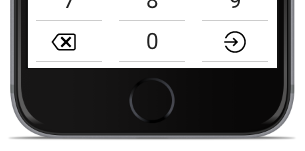
This directive now supports Plug'n'Play (PnP) button types to the
left and right of the final digit. These button types can be used on either side (or both if you
really wanted to).
> [:tv: Plunker demo for Plug'n'Play button types with custom methods][demo_pnp_with_methods]
##### Available (PnP) Button Types
Even when using a (PnP) button, any defined custom
methods will still be called.
Any (PnP) button template can be overwritten using methods exposed
via the provider.
---
`html`
bc-left-button="backspace"
bc-right-button="submit"
bc-right-button-method="vm.submitMyData($event, numbers)"
>
$3
`html`
bc-right-button="backspace"
>
This will create a backspace button with styles and functionality already wired together.
#### Functionality
Each time a backspace button instance is interacted with, the last number will be removed from
bc-number-model.
If a custom method was passed to bc-empty-backspace-method it will
be called when the backspace button is interacted with and bc-number-model
is already empty. This can be useful for allowing users to step backwards through a multi-part form.
Any defined custom methods will still be called.
#### Style
By default the button is using a raw SVG version of [ion-backspace-outline][ionicons_backspace]
from [ionicons][ionicons] since this allows you to customize the SVG styles with your project's CSS.
> [:tv: Plunker demo for custom button CSS][demo_custom_button_css]
![Ionicons backspace icon][backspace]
A special class is added to the backspace button which can be used to target specific styles:
`scss`
.bc-keypad__key-button--backspace {
fill: #DE1E7E;
}
$3
`html`
bc-right-button="submit"
>
This is a purely aesthetic (PnP) button type. No functionality is
attached, but any defined custom methods will still be called.
#### Style
By default the button is using a raw SVG version of [ion-log-in][ionicons_submit] from
[ionicons][ionicons] since this allows you to customize the SVG styles with your project's CSS.
> [:tv: Plunker demo for custom button CSS][demo_custom_button_css]
![Ionicons submit icon][submit]
A special class is added to the submit button which can be used to target specific styles:
`scss`
.bc-keypad__key-button--submit {
fill: #101CA7;
}
bcKeypadConfigProvider
This module exposes bcKeypadConfigProvider which can be used to set custom defaults for the
directive. Setting options here will overwrite the directive's default options for all instances
within your module.
> [:tv: Plunker demo for bcKeypadConfigProvider][demo_provider]
`javascript
// ES6 Config Example
export function config(bcKeypadConfigProvider) {
'ngInject';
// Set a default of '7' for the max length of all keypads within your module
bcKeypadConfigProvider.setMaxLength(7);
}
// ES5 Config Example
angular.module('myModule')
.config((bcKeypadConfigProvider) => {
'ngInject';
bcKeypadConfigProvider.setMaxLength(7);
})
;
`
$3
This allows you to specify a custom template for the backspace key.
By default it is using a raw SVG version of [ion-backspace-outline][ionicons_backspace] from
[ionicons][ionicons] since this allows you to overwrite the SVG styles with CSS.
> [:tv: Plunker demo for bcKeypadConfigProvider][demo_provider]
![Ionicons backspace icon][backspace]
`javascript`
bcKeypadConfigProvider.setBackspaceTemplate('↩');
$3
This allows you to specify a custom template for the submit key.
By default it is using a raw SVG version of [ion-log-in][ionicons_submit] from
[ionicons][ionicons] since this allows you to overwrite the SVG styles with CSS.
> [:tv: Plunker demo for bcKeypadConfigProvider][demo_provider]
![Ionicons log in icon][submit]
`javascript`
bcKeypadConfigProvider.setSubmitTemplate('Go');
$3
The directive will use this number to impose a hard limit on how many characters the model can hold.
This is useful for specific data items such as a phone number:
> [:tv: Plunker demo for bcKeypadConfigProvider][demo_provider]
![max-length demo][max_length_gif]
`javascript`
bcKeypadConfigProvider.setMaxLength(10);
Styles
The included styles are 99% layout with _just_ enough style to work out of the box. The true
styles should be written at your project level using the associated classes.
Your project CSS should always be included after any library CSS files. This makes it easy for you
to override or add to any styles defined by this module. Below are the classes available for
styling.
| Class | Element | Details |
|-------|---------|---------|
| .bc-keypad |
| Primary container () around the keypad. |
| .bc-keypad__key | | Individual wrapper for each key. |
| .bc-keypad__key--left | | Target the left customizable key. |
| .bc-keypad__key--center | | Target the last number key (between the two customizable keys). |
| .bc-keypad__key--right | | Target the right customizable key. |
| .bc-keypad__key-button |