React Native component for TableView made with pure CSS
npm install clwy-react-native-tableview-simple


:point_right: _This component is used in my production app Game ideas. Make sure to check it out!_ :point_left:
This cross-platform component is inspired by the iOS-TableView. Made with pure CSS, the intention is to provide a flexible and lightweight alternative to a bridged component. Don't be scared of React-Native upgrades anymore!
A possible use case might be an about- or a settings-screen with a few rows.
For displaying long datalists it is recommended to use the FlatList Component together with Cell and Separator Components. (see example or live demo with expo)
:rocket: If you like my component and want to buy me a coffee press the Sponsor Button and find out about GitHub Sponsors – Thanks! :point_left:
| | |
| :-------------------------------------------------------------------------------------------: | :---------------------------------------------------------------------------------------: |
| 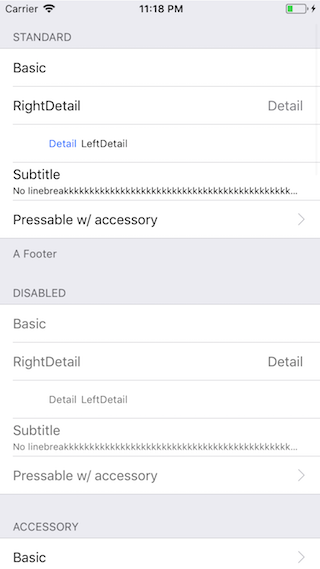 | 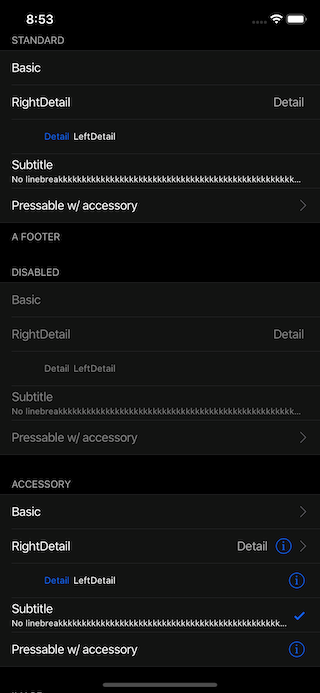 |
Have a look at the examples below! :-)
- Installation
- Extensible
- Props: TableView Cell Section Separator
- Examples
- Try it out
1. _Install as dependency:_
``sh`
npm i clwy-react-native-tableview-simple
2. _Add needed components:_
`javascript`
import { Cell, Section, TableView } from 'clwy-react-native-tableview-simple';
react-native-tableview-simple provides you with some predefined CSS-styles, inspired by the native TableView.Cell
You can always mix the -instances inside a Section, with other (React-Native)-Views.
Don't repeat yourself.
If you override the default props over and over again, just pass them as an object.
`jsx
const cellPropsCustom = {
cellStyle: 'Basic',
title: 'Basic Custom',
backgroundColor: 'black',
};
`
The Separator-Component is a line from the left end to the right end.Separator
According to the original iOS TableView there should be an insent on the left end.
This is done by separating the -Component in two parts: SeparatorContainer (full width) and SeparatorInner (width - inset). (See: Separator.tsx)SeparatorContainer
The has the same color that the Cell-Component above.SeparatorInner
The has the default Separator Color.SeparatorInner
Pressing a Cell Component will change the color of to transparent.
#### Why is that so complicated?
Because just hiding the separator would make the height of the component jump.
- TableView
- Cell
- Section
- Separator
The TableView component controls the theme.
| Prop | Default | Type | Description |
| :---------------- | :-----: | :----------------: | ----------------------------------------------------------------------------------------------------------------------------------------- |
| children | - | React.ReactNode | Children. Should be of type Section |auto
| appearance | | string | auto: System Appearance; light: Light Appearance; dark: Dark Appearance; [string]: Appearance defined through customAppearances |THEME_APPEARANCE
| customAppearances | - | | |ViewStyle
| style | - | | Applied to the table wrapper |
The Section component is needed to render the Cells together with Separators.Flatlist
It's possible to use the component instead (Example).
| Prop | Default | Type | Description |
| :------------------------ | :---------------------------: | :--------------------: | ------------------------------------------------------------------- |
| allowFontScaling | true | bool | Respect Text Size accessibility setting on iOS |React.Component
| footerComponent | - | | Inject any component to replace original footer (optional) |React.Component
| headerComponent | - | | Inject any component to replace original header (optional) |string
| footer | - | | Footer value |#6d6d72
| footerTextColor | | string | Text color of footer |{}
| footerTextStyle | | Text.propTypes.style | These styles will be applied to the footer Text-Component. |string
| header | - | | Header value |#6d6d72
| headerTextColor | | string | Text color of header |{}
| headerTextStyle | | Text.propTypes.style | These styles will be applied to the header Text-Component. |false
| hideSeparator | | bool | Hide separators |false
| hideSurroundingSeparators | | bool | Hide surrounding separators, best combined with roundedCorners |false
| roundedCorners | | bool | Enable rounded corners, best combined with hideSurroundingSeparator |15
| sectionPaddingBottom | | number | Padding bottom of section |15
| sectionPaddingTop | | number | Padding top of section |#EFEFF4
| sectionTintColor | | string | Background color of section |15
| separatorInsetLeft | | number | Left inset of separator |0
| separatorInsetRight | | number | Right inset of separator |#C8C7CC
| separatorTintColor | | string | Color of separator |true / false (on iOS <= 10)
| withSafeAreaView | | bool | Render section header and footer with SafeAreaView |
The style of the Cell component is inspired by the native UITableView.Cell
Because the component is created with CSS only, its highly flexible.props
The content of the cell is separated in three views, which can all be modified via : cellImageView | cellContentView | cellAccessoryView.
To get an idea what you can modify via props, have a look at the examples below.
| Prop | Default | Type | Description |
| :-------------------------------- | :---------------------------: | :---------------------------------------: | ----------------------------------------------------------------------------------------------------------------------------------------------------------------------------------- |
| accessory | - | string | Predefined accessory: DisclosureIndicator, Detail, DetailDisclosure, Checkmark |#007AFF
| accessoryColor | | string | Color of accessory |#C7C7CC
| accessoryColorDisclosureIndicator | | string | Color of accessory DisclosureIndicator |true
| allowFontScaling | | bool | Respect Text Size accessibility setting on iOS |#FFF
| backgroundColor | | string | Background color of cell |Basic
| cellStyle | | string | Predefined styles: Basic, RightDetail, LeftDetail, Subtitle |React.Component
| cellAccessoryView | - | | Replace accessory view component (_e.g.: add Switch or ActivityIndicator_) |React.Component
| cellContentView | - | | Replace content view component |React.Component
| cellImageView | - | | Replace image view component |React.Component
children | - | | Additional content to be displayed below the cell. (_e.g: Add Picker or DateTimePicker_){}
| contentContainerStyle | | View.propTypes.style | These styles will be applied to the content container which wraps all of the child views. Overrides cellStyle (_e.g.: Override paddingLeft and paddingRight or set fixed height_) |string
| detail | - | or number | Detail value |{}
| detailTextProps | | Text.propTypes | These props will be applied to the (left- / right-) detail Text-Component. |{}
| detailTextStyle | | Text.propTypes.style | These styles will be applied to the (left- / right-) detail Text-Component. |false
| disableImageResize | | bool | Disable resizing of image |false
| hideSeparator | | bool | Hide the following Separator-Component |0.8
| highlightActiveOpacity | | number | Opacity of cell when touch is active |black
| highlightUnderlayColor | | string | Color of underlay that will show through when touch is active |false
| isDisabled | | bool | Cell is disabled. onPress will not get triggered |React.Component (Image)
| image | - | | Image component displayed on the left. Will resized automatically |#007AFF
| leftDetailColor | | string | Text color of left detail |#8E8E93
| rightDetailColor | | string | Text color of right detail |#000
| subtitleColor | | string | Text color of subtitle |{}
| subtitleTextStyle | | Text.propTypes.style | These styles will be applied to the subtitle Text-Component. |undefined
| testID | | string | Add testID to root component |string
| title | - | or number or React.Component | Title value |#000
| titleTextColor | | string | Text color of title |{}
| titleTextProps | | Text.propTypes | These props will be applied to the title Text-Component. |{}
| titleTextStyle | | Text.propTypes.style | These styles will be applied to the title Text-Component (_e.g.: update fontSize or fontFamily_) |{}
| titleTextStyleDisabled | | Text.propTypes.style | These styles will be applied to the title Text-Component, when the cell is disabled |func
| onPress | - | or false | If set, cell will be automaticaly initialized with TouchableHighlight |func
| onPressDetailAccessory | - | or false | Listen to onPress event of detail accessory |true / false (on iOS <= 10)
| withSafeAreaView | | bool | Render cell with SafeAreaView |
#### Wrap Cell
Sometimes custom Cell components are needed.Cell
By creating a new component, which is based on , its only necessary to set the props once.Sections
However, this comes with certain downsides. In order to keep the API as easy to use as possible, I implemented some automations for the component.Cell.backgroundColor
For example, the prop will also decide on the backgroundColor of the Separator component.
Given the following pattern:
`javascript
import {
Cell,
Section,
TableView,
} from 'clwy-react-native-tableview-simple';
const CellVariant = (props) => (
cellContentView={
>
numberOfLines={1}
style={{ flex: 1, fontSize: 20 }}
>
{props.title}
}
/>
);
// ...
``
This pattern introduces an additional layer between Section and Cell: Section -> CellVariant -> Cell.Section
The component is expecting a Cell component as a child and therefor tries to access the props as defined for the Cell component.CellVariant.props
If following the mentioned pattern, this would fail, because only contains the prop title.Cell
Instead, I recommend to insert your new default props as description in this section: Override defaults of -Component.
If this is not enough for you, and you still need to have a custom cell component, consider merging both approaches:
`javascript
import {
Cell,
Section,
TableView,
} from 'clwy-react-native-tableview-simple';
const cellPropsVariant = {
hideSeparator: true,
backgroundColor: 'black',
};
const CellVariant = (props) => (
cellContentView={
>
numberOfLines={1}
style={{ flex: 1, fontSize: 20 }}
>
{props.title}
}
/>
);
// ...
``
In general the Separator component is used internally by the Section component.FlatList
But additionally this component can be used together with .
See the example below.
| Prop | Default | Type | Description |
| :--------------- | :---------------------------: | :------: | ------------------------------------- |
| backgroundColor | #EFEFF4 | string | Background color |15
| insetLeft | | number | Left inset of separator |0
| insetRight | | number | Right inset of separator |false
| isHidden | | bool | Hide separator but keeping its height |#C8C7CC
| tintColor | | string | Color of separator |true / false (on iOS <= 10)
| withSafeAreaView | | bool | Render separator with SafeAreaView |
The following examples can be found in the folder example.
To run the example project, follow these steps:
1. git clone https://github.com/Purii/react-native-tableview-simple
1.
1. or npm i
1. run via Xcode
- Quick look
- Use case: About-screen
- Complete example / vs. native iOS
- Render with FlatList
`javascript
// ActivityIndicator as accessory
cellAccessoryView={
contentContainerStyle={{ paddingVertical: 4 }} // Adjust height
/>
// Switch as accessory
cellAccessoryView={
/>
// TextInput
/>
// Image
image={
source={{
uri: 'https://facebook.github.io/react/img/logo_og.png',
}}
/>
}
/>
`
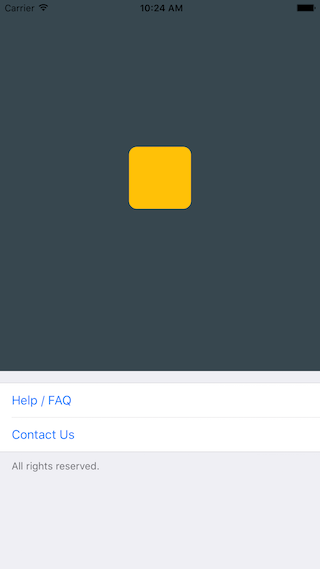
`javascript
/**
* Sample React Native App
* https://github.com/facebook/react-native
* @flow
*/
import React, { Component } from 'react';
import { AppRegistry, ScrollView, StyleSheet, Text, View } from 'react-native';
import { Cell, Section, TableView } from 'clwy-react-native-tableview-simple';
export default class App extends Component<{}> {
render() {
return (
backgroundColor: '#37474F',
height: 500,
alignItems: 'center',
justifyContent: 'center',
}}>
backgroundColor: '#ffc107',
width: 80,
height: 80,
borderRadius: 10,
}}
/>
titleTextColor="#007AFF"
onPress={() => console.log('open Help/FAQ')}
/>
titleTextColor="#007AFF"
onPress={() => console.log('open Contact Us')}
/>
);
}
}
const styles = StyleSheet.create({
stage: {
backgroundColor: '#EFEFF4',
paddingBottom: 20,
flex: 1,
},
});
`
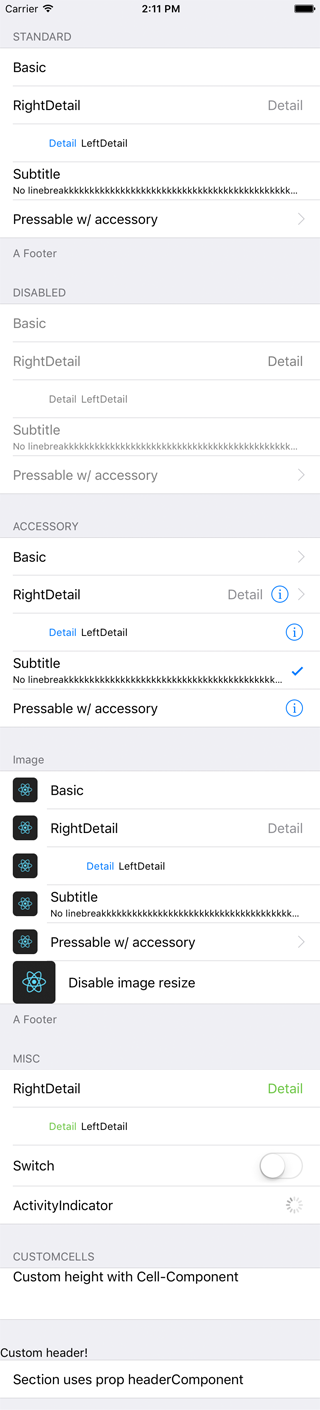
The left and middle screens are build using react-native-tableview-simple. The right one is native.
| react-native-tableview-simple (Dark Appearance) | react-native-tableview-simple | Native iOS |
| :---------------------------------------------------------------------------------------: | :-----------------------------------------------------------------------------------: | ------------------------------------------------------------------------------------------- |
|  |  | 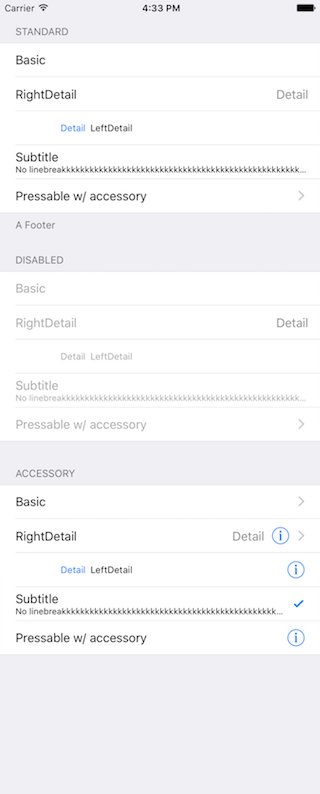 |
`javascript
/**
* Sample React Native App
* https://github.com/facebook/react-native
* @flow
*/
import React, { Component } from 'react';
import {
ActivityIndicator,
AppRegistry,
Dimensions,
Image,
ScrollView,
StyleSheet,
Switch,
Text,
TextInput,
View,
} from 'react-native';
import { Cell, Section, TableView } from 'clwy-react-native-tableview-simple';
export default class App extends Component<{}> {
render() {
return (
title="Subtitle"
detail="No linebreakkkkkkkkkkkkkkkkkkkkkkkkkkkkkkkkkkkkkkkkkkkkkkkkkkkkkkkkkkkkkkkkkkkk"
/>
title="Pressable w/ accessory"
accessory="DisclosureIndicator"
onPress={() => console.log('Heyho!')}
/>
isDisabled
title="RightDetail"
detail="Detail"
/>
isDisabled
title="LeftDetail"
detail="Detail"
/>
isDisabled
title="Subtitle"
detail="No linebreakkkkkkkkkkkkkkkkkkkkkkkkkkkkkkkkkkkkkkkkkkkkkkkkkkkkkkkkkkkkkkkkkkkk"
/>
isDisabled
title="Pressable w/ accessory"
accessory="DisclosureIndicator"
onPress={() => console.log('Heyho!')}
/>
accessory="DisclosureIndicator"
title="Basic"
/>
accessory="DetailDisclosure"
title="RightDetail"
detail="Detail"
/>
accessory="Detail"
title="LeftDetail"
detail="Detail"
/>
accessory="Checkmark"
title="Subtitle"
detail="No linebreakkkkkkkkkkkkkkkkkkkkkkkkkkkkkkkkkkkkkkkkkkkkkkkkkkkkkkkkkkkkkkkkkkkk"
/>
accessory="Detail"
title="Pressable w/ accessory"
onPress={() => console.log('Heyho!')}
/>
title="Basic"
image={
source={{
uri: 'https://facebook.github.io/react/img/logo_og.png',
}}
/>
}
/>
title="RightDetail"
detail="Detail"
image={
source={{
uri: 'https://facebook.github.io/react/img/logo_og.png',
}}
/>
}
/>
title="LeftDetail"
detail="Detail"
image={
source={{
uri: 'https://facebook.github.io/react/img/logo_og.png',
}}
/>
}
/>
title="Subtitle"
detail="No linebreakkkkkkkkkkkkkkkkkkkkkkkkkkkkkkkkkkkkkkkkkkkkkkkkkkkkkkkkkkkkkkkkkkkk"
image={
source={{
uri: 'https://facebook.github.io/react/img/logo_og.png',
}}
/>
}
/>
title="Pressable w/ accessory"
accessory="DisclosureIndicator"
onPress={() => console.log('Heyho!')}
image={
source={{
uri: 'https://facebook.github.io/react/img/logo_og.png',
}}
/>
}
/>
title="Disable image resize"
disableImageResize
image={
source={{
uri: 'https://facebook.github.io/react/img/logo_og.png',
}}
/>
}
/>
title="RightDetail"
detail="Detail"
rightDetailColor="#6cc644"
/>
title="LeftDetail"
detail="Detail"
leftDetailColor="#6cc644"
/>
title="Switch"
cellAccessoryView={
contentContainerStyle={{ paddingVertical: 4 }}
/>
title="ActivityIndicator"
cellAccessoryView={
/>
placeholder="TextInput"
/>
}
/>
contentContainerStyle={{ alignItems: 'flex-start', height: 60 }}
cellContentView={
Custom height with Cell-Component
}
/>
}>
minHeight: Dimensions.get('window').height,
}}>
backgroundColor: '#37474F',
height: 500,
alignItems: 'center',
justifyContent: 'center',
}}>
backgroundColor: '#ffc107',
width: 80,
height: 80,
borderRadius: 10,
}}
/>
titleTextColor="#007AFF"
onPress={() => console.log('open Help/FAQ')}
/>
titleTextColor="#007AFF"
onPress={() => console.log('open Contact Us')}
/>
);
}
}
const styles = StyleSheet.create({
stage: {
backgroundColor: '#EFEFF4',
paddingTop: 20,
paddingBottom: 20,
},
});
`
Be aware of the prop keyboardShouldPersistTaps if using ScrollView or similar components. (See #85)
`javascript
import React from 'react';
import { FlatList } from 'react-native';
import { Cell, Separator, TableView } from 'clwy-react-native-tableview-simple';
const data = [
{ id: 1, title: '1' },
{ id: 2, title: '2' },
{ id: 3, title: '3' },
{ id: 4, title: '4' },
];
export default ExampleWithFlatList = () => (
keyExtractor={(item, index) => item.id}
renderItem={({ item, separators }) => (
onPress={console.log}
onHighlightRow={separators.highlight}
onUnHighlightRow={separators.unhighlight}
/>
)}
ItemSeparatorComponent={({ highlighted }) => (
)}
/>
);
``
Try it in Expo: https://snack.expo.io/@purii/react-native-tableview-simple