copy-image-clipboard
v2.1.2TypeScript
Lightweight library to copy png and jpg images to clipboard
9.5K/weekUpdated 3 years agoMITUnpacked: 35.1 KB
Published by Luan Eduardo da Costa

Copy Image Clipboard






👉 TEST IN YOUR BROWSER 👈
- :white_check_mark: Copy JPG or PNG images to clipboard easily.
- :white_check_mark: It is a lightweight library with
0 dependencies.
- :white_check_mark: You can use with React, Vue, Angular or with any other framework.
---
:arrow_down: Installation
$3
``
bash

yarn add copy-image-clipboard
`
`bash
npm i copy-image-clipboard
`
$3


Without a package manager you have to choose one of these:


Use from a CDN Provider


jsDelivr
`javascript
`
With a CDN Provider you will be using the dist/index.browser.js file. _See more about this file below_.


---


Download the entire repository


- Use
degit to download this repository without the git history:
`
npx degit LuanEdCosta/copy-image-clipboard
`
- Download a zipped file on GitHub:
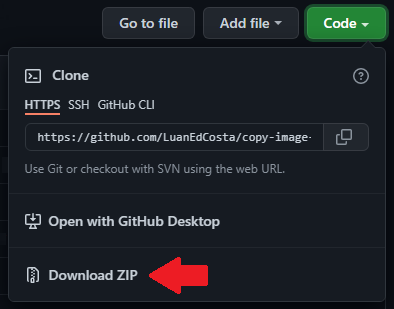
After downloading the repository, you can use a file from the dist folder in your code. _See more about the dist folder files below_.
---
Download a file from the dist folder
Open the dist folder and choose one of these files to download:
- dist/index.browser.js
- dist/index.common.js
- dist/index.js
_See more about these files below._
---
#### About the dist folder
- index.browser.js
- Minified to use in browsers
- Exposes everything in a variable called CopyImageClipboard. e.g. CopyImageClipboard.copyImageToClipboard('...').
- index.js
- Uses ESM module format.
- Is not minified.
- index.common.js
- Uses CommonJs module format.
- Is not minified.
- index.d.ts
- Contains TypeScript types.
:zap: Usage
$3
:point_right: ![]() src="...">
src="...">
This approach downloads the image using window.fetch, transform to PNG if is JPEG and then copy to clipboard using the image original dimensions.
`javascript
// Import the copy function
import { copyImageToClipboard } from 'copy-image-clipboard'
// Pass the image src attribute here
copyImageToClipboard('assets/image.png')
.then(() => {
console.log('Image Copied')
})
.catch((e) => {
console.log('Error: ', e.message)
})
// Can be an URL too, but be careful because this may cause CORS errors
copyImageToClipboard(
'https://images-na.ssl-images-amazon.com/images/I/81BES%2BtsVvL.png',
)
.then(() => {
console.log('Image Copied')
})
.catch((e) => {
console.log('Error: ', e.message)
})
`
$3


With this approach no HTTP request is necessary, but the image is copied with the image element dimensions in the document. If the image is 1000x1000 but is shown as 300x300, the copied image will be 300x300. Use
copyImageToClipboard function to copy the image with its original dimensions.
`javascript
import {
getBlobFromImageElement,
copyBlobToClipboard,
} from 'copy-image-clipboard'
const imageElement = document.getElementById('image')
getBlobFromImageElement(imageElement)
.then((blob) => {
return copyBlobToClipboard(blob)
})
.then(() => {
console.log('Blob Copied')
})
.catch((e) => {
console.log('Error: ', e.message)
})
`
$3


Use this function to synchronously check at runtime whether you can copy images to the clipboard. It checks if it can use the Fetch API and the Clipboard API.
`javascript
import { canCopyImagesToClipboard } from 'copy-image-clipboard'
const canCopy = canCopyImagesToClipboard()
console.log('Can Copy Images To Clipboard:', canCopy)
`
$3


Warnings:


- Permission to write data to the clipboard is automatically granted to pages when they are in the active tab, so generally you don't need to use this function.

- If the browser has not implemented the Permissions API yet, this function will return false. Check the browser compatibility here: Permissions API Browser Compatibility.
`javascript
import { requestClipboardWritePermission } from 'copy-image-clipboard'
requestClipboardWritePermission().then((hasPermission) => {
console.log('Has Permission:', hasPermission)
})
`
:star: Demos


- React + TypeScript - Show me the code | See it running in your browser

- Pure JavaScript Example - See on Codepen.io


_You can contribute with more examples if you want_ :smile:


:globe_with_meridians: Compatibility


This project uses the asynchronous Clipboard API and Fetch API. Most browsers already support natively these two APIs, but for the old ones like Internet Explorer this library doesn't work and there's nothing you can do about it.


Use the links below to see the browser compatibility:


- Clipboard API - MDN

- Clipboard API - Can I Use

- Fetch - MDN

- Fetch - Can I Use


$3


From Version 87: You need to set
dom.events.asyncClipboard.clipboardItem preference to true. To change preferences in Firefox, visit about:config`.
:stop_sign: Known Limitations
- For now you can copy only JPG and PNG images
Other image types are not supported. If you try to copy other type an error will be thrown.
- This library only works in pages with HTTPS
This limitation was defined by the browsers due to security risks involved when dealing with the user's clipboard.
- You can only copy an image in the user's active tab/document
If the user is navigating in another tab and the copy function is called, an error will be thrown.
:handshake: Contribution
Every kind of help is appreciated and this project can be better with your help.
What you can do:
- Create an issue to suggest an improvement or to describe a bug.
- Read the Contribution Guide to see how to contribute with code.
:blue_book: License
This project is under the MIT LICENSE.