cordova-plugin-google-maps-sdk
v2.9.3
Google Maps native SDK for Android and iOS, and Google Maps JavaScript API v3 for browser.
0/weekUpdated 2 weeks agoApache-2.0Unpacked: 8.7 MB
Published by Masashi Katsumata, Hirbod Mirjavadi, Manuel Beck
npm install cordova-plugin-google-maps-sdkGoogle Maps SDK plugin for Cordova - Version 2.9.3
This is the successor of cordova-plugin-googlemaps.
This plugin allows you to display a native Google Maps layer with the Google Maps SDK in your application and uses the following libraries:
| Platform | Library | Version |
| :-------- | :------ | :------ |
| android | Google Maps SDK for Android | com.google.android.gms:play-services-maps:19.0.0 and com.google.android.gms:play-services-location:21.3.0 |
| ios | Google Maps SDK for iOS | 10.7.0 |
| browser |Google Maps JavaScript API | V3 |
Why using Google Maps SDK instead of Google Maps JavaScript API?
This plugin allows Cordova apps to use the native Google Maps SDK for iOS and Android instead of the Google Maps JavaScript API. Using the native SDK offers several important advantages:
- High performance: The map is rendered as a native GPU-accelerated view, delivering smooth animations, fast interactions, and excellent performance even with many markers or overlays.
- Native touch gestures: Pinch-to-zoom, rotation, and panning behave exactly like in a fully native app, without conflicts with the WebView.
- Mobile-first experience: The map feels and responds like a real native component, giving your app a more polished and professional user experience.
- Access to native features: Includes capabilities not available in the JS API, such as vector maps, indoor maps, native “My Location” controls, better marker handling, and offline caching.
- Scales for complex use cases: Ideal for apps that need real-time tracking, many overlays, high interaction frequency, or advanced map features.
- Restrict access to your API key by the package name of your app.
If your app only needs a simple, static map, the Google Maps JavaScript API may be sufficient. But if you want performance, smooth gestures, native behavior, and advanced map capabilities, the native SDK provides a clearly superior experience.
In Browser platform, this plugin uses Google Maps JavaScript API.
In order to work for all platforms, this plugin provides its own API instead of each original APIs. You can write your code similar to the Google Maps JavaScript API.
You can read more about here What is the difference between this plugin and Google Maps JavaScript API v3?
Guides
- How to generate API keys?
- Hello, World
- Trouble shootings
Installation
$3
#### Latest version
To install the latest master:
``bash`
cordova plugin add https://github.com/GitToTheHub/cordova-plugin-google-maps-sdk
#### Specific Version
To install a specific version you can use git tags. Example for installing version 2.9.0:
`bash`
cordova plugin add https://github.com/GitToTheHub/cordova-plugin-google-maps-sdk#v2.9.0
$3
This plugin uses CocoaPods since Version 2.8.0 to add the Google Maps SDK as a dependency. Since Version 2.9.0
Google Maps SDK for iOS 10.0.0 is used and requires a minimum deployment-target of iOS 16. To achieve this, the plugin sets the deployment-target to iOS 16.0 in your config.xml, but only, if you didn't specify it. iOS 16 is compatible with iPhones from iPhone 8 (from the year 2017) and newer, including iPhone SE (2nd and 3rd generation). Since Google Maps SDK version 7.3.0 it's possible to run the plugin on a simulator on a Mac with a M CPU (Apple Silicon) using the Metal renderer.#### Long installation time with CocoaPods
The installation can keep a long time when the plugin is installed for iOS, because CocoaPods loads the Google Maps SDK for iOS which can have many hundreds of MBs. It's not an error if you see a long time the message and nothing seems to happen anymore:
`bash
Cloning into 'cocoapods'...
``If this task takes a huge amount of time, you could have a bad internet connection.
#### Migration from CocoaPods to Swift Package Manager in the future
CocoaPods is deprecated and will be a read-only respository after 2. December 2026. Google will support CocoaPods till Sommer 2026. After that, no updates will be published to CocoaPods and instead Swift Package Manager (SPM) has to be used to continue receiving updates. cordova-ios 8 supports Swift Package Manager and the plugin is already compatible with it, but, to not break support with cordova-ios 7, this plugin still uses CocoaPods and will migrate later to Swift Package Manager.
#### Upgrade from
 repository
To upgrade from plugin version 2.7.1 from the old reposiotry to Version 2.8.0 or newer of this respository you have to remove the old plugin and old iOS Google Map dependency:`bash
cordova plugin remove cordova-plugin-googlemaps
cordova plugin remove com.googlemaps.ios
`Also you have to remove the old GoogleMaps dependency from your
and package-lock.json manually:`json
"cordova-plugin-googlemaps-sdk": "github:mapsplugin/cordova-plugin-googlemaps-sdk",
`Remove also the follwoing from the
:`json
"node_modules/cordova-plugin-googlemaps-sdk": {
"version": "3.9.0",
"resolved": "git+ssh://git@github.com/mapsplugin/cordova-plugin-googlemaps-sdk.git#f16676a612b1bf50fb482d2dd0ad9109daabc2b1",
"dev": true
},
`
After that, you can add this plugin:bash
cordova plugin add https://github.com/GitToTheHub/cordova-plugin-google-maps-sdk
`If you get a CocoaPod error, that a compatible version for GoogleMaps couldn't be found:
bash
[!] CocoaPods could not find compatible versions for pod "GoogleMaps":
  In Podfile:
    GoogleMaps (~> 10.0.0)
`You can update the CocoaPod source repos with
executing it in platforms/ios of your Cordova project.Changelog of Google Maps SDK for iOS versions: https://developers.google.com/maps/documentation/ios-sdk/release-notes
#### Problems with older Google Maps SDK for iOS versions
##### EXC_BAD_ACCESS (KERN_INVALID_ADDRESS) gmscore::vector::TextureAtlasElement::height() const
Since Google Maps SDK 7.4.0 an
EXC_BAD_ACCESS could occur on a simulator when using the map and the Metal renderer. This is still an open bug on Google's issue tracker: https://issuetracker.google.com/issues/338162114. When this plugin used Google Maps SDK for iOS version 9.3.0, the error was reproduceable, but after upgrading to version 10.0.0 the error was not reproduceable on a iOS 18.5 simulator. So maybe this problem is solved.##### EXC_BAD_ACCESS in glvmRasterOpDepthStencilTest (gmscore::renderer::GLEntity::Draw)
Happend only on a simulator with iOS 15 since Google Maps SDK 6.0.0 when using OpenGL:
https://issuetracker.google.com/issues/224584852. Since the minimum
deployment-target was raised to 16.0 and Metal is used, this no issue anymore.$3
Setup you Google Maps API keys for Android & iOS in your
config.xml as follows:
`xml
`For the browser platform you need to specify the API-Key in JavaScript before calling
:`js
plugin.google.maps.environment.setEnv({
// for https: protocol
'API_KEY_FOR_BROWSER_RELEASE': '(YOUR_API_KEY_IS_HERE)',
// for http: protocol
'API_KEY_FOR_BROWSER_DEBUG': '' // optional
});// Create a Google Maps native view under the map_canvas div.
var map = plugin.google.maps.Map.getMap(div);
`$3
#### Android
-
: Defaults to 19.0.0
- : Defaults to 21.3.0#### iOS
-
: This message is displayed when your application requests location permission for only necessary times.
- LOCATION_ALWAYS_USAGE_DESCRIPTION: This message is displayed when your application requests location permission for always.---------------------------------------------------------------------------------------------------------
Release Notes
See CHANGELOG.mdDemos
You can see a demo in your browser:https://mapsplugin.github.io/HelloGoogleMap

Documentation
You can find the documentation in its own repository:
https://github.com/GitToTheHub/cordova-plugin-google-maps-sdk-doc
It's sourced out, so this repository gets not too big and takes less space when added to a project.
Quick examples

Map
var options = {
camera: {
target: {lat: ..., lng: ...},
zoom: 19
}
};
var map = plugin.google.maps.Map.getMap(mapDiv, options)

Marker
var marker = map.addMarker({
position: {lat: ..., lng: ...},
title: "Hello Cordova Google Maps for iOS and Android",
snippet: "This plugin is awesome!"
})

MarkerCluster
var markerCluster = map.addMarkerCluster({
//maxZoomLevel: 5,
boundsDraw: true,
markers: dummyData(),
icons: [
{min: 2, max: 100, url: "./img/blue.png", anchor: {x: 16, y: 16}},
{min: 100, max: 1000, url: "./img/yellow.png", anchor: {x: 16, y: 16}},
{min: 1000, max: 2000, url: "./img/purple.png", anchor: {x: 24, y: 24}},
{min: 2000, url: "./img/red.png",anchor: {x: 32,y: 32}}
]
});

HtmlInfoWindow
var html = "<img src='./House-icon.png' width='64' height='64' >" +
"<br>" +
"This is an example";
htmlInfoWindow.setContent(html);
htmlInfoWindow.open(marker);

Circle
var circle = map.addCircle({
'center': {lat: ..., lng: ...},
'radius': 300,
'strokeColor' : '#AA00FF',
'strokeWidth': 5,
'fillColor' : '#880000'
});

Polyline
var polyline = map.addPolyline({
points: AIR_PORTS,
'color' : '#AA00FF',
'width': 10,
'geodesic': true
});

Polygon
var polygon = map.addPolygon({
'points': GORYOKAKU_POINTS,
'strokeColor' : '#AA00FF',
'strokeWidth': 5,
'fillColor' : '#880000'
});

GroundOverlay
var groundOverlay = map.addGroundOverlay({
'url': "./newark_nj_1922.jpg",
'bounds': [
{"lat": 40.712216, "lng": -74.22655},
{"lat": 40.773941, "lng": -74.12544}
],
'opacity': 0.5
});

TileOverlay
var tileOverlay = map.addTileOverlay({
debug: true,
opacity: 0.75,
getTile: function(x, y, zoom) {
return "../images/map-for-free/" + zoom + "_" + x + "-" + y + ".gif"
}
});

KmlOverlay
map.addKmlOverlay({
'url': 'polygon.kml'
}, function(kmlOverlay) { ... });

Geocoder
plugin.google.maps.Geocoder.geocode({
// US Capital cities
"address": [
"Montgomery, AL, USA", ... "Cheyenne, Wyoming, USA"
]
}, function(mvcArray) { ... });

poly utility
var GORYOKAKU_POINTS = [
{lat: 41.79883, lng: 140.75675},
...
{lat: 41.79883, lng: 140.75673}
]
var contain = plugin.google.maps.geometry.poly.containsLocation(
position, GORYOKAKU_POINTS);
marker.setIcon(contain ? "blue" : "red");

encode utility
var GORYOKAKU_POINTS = [
{lat: 41.79883, lng: 140.75675},
...
{lat: 41.79883, lng: 140.75673}
]
var encodedPath = plugin.google.maps.geometry.
encoding.encodePath(GORYOKAKU_POINTS);

spherical utility
var heading = plugin.google.maps.geometry.spherical.computeHeading(
markerA.getPosition(), markerB.getPosition());
label.innerText = "heading : " + heading.toFixed(0) + "°";

Location service
plugin.google.maps.LocationService.getMyLocation(function(result) {
alert(["Your current location:\n",
"latitude:" + location.latLng.lat.toFixed(3),
"longitude:" + location.latLng.lng.toFixed(3),
"speed:" + location.speed,
"time:" + location.time,
"bearing:" + location.bearing].join("\n"));
});

StreetView
var div = document.getElementById("pano_canvas1");
var panorama = plugin.google.maps.StreetView.getPanorama(div, {
camera: {
target: {lat: 42.345573, lng: -71.098326}
}
});
---------------------------------------------------------------------------------------------------------
$3
Google Maps JavaScript API v3 works on any platforms,
but it does not work if device is offline.
This plugin uses three different APIs:
- Android : Google Maps Android API
- iOS : Google Maps SDK for iOS
- Browser : Google Maps JavaScript API v3
In Android and iOS applications, this plugin displays native Google Maps views, which is faster than Google Maps JavaScript API v3.
And it even works if the device is offline.
In Browser platform, this plugin displays JS map views (Google Maps JavaScript API v3).
It should work as PWA (progressive web application), but the device has to be online.
In order to work for all platforms, this plugin provides own API instead of each original APIs.
You can write your code
similar to the Google Maps JavaScript API v3.Feature comparison table
| | Google Maps JavaScript API v3 | Cordova Plugin (Android,iOS) | Cordova Plugin (Browser) |
|----------------|-----------------------------------|---------------------------------------|---------------------------------------|
|Rendering system| JavaScript + HTML | JavaScript + Native API's | JavaScript |
|Offline map | Not possible | Possible (only your displayed area) | Not possible |
|3D View | Not possible | Possible | Not possible |
|Platform | All browsers | Android and iOS applications only | All browsers |
|Tile image | Bitmap | Vector | Bitmap |
Class comparison table
| Google Maps JavaScript API v3 | Cordova Plugin |
|-----------------------------------|---------------------------------------|
| google.maps.Map | Map |
| google.maps.Marker | Marker |
| google.maps.InfoWindow | Default InfoWindow, and HtmlInfoWindow|
| google.maps.Circle | Circle |
| google.maps.Rectangle | Polygon |
| google.maps.Polyline | Polyline |
| google.maps.Polygon | Polygon |
| google.maps.GroundOverlay | GroundOverlay |
| google.maps.ImageMapType | TileOverlay |
| google.maps.MVCObject | BaseClass |
| google.maps.MVCArray | BaseArrayClass |
| google.maps.Geocoder | plugin.google.maps.geocoder |
| google.maps.geometry.spherical | plugin.google.maps.geometry.spherical |
| google.maps.geometry.encoding | plugin.google.maps.geometry.encoding |
| google.maps.geometry.poly | plugin.google.maps.geometry.poly |
| (not available) | MarkerCluster |
| google.maps.KmlLayer | KmlOverlay |
| (not available) | LocationService |
| google.maps.StreetView | StreetView :sparkles: |
| google.maps.Data | (not available) |
| google.maps.DirectionsService | (not available) |
| google.maps.DistanceMatrixService | (not available) |
| google.maps.TransitLayer | (not available) |
| google.maps.places.* | (not available) |
| google.maps.visualization.* | (not available) |
$3
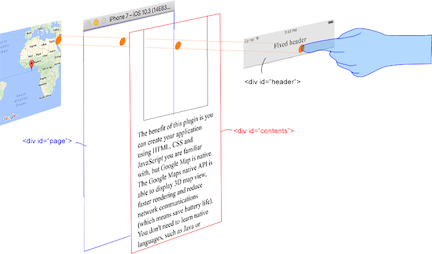
This plugin generates native map views, and puts them under the browser.
The map views are not HTML elements. This means that they are not a
 or anything HTML related.
But you can specify the size and position of the map view using its containing .This plugin changes the background to
transparent in your application.
Then the plugin detects your touch position, which is either meant for the native map or an html element`(which can be on top of your map, or anywhere else on the screen).

The benefit of this plugin is the ability to automatically detect which HTML elements are over the map or not.
For instance, in the image below, say you tap on the header div (which is over the map view).
The plugin will detect whether your tap is for the header div or for the map view and then pass the touch event appropriately.
This means you can use the native Google Maps views similar to HTML elements.