cordova-plugin-googleplus-dependecies
v5.1.1
Use your Google account to authenticate with the app.
GoogleGoogle SignInGoogle Sign InGoogleSignInGoogle LoginGoogle PlusLoginOAuthIdentityAuthentication
4/weekUpdated 3 years agoMIT
Published by geeksoft
npm install cordova-plugin-googleplus-dependeciesGoogle Sign-In Cordova/PhoneGap Plugin
by Eddy Verbruggen,
with great assistance from Sam Muggleworth (PointSource, LLC)
0. Index
1. Description
2. Screenshots
3. Google API setup
4. Installation (CLI / Plugman)
5. Installation (PhoneGap Build)
6. Usage
7. Exchanging the idToken
8. Exchanging the serverAuthCode
9. Troubleshooting
10. Changelog
1. Description
This plugin allows you to authenticate and identify users with Google Sign-In on iOS and Android.
Out of the box, you'll get email, display name, given name, family name, profile picture url, and user id.
You can also configure it to get an idToken and serverAuthCode.
This plugin only wraps access to the Google Sign-In API. Further API access should be implemented per use-case, per developer.
2. Screenshots
Android
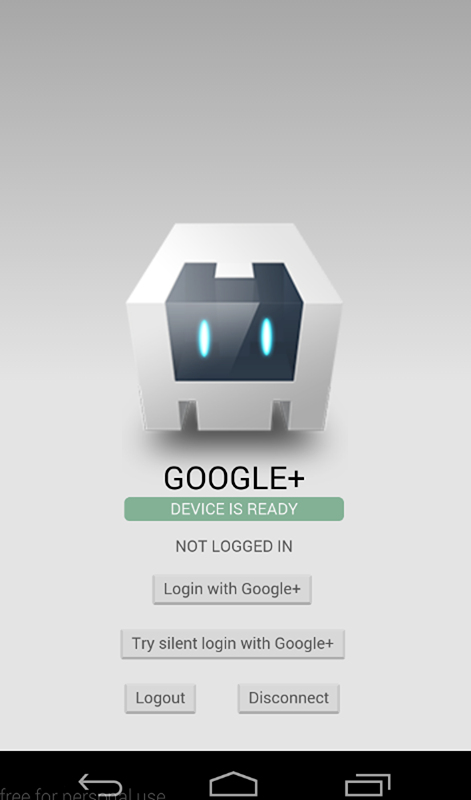
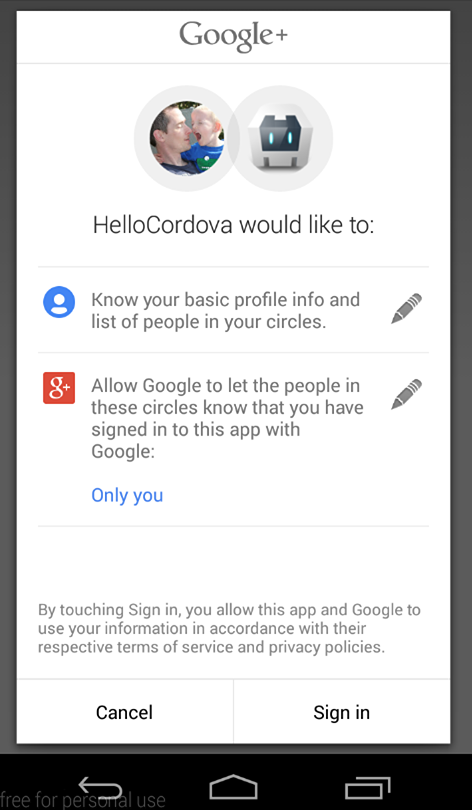
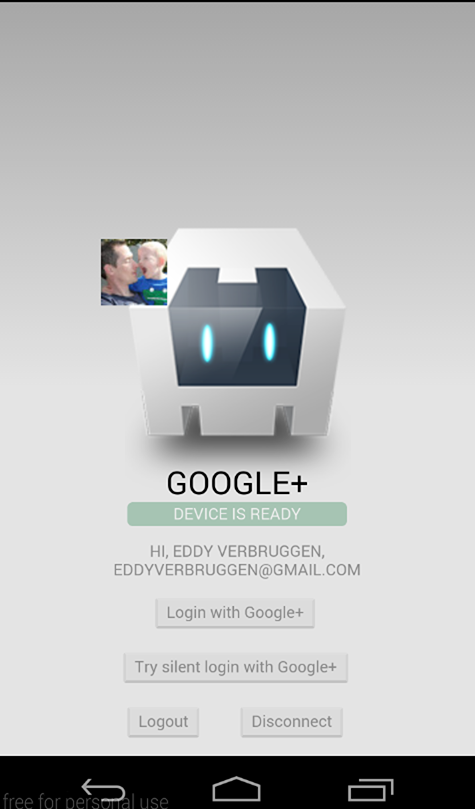
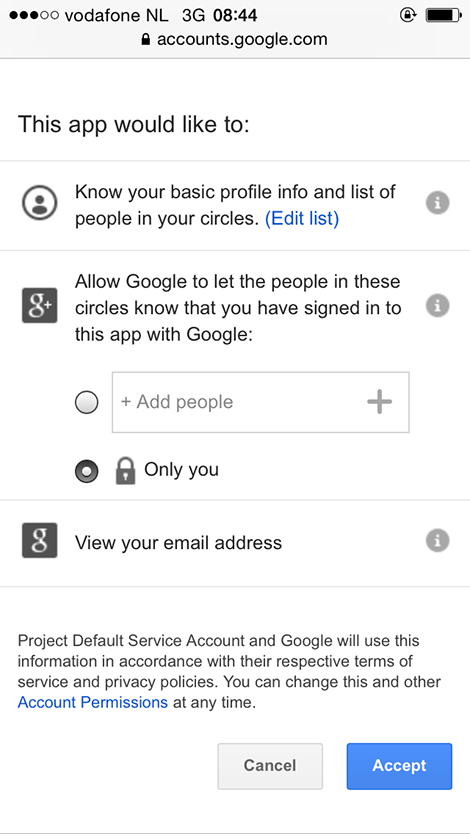
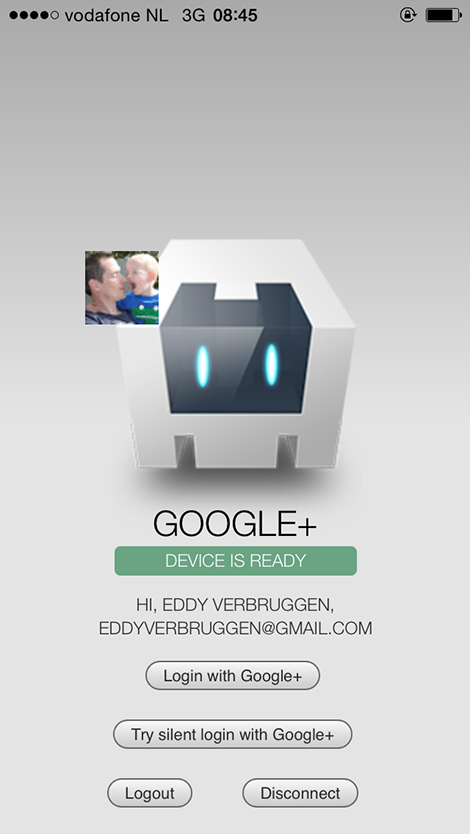
iOS
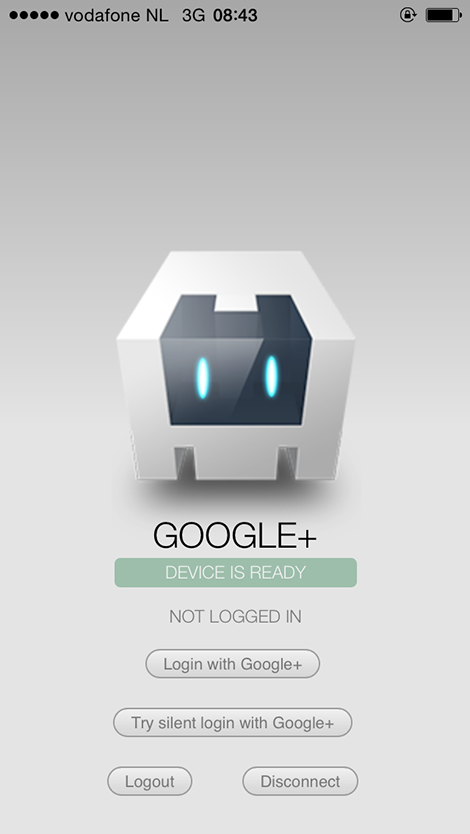
3. Google API setup
To communicate with Google you need to do some tedious setup, sorry.
It is (strongly) recommended that you use the same project for both iOS and Android.
$3
Go into your
config.xml and make sure that your package name (i.e. the app ID) is what you want it to be. Use this package name when setting up iOS and Android in the following steps! If you don't, you will likely get a 12501, 'user cancelled' error despite never cancelling the log in process.This step is _especially_ important if you are using a framework such as Ionic to scaffold out your project. When you create the project, the config.xml has a placeholder packagename, e.g. com.ionic.*, so you can start developing right away.
``xml`
...
$3
To get your iOS REVERSED_CLIENT_ID
, generate a configuration file here.
This
GoogleService-Info.plist file contains the REVERSED_CLIENT_ID you'll need during installation. _This value is only needed for iOS._The
REVERSED_CLIENT_ID is also known as the "iOS URL Scheme" on the Developer's Console.Login on iOS takes the user to a SafariViewController through the Google SDK, instead of the separate Safari browser.
$3
To configure Android, generate a configuration file here. Once Google Sign-In is enabled Google will automatically create necessary credentials in Developer Console. There is no need to add the generated google-services.json file into your cordova project.Make sure you execute the
keytool steps as explained here or authentication will fail (do this for both release and debug keystores).IMPORTANT:
* The step above, about
keytool, show 2 types of certificate fingerprints, the Release and the Debug, when generating the configuration file, it's better to use the Debug certificate fingerprint, after that, you have to go on Google Credentials Manager, and manually create a credential for OAuth2 client with your Release certificate fingerprint. This is necessary to your application work on both Development and Production releases.
* Ensure that you are using the correct alias name while generating the fingerprint.
`
$ keytool -exportcert -keystore -list -v -alias
Login on Android will use the accounts signed in on the user's device.$3
If you want to get an
or serverAuthCode back from the Sign In Process, you will need to pass the client ID for your project's web application. This can be found on your project's API credentials page on the Google Developer's Console.4. Installation (PhoneGap CLI / Cordova CLI)
This plugin is compatible with:
* Cordova Plugman
* PhoneGap 3.0 CLI
Ionic (must use the Cordova CLI)*
* Meteor JSHere's how it works (backup your project first!):
Using the Cordova CLI and npm:
`
$ cordova plugin add cordova-plugin-googleplus --save --variable REVERSED_CLIENT_ID=myreversedclientid
$ cordova prepare
Using the Cordova CLI to fetch the latest version from GitHub:
$ cordova plugin add https://github.com/EddyVerbruggen/cordova-plugin-googleplus --save --variable REVERSED_CLIENT_ID=myreversedclientid
$ cordova prepare
IMPORTANT:
* _Please note that
is a place holder for the reversed clientId you find in your iOS configuration file. Do not surround this value with quotes. (iOS only Applications)_* _If you are building a hybrid application (iOS and Android), or an Android application, you have to replace
myreversedclientid with the reverse value of Client ID in your Release credential generated on step 3, on Google Developer's Console, this will be: "com.googleusercontent.apps.uniqueId", without quotes._GooglePlus.js is brought in automatically. There is no need to change or add anything in your html.
5. Installation (PhoneGap Build)
Add this to your config.xml:For the NPM Version:
`xml
`For the Git version:
xml
`6. Usage
Check the demo app to get you going quickly, or hurt yourself and follow these steps. has fired.Example:
`javascript
document.addEventListener('deviceready', deviceReady, false);function deviceReady() {
//I get called when everything's ready for the plugin to be called!
console.log('Device is ready!');
window.plugins.googleplus.trySilentLogin(...);
}
`$3
3/31/16: This method is no longer required to be checked first. It is kept for code orthoganality.$3
The login function walks the user through the Google Auth process. All parameters are optional, however there are a few caveats.
To get an
on Android, you must pass in your webClientId (a frequent mistake is to supply Android Client ID). On iOS, the idToken is included in the sign in result by default.To get a
serverAuthCode, you must pass in your webClientId _and_ set offline to true. If offline is true, but no webClientId is provided, the serverAuthCode will _NOT_ be requested.The default scopes requested are
profile and email (always requested). To request other scopes, add them as a space-separated list to the scopes parameter. They will be requested exactly as passed in. Refer to the Google Scopes documentation for info on valid scopes that can be requested. For example, 'scope': 'https://www.googleapis.com/auth/youtube https://www.googleapis.com/auth/tasks'.Naturally, in order to use any additional scopes or APIs, they will need to be activated in your project Developer's Console.
##### Usage
`javascript
window.plugins.googleplus.login(
{
'scopes': '... ', // optional, space-separated list of scopes, If not included or empty, defaults to profile and email.
'webClientId': 'client id of the web app/server side', // optional clientId of your Web application from Credentials settings of your project - On Android, this MUST be included to get an idToken. On iOS, it is not required.
'offline': true, // optional, but requires the webClientId - if set to true the plugin will also return a serverAuthCode, which can be used to grant offline access to a non-Google server
},
function (obj) {
alert(JSON.stringify(obj)); // do something useful instead of alerting
},
function (msg) {
alert('error: ' + msg);
}
);
`The success callback (second argument) gets a JSON object with the following contents, with example data of my Google account:
javascript
 obj.email          // 'eddyverbruggen@gmail.com'
 obj.userId         // user id
 obj.displayName    // 'Eddy Verbruggen'
 obj.familyName     // 'Verbruggen'
 obj.givenName      // 'Eddy'
 obj.imageUrl       // 'http://link-to-my-profilepic.google.com'
 obj.idToken        // idToken that can be exchanged to verify user identity.
 obj.serverAuthCode // Auth code that can be exchanged for an access token and refresh token for offline access
 obj.accessToken    // OAuth2 access token
`Additional user information is available by use case. Add the scopes needed to the scopes option then return the info to the result object being created in the
and didSignInForUser functions on Android and iOS, respectively.On Android, the error callback (third argument) receives an error status code if authentication was not successful. A description of those status codes can be found on Google's android developer website at GoogleSignInStatusCodes.
On iOS, the error callback will include an NSError localizedDescription.
$3
You can call trySilentLogin to check if they're already signed in to the app and sign them in silently if they are.If it succeeds you will get the same object as the
login function gets,
but if it fails it will not show the authentication dialog to the user.Calling
trySilentLogin is done the same as login, except for the function name.
`javascript
window.plugins.googleplus.trySilentLogin(
{
'scopes': '... ', // optional - space-separated list of scopes, If not included or empty, defaults to profile and email.
'webClientId': 'client id of the web app/server side', // optional - clientId of your Web application from Credentials settings of your project - On Android, this MUST be included to get an idToken. On iOS, it is not required.
'offline': true, // Optional, but requires the webClientId - if set to true the plugin will also return a serverAuthCode, which can be used to grant offline access to a non-Google server
},
function (obj) {
alert(JSON.stringify(obj)); // do something useful instead of alerting
},
function (msg) {
alert('error: ' + msg);
}
);
`It is strongly recommended that trySilentLogin is implemented with the same options as login, to avoid any potential complications.
$3
This will clear the OAuth2 token.
 javascript
window.plugins.googleplus.logout(
    function (msg) {
      alert(msg); // do something useful instead of alerting
    }
);
`$3
This will clear the OAuth2 token, forget which account was used to login, and disconnect that account from the app. This will require the user to allow the app access again next time they sign in. Be aware that this effect is not always instantaneous. It can take time to completely disconnect.
 javascript
window.plugins.googleplus.disconnect(
    function (msg) {
      alert(msg); // do something useful instead of alerting
    }
);
`7. Exchanging the
Google Documentation for Authenticating with a Backend Server
- Web
- Android
- iOS
As the above articles mention, the
can be exchanged for user information to confirm the users identity._Note: Google does not want user identity data sent directly to a server. The idToken is their preferred method to send that data securely and safely, as it must be verified through their servers in order to unpack._
This has several uses. On the client-side, it can be a way to get doubly confirm the user identity, or it can be used to get details such as the email host domain. The server-side is where the
idToken really hits its stride. It is an easy way to confirm the users identity before allowing them access to that servers resources or before exchaning the serverAuthCode for an access and refresh token (see the next section).If your server-side only needs identity, and not additional account access, this is a secure and simple way to supply that information.
8. Exchanging the
serverAuthCodeGoogle Documentation for Enabling Server-Side Access
- Web
- Android
- iOS
As the above articles mention, the
is an item that can be exchanged for an access and refresh token. Unlike the idToken, this allows the server-side to have direct access to the users Google account.You have a couple options when it comes to this exchange: you can use the Google REST Apis to get those in the hybrid app itself or you can send the code to your backend server to be exchanged there, using whatever method necessary (Google provides examples for Java, Python, and JS/HTTP).
As stated before, this plugin is all about user authentication and identity, so any use of the user's account beyond that needs to be implemented per use case, per application.
9. Troubleshooting
- Q: I can't get authentication to work on Android. And why is there no ANDROID API KEY?
- A: On Android you need to execute the keytool steps, see the installation instructions for details.- Q: OMG $@#*! the Android build is failing
- A: You need to have _Android Support Repository_ and _Android Support Library_ installed in the Android SDK manager. Make sure you're using a fairly up to date version of those.
- Q: Why isn't this working on my Android Emulator???
- A: Make sure you are using a Virtual Device running with a Google APIs target and/or a Google APIs CPU!
10. Changelog
- 5.0.3: Added the convenience method getSigningCertificateFingerprint to retrieve the Android cert fingerprint which is required in the Google Developer Console.
- 5.0.2: Require linking against SafariServices and CoreText frameworks on iOS as per Google's recommendation. Added loginHint on iOS.
- 5.0.0: Android GoogleSignIn SDK (See #193), iOS SDK 4.0.0, iOS compatibility with Facebook authentication plugins, added familyName and givenName.
- 4.0.8: Fix for Android 6 where it would crash while asking for permission. Thx #166!
- 4.0.7: Re-added a missing framework for iOS. Thx #168!
- 4.0.6: Updated iOS GoogleSignIn SDK to 2.4.0. Thx #153!
- 4.0.5: Fixed a broken import on iOS.
- 4.0.4: Using framework tags again for Android
- 4.0.3: On iOS isAvailable always returns try since that should be fine with the new Google Sign-In framework. Re-added imageUrl to the result of Sign-In on iOS.
- 4.0.1: Login on Android would crash the app if isAvailable was invoked beforehand.
- 4.0.0: Removed the need for iosApiKey, reverted Android to Google playservices framework for wider compatibility, documented scopes feature a bit.
- 3.0.0: Using Google Sign-In for iOS, instead of Google+.
- 1.1.0: Added isAvailable`, for issue #37- 1.0.0: Initial version supporting iOS and Android.