directus-extension-transcode-video-operation
v1.2.0
Transcode uploaded videos to adaptive HLS streams with multiple quality levels (240p, 480p, 720p, 1080p, 4K)
7/weekUpdated 1 months agoUnpacked: 43.8 KB
Published by domdus
npm install directus-extension-transcode-video-operationTranscode Video Operation
A Directus custom operation that transcodes uploaded videos to adaptive HLS streams with multiple quality levels for optimal playback across different devices and network conditions.
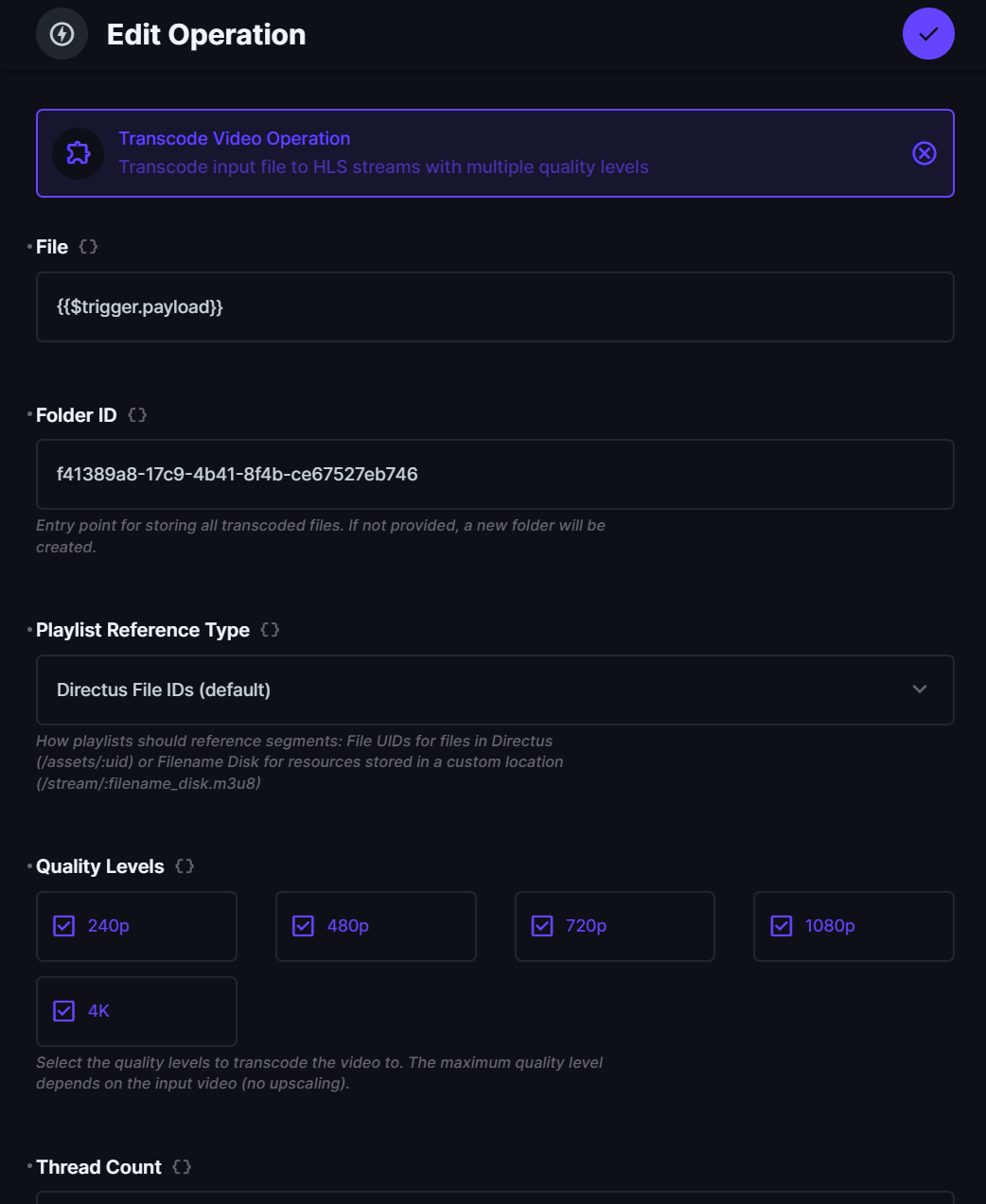
Overview
This extension adds a custom operation to Directus Flows that automatically transcodes video files into HLS format with multiple quality levels (240p, 480p, 720p, 1080p, 4K). The operation creates adaptive streaming playlists, extracts a thumbnail, and organizes all transcoded assets in Directus folders.
Features
- Adaptive HLS Streaming: Transcodes videos to HLS format with multiple quality levels
- Smart Quality Selection: Automatically prevents upscaling - only transcodes qualities equal to or lower than source resolution
- Multiple Quality Levels: Supports 240p, 480p, 720p, 1080p, and 2160p (4K)
- Automatic Thumbnail Extraction: Extracts thumbnail image at 1 second from video
- High Bit Depth Support: Automatically detects and converts 10-bit videos to 8-bit for maximum compatibility
- Folder Organization: Automatically creates and organizes transcoded files in Directus folders
- Video Metadata Extraction: Extracts dimensions, duration, and orientation information
- Cloud Storage Support: Works with local storage, S3, GCS, Azure, and other cloud storage adapters
- Automatically downloads source files from cloud storage for processing
- Uploads transcoded files to specified storage location
- Cleans up temporary local files when using cloud storage
- Flexible Storage Configuration: Choose where transcoded files are stored:
- Environment default (first configured storage)
- Same as source file
- Custom storage location
Requirements
- HLS Capable Video Player: The default HTML5 player won't play it. You need a player with HLS streaming support. For Directus Data Studio you can install the Streaming Video Player extension
- FFmpeg: FFmpeg must be installed and available in the system PATH
- Installation: apt-get install ffmpeg (Debian/Ubuntu) or brew install ffmpeg (macOS)
- Verify: ffmpeg -version and ffprobe -version
- Docker: For Docker deployments (https://directus.io/docs/self-hosting/deploying#docker-compose-examples):
1. Add build configuration to your docker-compose.yml:
``yaml`
directus:
build:
context: .
dockerfile: Dockerfile
2. Create a in the same directory with:`
dockerfile`
FROM directus/directus:11.13.2
USER root
RUN apk add --no-cache ffmpeg
RUN ffmpeg -version && ffprobe -version
USER node
3. Rebuild and restart your containers:
bash`
docker compose up --build -d
Installation
$3
1. Open your Directus project
2. Navigate to Settings → Extensions
3. Click Browse Marketplace
4. Search for "Transcode Video Operation"
5. Click Install
$3
1. Install package
`bash`
npm install directus-extension-transcode-video-operation
2. Build the extension:
`bash`
npm run build
3. Copy the dist folder to your Directus extensions directory:`
directus/extensions/directus-extension-transcode-video-operation/
4. Restart your Directus instance
Usage
$3
1. Navigate to Settings → Flows
2. Create a new flow or edit an existing one
3. Add a trigger (e.g., Event Hook for file uploads)
4. Add the Transcode Video Operation
5. Configure the operation parameters (see Configuration below)
6. Save and activate the flow
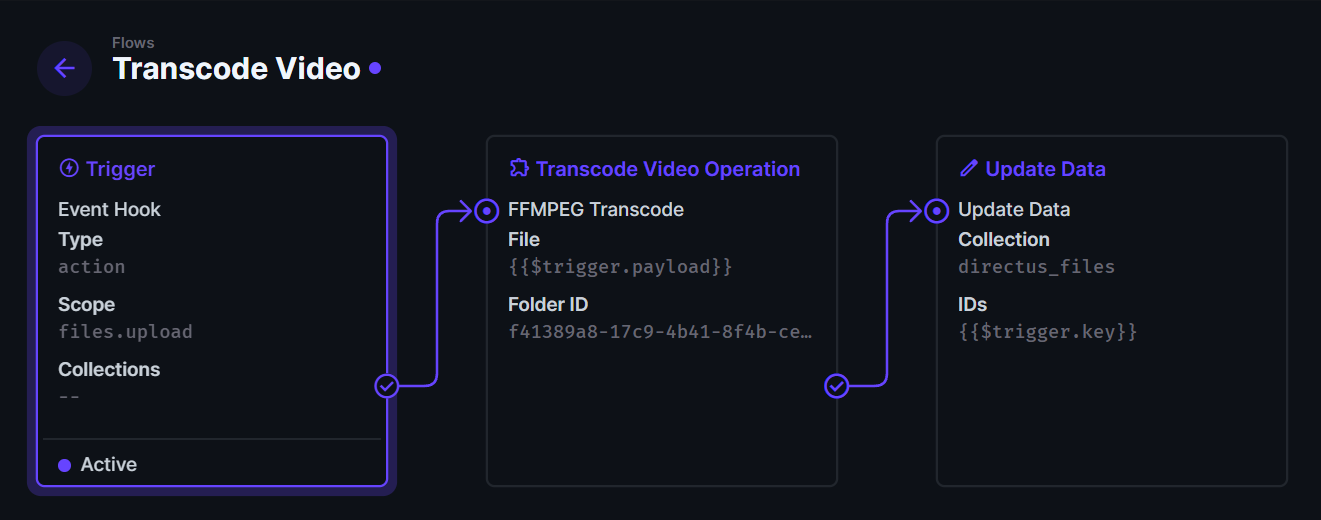
$3
- File (required): The Directus file to transcode
- Accepts: File UUID (string) or Directus File Object
- Use {{ $last }} to reference the file from a previous operation{{ $trigger.body.key }}
- Example: for event hook triggers{{ $last.video }}
- Example: for file object from collection
- Folder (optional): The Directus folder where transcoded files will be stored
- Uses Directus folder selector interface with create capabilities
- If not provided, a new folder will be created automatically
- A subfolder with the video filename will be created automatically
- All transcoded segments, playlists, and thumbnails will be stored in this folder structure
- Quality Levels (optional, default: all qualities): Select which quality levels to transcode
- Available: 240p, 480p, 720p, 1080p, 2160p (4K)
- Only qualities equal to or lower than source resolution will be transcoded (no upscaling)
- Example: A 1080p source video will only transcode 240p, 480p, 720p, and 1080p (4K will be skipped)
- Storage Adapter (optional, default: Environment Configuration (First One)): Where transcoded files should be storedSTORAGE_LOCATIONS
- Environment Configuration (First One): Uses the first configured storage location from environment variables
- Same as Source File: Stores transcoded files in the same storage location as the source file
- Other: Allows specifying a custom storage location name (must match one of your configured )
- Target Storage Location (optional): Custom storage location name
- Only visible when "Storage Adapter" is set to "Other"
- Must match one of your configured storage locations (e.g., local, s3, gcs)STORAGE_LOCATIONS="local,s3"
- Example: If you have , you can specify s3 here
- Thread Count (optional, default: 1): Number of CPU threads to use for encoding1
- = Single-threaded encoding (default, most compatible)2+
- = Use specific number of threads (e.g., 4 for 4 threads)0
- = Use all available CPU cores (fastest, but may impact system performance)
- Note: More threads = faster encoding, but higher CPU usage
- Process Priority (optional, default: 19): CPU priority (nice value) for transcoding process19
- Range: 0 (default/highest priority) to 19 (lowest priority)
- Lower values = higher CPU priority (may impact system performance)
- Higher values = lower CPU priority (better for background processing)
- Recommended: Use when transcoding might impact system performance
- Note: Only works on Unix-like systems (Linux, macOS). On Windows, this setting is ignored with a warning.
- Playlist Reference Type (optional, default: id): How playlists should reference segmentsid
- (default): Uses Directus file IDs - playlists reference segments as /assets/:file_id to run against /assets endpointfilename_disk
- : Uses original filenames - playlists reference segments by filename (useful for custom streaming servers)
$3
Trigger: Manual trigger
- Collections: your_collection
- Asynchronous:
Read Data: Read your_collection with video field query:{{$trigger.body.keys[0]}}
- IDs:
- Query:json`
{
"fields": ",video."
}
Transcode Video Operation:
- File: {{ $last.video }}
- Folder: (or select/create via folder picker)["240p", "480p", "720p", "1080p"]
- Quality Levels:
- Storage Adapter: (or Environment Configuration (First One), or Other with custom storage)1
- Thread Count: (or 0 for all cores, 4 for 4 threads, etc.)19
- Process Priority: (or 0 for higher priority)id
- Playlist Reference Type:
Update Data: Update your_collection with payload:`json`
{
"stream_link": "/assets/{{$last.master.id}}",
"image": "{{$last.metadata.thumbnail}}"
}
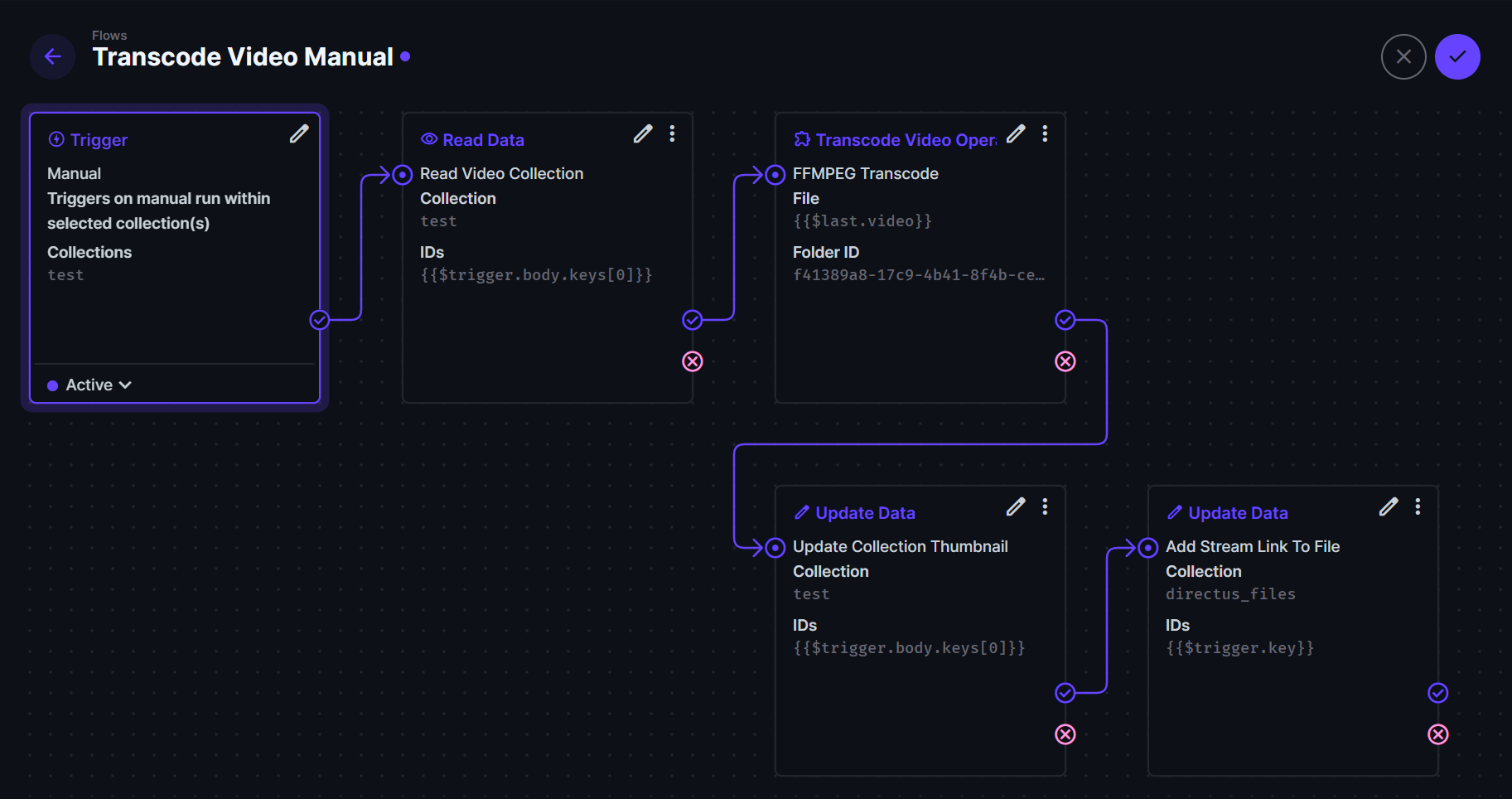
Collection Flow Example (sets stream link field in directus file)
Output Structure
The operation creates the following files in the specified virtual folder:
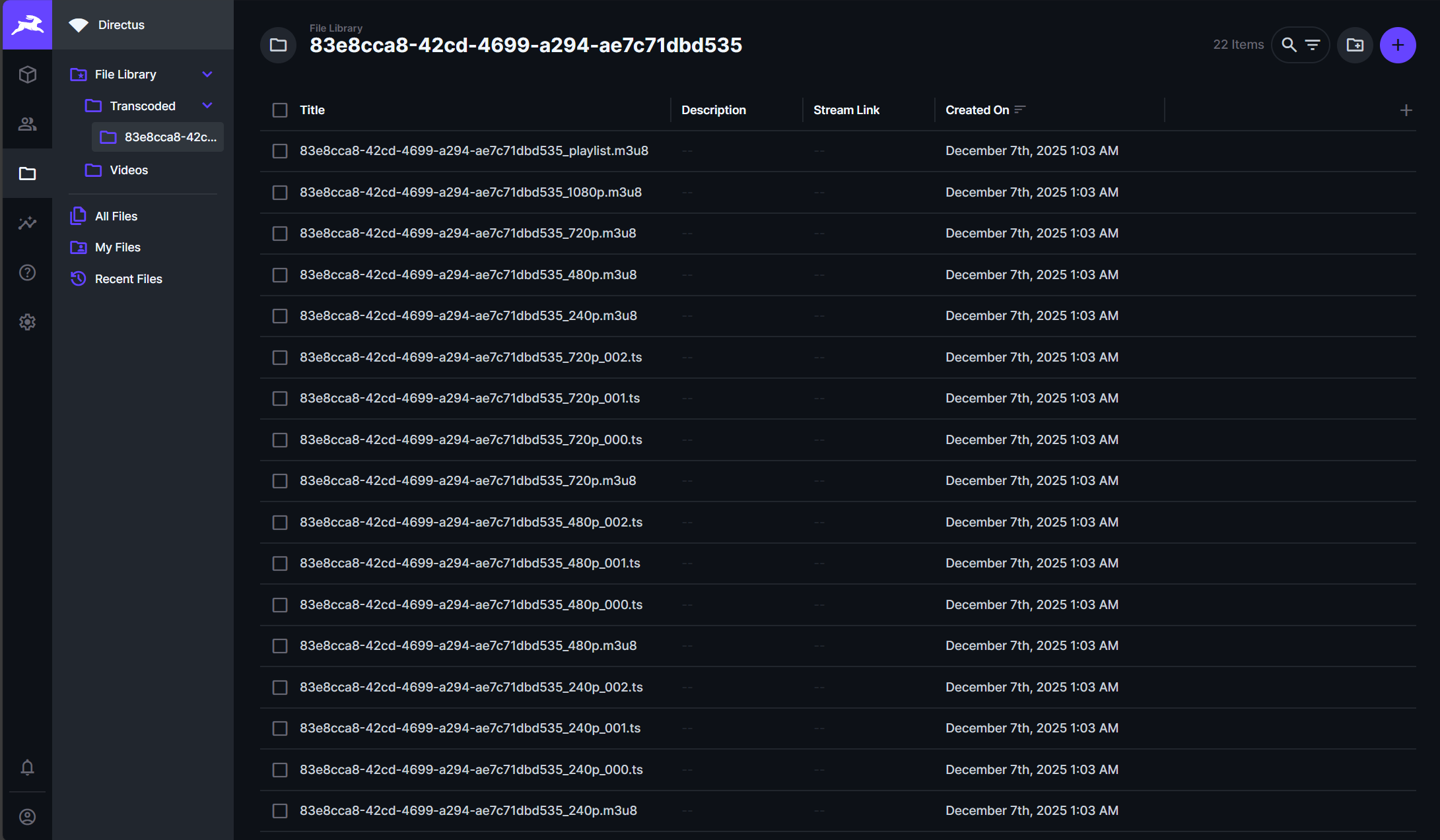
`
folder/
  └── video-filename/
      ├── video-filename_240p.m3u8          # 240p quality playlist
      ├── video-filename_240p_000.ts        # 240p segments
      ├── video-filename_240p_001.ts
      ├── video-filename_480p.m3u8          # 480p quality playlist
      ├── video-filename_480p_000.ts        # 480p segments
      ├── video-filename_720p.m3u8          # 720p quality playlist
      ├── video-filename_720p_000.ts        # 720p segments
      ├── video-filename_1080p.m3u8         # 1080p quality playlist
      ├── video-filename_1080p_000.ts       # 1080p segments
      ├── video-filename_playlist.m3u8      # Master playlist (references all qualities)
      └── video-filename_thumb.jpg          # Thumbnail image
$3
The operation returns a JSON object with:
`json`
{
"master": {
"id": "file-uuid",
"filename_disk": "video-filename_playlist.m3u8"
},
"metadata": {
"availableQualities": [240, 480, 720, 1080],
"dimensions": {
"width": 1920,
"height": 1080,
"isVertical": false
},
"duration": 125000,
"thumbnail": "thumbnail-file-uuid"
},
"files": [
{
"filename_disk": "video-filename_240p.m3u8",
"id": "file-uuid-1"
},
{
"filename_disk": "video-filename_thumb.jpg",
"id": "file-uuid-2"
}
// ... more files
]
}
How It Works
1. File Input Processing:
- If file is a UUID string, fetches the full file object from Directus
- If file is already a file object, uses it directly
2. Source File Handling:
- Local Storage: Uses file directly from disk
- Cloud Storage: Downloads source file to temporary location for processing
3. Storage Configuration: Determines target storage location based on user selection
- Resolves storage driver (local vs. cloud) from environment configuration
4. File Validation: Checks that the input file exists and is accessible
5. Metadata Extraction: Uses ffprobe to get video dimensions, duration, and bit depthffmpeg
6. Quality Filtering: Filters out quality levels that would require upscaling
7. Bit Depth Detection: Detects 10-bit videos and adds pixel format conversion
8. Transcoding: Uses to transcode each quality level sequentially.ts
- Creates HLS segments ( files) and quality playlists (.m3u8`)
- Uses H.264 codec with optimized settings for each quality
- Applies process priority (nice value) on Unix-like systems
9. Master Playlist: Generates master playlist with bandwidth and resolution metadata
10. Thumbnail Extraction: Extracts thumbnail at 1 second mark (if not already exists)
11. Folder Creation: Creates Directus virtual folder structure for organization
12. File Upload:
- Checks for existing files to prevent duplicates
- For cloud storage: Uploads files and cleans up local copies
- For local storage: Files remain on disk
13. Cleanup:
- Removes temporary downloaded source file (if from cloud storage)
- Removes local transcoded files (if target storage is cloud)
Technical Details
$3
- Codec: H.264 (libx264)
- Profile: Main (maximum compatibility)
- Audio: AAC, 48kHz
- Segment Duration: 4 seconds
- Playlist Type: VOD (Video on Demand)
- CRF: 20 (constant rate factor for quality)
- Process Priority: Configurable nice value (0-19) for CPU priority control
$3
- Local Storage: Files are created directly on disk and registered in Directus
- Cloud Storage:
- Source files are downloaded via HTTP to temporary location for FFmpeg processing
- Transcoded files are uploaded to cloud storage via Directus FilesService
- Temporary local files are automatically cleaned up after upload
- Storage Detection: Automatically detects storage driver type from environment configuration
$3
- 240p: 400 kbps video, 64 kbps audio
- 480p: 1400 kbps video, 128 kbps audio
- 720p: 2800 kbps video, 128 kbps audio
- 1080p: 5000 kbps video, 192 kbps audio
- 2160p (4K): 20000 kbps video, 192 kbps audio
$3
The operation automatically detects the source video resolution and only transcodes quality levels that are equal to or lower than the source. For example:
- 1080p source: Only transcodes 240p, 480p, 720p, 1080p (skips 4K)
- 720p source: Only transcodes 240p, 480p, 720p (skips 1080p and 4K)
- 4K source: Transcodes all available quality levels
Integration with Streaming Video Player
This operation works seamlessly with the Streaming Video Player extension (available in Directus Marketplace):
1. Transcode videos using this operation
2. Store the master playlist reference in a string field
3. Use the Streaming Video Player interface to play the HLS stream
License
MIT