dysk-mac
v1.0.2
A powerful command-line disk utility for macOS with emoji-enhanced output, SSD/HDD detection, and external drive support
3/weekUpdated 7 months agoMITUnpacked: 210.2 KB
Published by nudelx
npm install dysk-mac💾 dysk-mac - macOS Disk Utility
> The ultimate command-line disk utility for macOS - Get detailed disk information, monitor storage usage, and manage your drives with beautiful emoji-enhanced output.


dysk-mac is a powerful command-line disk utility for macOS that provides detailed information about mounted disks, including usage statistics, disk types (SSD vs HDD), external drive detection, and beautiful emoji-enhanced output.
🚀 Quick Start
``bashInstall with Homebrew
brew tap nudelx/dysk-mac
brew install dysk-mac
Run the tool
dysk-mac
`
✨ Features
- 📊 Comprehensive Disk Information: View detailed information about all mounted disks with emoji-enhanced output
- 🔍 Advanced Filtering: Filter disks based on usage percentage, free space, disk type, and more
- 📈 Flexible Sorting: Sort results by any disk property (size, usage, free space, etc.)
- 📋 Multiple Output Formats: Display as beautiful table, JSON, or CSV for data analysis
- 💾 Smart Detection: Automatically detects SSD vs HDD, external drives, and removable media
- 🎯 macOS Optimized: Uses native macOS
and df commands for maximum compatibility
- 🚨 Usage Warnings: Visual indicators for high disk usage (⚠️ for >70%, 🚨 for >90%)
- 🔌 External Drive Support: Special handling for external SSDs and hard drives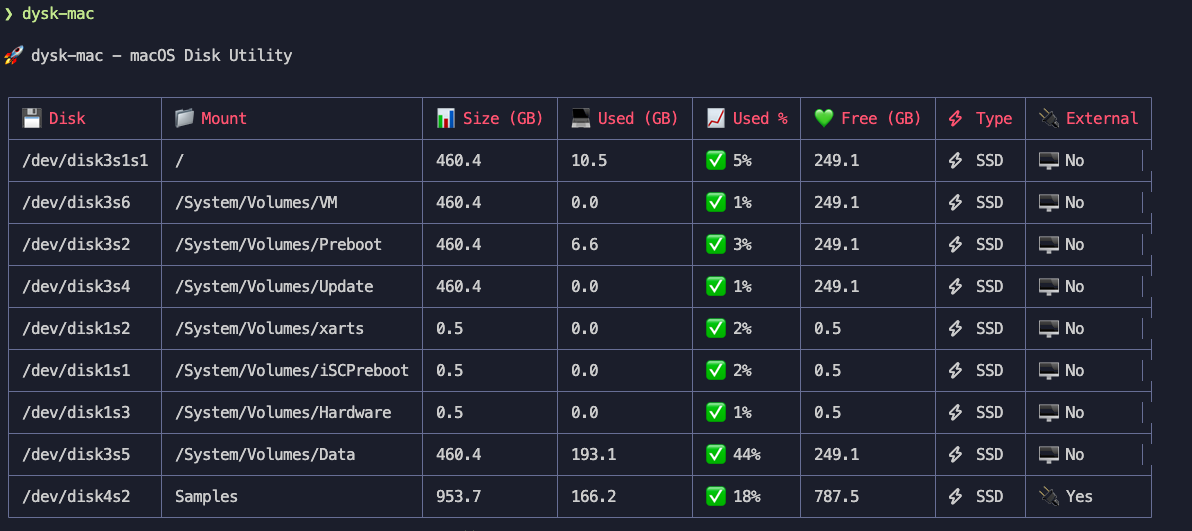
Installation
$3
Install via Homebrew tap:
`bash
brew tap nudelx/dysk-mac
brew install dysk-mac
`$3
1. Clone or download this repository
2. Install dependencies:
bash
   npm install
`
3. Make the script executable:
bash
   chmod +x index.js
`
4. (Optional) Create a global link:
bash
   npm link
`Usage
$3
Display all mounted disks in a formatted table:
bash
./index.js
or if globally linked:
dysk-mac
`$3
| Option | Description | Example |
| ---------- | ------------------------------ | -------------------------------------- |
                      |
| Output as JSON format | dysk-mac --json |
| --csv | Output as CSV format | dysk-mac --csv |
| --filter | Filter disks using expressions | dysk-mac --filter "usedPercent > 80" |
| --sort | Sort by disk property | dysk-mac --sort free |$3
#### 1. Basic Disk Information
`bash
dysk-mac
`Output:
┌────────────────┬────────────────────────────┬───────────┬───────────┬────────┬───────────┬──────┬──────────┐
│ Disk │ Mount │ Size (GB) │ Used (GB) │ Used % │ Free (GB) │ Type │ External │
├────────────────┼────────────────────────────┼───────────┼───────────┼────────┼───────────┼──────┼──────────┤
│ /dev/disk3s1s1 │ / │ 460.4 │ 10.5 │ 5% │ 249.9 │ HDD │ No │
│ /dev/disk3s6 │ /System/Volumes/VM │ 460.4 │ 0.0 │ 1% │ 249.9 │ HDD │ No │
│ /dev/disk3s5 │ /System/Volumes/Data │ 460.4 │ 192.3 │ 44% │ 249.9 │ HDD │ No │
└────────────────┴────────────────────────────┴───────────┴───────────┴────────┴───────────┴──────┴──────────┘
#### 2. Filter Disks by Usage
Show only disks with more than 70% usage:
bash
dysk-mac --filter "usedPercent > 70"
`#### 3. Sort by Free Space
Display disks sorted by available free space (largest first):
bash
dysk-mac --sort free
`#### 4. JSON Output
Get machine-readable JSON format:
bash
dysk-mac --json
`Output:
json
[
  {
    "filesystem": "/dev/disk1s1",
    "size": 500107862016,
    "used": 375080869888,
    "free": 125026992128,
    "usedPercent": 75,
    "mount": "/",
    "type": "SSD",
    "removable": false,
    "external": false
  }
]
`#### 5. CSV Output
Export data for spreadsheet analysis:
bash
dysk-mac --csv
`#### 6. Combined Filtering and Sorting
Find external drives with low free space, sorted by usage:
bash
dysk-mac --filter "external && free < 50e9" --sort usedPercent
`$3
The
 option accepts JavaScript expressions that can reference any disk property:| Property      | Description                 | Example                            |
| ------------- | --------------------------- | ---------------------------------- |
|
usedPercent | Percentage of disk used | usedPercent > 80 |
| free | Free space in bytes | free < 10e9 (less than 10GB) |
| size | Total disk size in bytes | size > 500e9 (larger than 500GB) |
| external | Boolean for external drives | external (only external drives) |
| type | Disk type ("SSD" or "HDD") | type === "SSD" |
| removable | Boolean for removable media | removable |$3
`bash
Show only SSDs with high usage
dysk-mac --filter "type === 'SSD' && usedPercent > 90"Show external drives with less than 20GB free
dysk-mac --filter "external && free < 20e9"Show non-system drives (not mounted at /)
dysk-mac --filter "mount !== '/'"Show drives with more than 1TB total size
dysk-mac --filter "size > 1e12"
`Output Fields
| Field | Description |
| ------------- | ---------------------------------------- |
| Disk | Device path (e.g.,
)       |
| Mount | Mount point (e.g., /, /Volumes/Data) |
| Size (GB) | Total disk size in gigabytes |
| Used (GB) | Used space in gigabytes |
| Used % | Percentage of disk space used |
| Free (GB) | Available space in gigabytes |
| Type | Disk type: SSD or HDD |
| External | Whether the drive is external (Yes/No) |Requirements
- macOS (uses
diskutil and df commands)
- Node.js 14+ (for ES modules support)Dependencies
-
cli-table3: For formatted table output
- yargs: For command-line argument parsingLicense
MIT License - feel free to use and modify as needed.
Contributing
1. Fork the repository
2. Create a feature branch
3. Make your changes
4. Test thoroughly
5. Submit a pull request
Troubleshooting
$3
If you get permission errors, ensure the script is executable:
`bash
chmod +x index.js
`$3
If no disks are shown, check that you have mounted disks and the script has permission to run
commands.$3
Make sure your filter expression is valid JavaScript. Common issues:
- Use
&& for AND, || for OR
- Use === for exact equality
- Numbers should be in bytes (use e9 for GB, e12 for TB)For Developers
$3
To make this tool available via Homebrew, see
HOMEBREW_SETUP.md for detailed instructions.Quick setup:
`bash
./setup-homebrew.sh
`$3
bash
git clone https://github.com/nudelx/dysk-mac.git
cd dysk-mac
npm install
chmod +x index.js
./index.js
``🔍 Keywords & Search Terms
dysk-mac is optimized for these search terms:
- macOS disk utility
- Command line disk tool
- Disk usage monitor
- SSD HDD detection
- External drive utility
- macOS storage management
- Disk space analyzer
- Homebrew disk tool
- Terminal disk utility
- macOS disk information
📈 Performance & Compatibility
- Fast: Uses native macOS commands for optimal performance
- Lightweight: Minimal dependencies, small footprint
- Compatible: Works on macOS 10.15+ (Catalina and later)
- Reliable: Built with Node.js 14+ ES modules
- Secure: No external API calls, all local processing
🎯 Use Cases
- System Administrators: Monitor disk usage across multiple systems
- Developers: Check available space before builds or deployments
- Power Users: Manage external drives and storage devices
- DevOps: Integrate disk monitoring into automation scripts
- Data Analysts: Export disk data for analysis and reporting
🌟 Why Choose dysk-mac?
- Beautiful Output: Emoji-enhanced tables for better readability
- Smart Detection: Automatically identifies SSD vs HDD and external drives
- Flexible Filtering: Powerful JavaScript expressions for complex queries
- Multiple Formats: Table, JSON, and CSV output options
- Easy Installation: Simple Homebrew installation
- Active Development: Regular updates and improvements
📞 Support & Community
- Issues: GitHub Issues
- Discussions: GitHub Discussions
- Contributions: Contributing Guide
---
Made with ❤️ for the macOS community