ehtml
v1.0.21
HTML Framework that allows you write no JavaScript code at all.
0/weekUpdated 3 years agoMITUnpacked: 18.1 MB
Published by guseyn
npm install ehtml


EHTML (or Extended HTML) can be described as a set of custom elements that you can put on HTML page for different purposes and use cases. The main idea and goal of this library is to provide a convenient way to get rid of JavaScript code on the client side as much as it's possible for basic and routine stuff.
Disclaimer: "I cannot build complex things with EHTML yet, but I can build simple things with it so easily that no other library can do."
Contents
- Usage
- Introduction video
- Supported elements
- Supported actions on response
- Examples
- Simple E-HTML page
- Simple E-JSON
- E-JSON with progress bar
- E-JSON with mapped error
- E-JSON as a template
- Simple E-FOR-EACH
- Simple E-IF
- Simple E-FORM
- E-REUSABLE with E-FORM
- Simple E-GOOGLE-OAUTH-BUTTON
- E-PAGE-WITH-URL
- E-PAGE-WITH-URL + E-JSON
- E-TURBOLINK
- E-PAGE-WITH-URL + E-SELECT (with turbo-redirect)
- Simple E-GITHUB-OAUTH-BUTTON
- Contribution and QA
Usage
EHTML is very easy to include in your project. Save this file locally and use it:
``html`
Introduction Video
Supported elements
E-HTML
Sometimes html files can be very big, so why not just split them into different smaller html files and put sort of links to them in the main html file? e-html allows you to do that by introducing a module system in HTML.
So, let's say we have main articles.html file
`html
`
and as you can see, we have three e-html tags here. And each of them refers to some html file which contains some part of the article.hmtl. This tag has only one custom attribute data-src, which tells us where exactly the file that we want to include is served.
And for example, first.html would look something like this
`html`
And when you open articles.html in a browser, it will be rendered as if you included all the parts in one file:
`html
`
The main benefit of using this element is that you can much more easily modify your big html files. So, instead of having one big html file where you have to find a specific part of it to modify, you can just find a file, which contains this specific part and make changes there.
Of course, this element makes an additional http(s) request for fetching a specific part, but you can always cache the files, so it would not cause any performance issues.
E-JSON
e-json allows you to fetch json resource by GET request from the server and apply some actions on the response. So, for example, let's say you have an endpoint /album/{title}, which returns following response:
`json`
title = 'Humbug'
{
"title": "Humbug",
"artist": "Arctic Monkeys",
"type": "studio album",
"releaseDate": "19 August 2009",
"genre": "psychedelic rock, hard rock, stoner rock, desert rock",
"length": "39:20",
"label": "Domino",
"producer": "James Ford, Joshua Homme"
}
Then you can fetch it via e-json like in following html code:
`html
data-response-name="albumResponse"
data-actions-on-response="
mapToTemplate('${albumResponse.body}', '#album-info');
">
`
So, e-json has attributes data-src which tells us where from we can fetch json response. Attribute data-response-name specifies the name that we want to use for the response. It contains body, statusCode and headers properties, so you can use them in the attribute data-actions-on-response. In this case we just decided to map body of our response to the element with id album-info, which also must have the attribute data-object-name. This attribute specifies the name of the object that we want to map. It's important to mention that you can map object only to , which is in e-json that provides the object for mapping. More details about actions on response you can find in this section.
If you need some request headers, you can specify them in the attribute data-request-headers with format { "headerName": "headerValue", ... }.
You can also add attributes data-ajax-icon and data-progress-bar as element selectors for presenting progress of fetching data from the server. You can see how to use them in the examples.
E-JSON template (v1.0.12)
You can use e-json as a element, if you just need to map response.
`json`
title = 'Humbug'
{
"title": "Humbug",
"artist": "Arctic Monkeys",
"type": "studio album",
"releaseDate": "19 August 2009",
"genre": "psychedelic rock, hard rock, stoner rock, desert rock",
"length": "39:20",
"label": "Domino",
"producer": "James Ford, Joshua Homme"
}
`html`
Here you don't use data-response-name attribute as you don't need apply actions on response via data-actions-on-response attribute. But you still have to specify data-object-name to define a variable for the response, so you can use it as a mapping object inside of e-json template.
And as for simple e-json you can also add attributes data-ajax-icon and data-progress-bar as element selectors for presenting progress of fetching data from the server. You can see how to use them in the examples.
E-FOR-EACH template
You can use standard template html element with attribute is="e-for-each" for iterating some object for mapping to an element. So, let's say you have an endpoint /album/{title}/songs, which returns following response:
`json`
title = 'Humbug'
{
"title": "Humbug",
"artist": "Arctic Monkeys",
"songs": [
{ "title": "My Propeller", "length": "3:27" },
{ "title": "Crying Lightning", "length": "3:43" },
{ "title": "Dangerous Animals", "length": "3:30" },
{ "title": "Secret Door", "length": "3:43" },
{ "title": "Potion Approaching", "length": "3:32" },
{ "title": "Fire and the Thud", "length": "3:57" },
{ "title": "Cornerstone", "length": "3:18" },
{ "title": "Dance Little Liar", "length": "4:43" },
{ "title": "Pretty Visitors", "length": "3:40" },
{ "title": "The Jeweller's Hands", "length": "5:42" }
]
}
Then your html code would be something like this:
`html
data-response-name="albumResponse"
data-actions-on-response="
mapToTemplate('${albumResponse.body}', '#album-info');
">
`
So, as you can see it's pretty straightforward: e-for-each template has attribute data-list-to-iterate where you can specify the list from the mapped object that you want to iterate. And attribute data-item-name specifies the name of the item that you want to map to the template. You can also use index property of the item in the mapping which starts from 1.
When you open a browser, template will be replaced with its n times duplicated inner content for each item, where n is the length of the list that has been iterated:
`html
data-response-name="albumResponse"
data-actions-on-response="
mapToTemplate('${albumResponse.body}', '#album-info');
">
Title: Humbug
Artist: Arctic Monkeys
10 songs:
No. 1/10
Title: My Propeller
Length: 3:27
No. 2/10
Title: Crying Lightning
Length: 3:43
No. 3/10
Title: Dangerous Animals
Length: 3:30
No. 4/10
Title: Secret Door
Length: 3:43
No. 5/10
Title: Potion Approaching
Length: 3:32
No. 6/10
Title: Fire and the Thud
Length: 3:57
No. 7/10
Title: Cornerstone
Length: 3:18
No. 8/10
Title: Dance Little Liar
Length: 4:43
No. 9/10
Title: Pretty Visitors
Length: 3:40
No. 10/10
Title: The Jeweller's Hands
Length: 5:42
`
E-IF template
This standard template html element with attribute is="e-if" decides if some particular part of html needs to be displayed or not while mapping some object to an element. So, let's say you have an endpoint /album/{title}/songs, which returns following response:
`json`
title = 'Humbug'
{
"title": "Humbug",
"artist": "Arctic Monkeys",
"songs": [
{ "title": "My Propeller", "length": "3:27" },
{ "title": "Crying Lightning", "length": "3:43" },
{ "title": "Dangerous Animals", "length": "3:30" },
{ "title": "Secret Door", "length": "3:43" },
{ "title": "Potion Approaching", "length": "3:32" },
{ "title": "Fire and the Thud", "length": "3:57" },
{ "title": "Cornerstone", "length": "3:18" },
{ "title": "Dance Little Liar", "length": "4:43" },
{ "title": "Pretty Visitors", "length": "3:40" },
{ "title": "The Jeweller's Hands", "length": "5:42" }
]
}
And you would like to display only songs that shorter than '3:30' in length. Then your html code would be something like this:
`html
data-response-name="albumResponse"
data-actions-on-response="
mapToTemplate('${albumResponse.body}', '#album-info');
">
Songs that shorter than 3:30:
data-condition-to-display="${(song.length.split(':')[0] 60 + song.length.split(':')[1] 1) <= 210}"
>
`
This element has only one attribute data-condition-to-display that specifies a condition whether inner content of the template has to be displayed.
When you open a browser, you will see:
`html
data-response-name="albumResponse"
data-actions-on-response="
mapToTemplate('${albumResponse.body}', '#album-info');
">
Title: Humbug
Artist: Arctic Monkeys
Songs that shorter than 3:30:
No. 1/10
Title: My Propeller
Length: 3:27
No. 3/10
Title: Dangerous Animals
Length: 3:30
No. 7/10
Title: Cornerstone
Length: 3:18
`
E-FORM
Custom element e-form is a great solution, if you want to send data from your form in JSON format. So, let's say you have an endpoint /artist/{name}/albums/add with method 'POST' and expected request body is something like:
`json`
name = 'Arctic Monkeys'
{
"title": "Humbug",
"type": "studio album",
"releaseDate": "19 August 2009",
"genre": ["psychedelic rock", "hard rock", "stoner rock", "desert rock"],
"length": "39:20",
"label": "Domino",
"producer": "James Ford, Joshua Homme"
}
Then you can make this request with following html code:
`html
Title:
Type:
Release date:
Genre:
Total length:
Producer:
data-request-url="/artist/Arctic_Monkeys/albums/add"
data-request-method="POST"
data-request-headers="{}"
data-ajax-icon="#ajax-icon"
data-response-name="savedAlbum"
onclick="this.form.submit(this)"
data-actions-on-response="
logToConsole('response: ', '${savedAlbum}');
"
/>

`
So, like standard form element e-form can have inputs with different types, selects, radio buttons, checkboxes and textareas. Every item in e-form mast have name attribute, which will be used as a key in the request body. And value of every item is used as a value for corresponding name in the request body.
This element will be rendered as a standard form element with attribute data-e-form="true", but it will send its data as json object. You can do it by attaching events on buttons or other active elements with function: this.form.submit(this), which constructs a request body by the form's items and submits it. Such approach is much better than standard action attribute in the form tag because you can attach different requests on several active elements using the same form.
Also you have to add other information about the request you want to make in the attributes: data-request-url, data-request-method, data-request-headers. You can even add attributes like data-ajax-icon, data-progress-bar and data-upload-progress-bar which can display progress of the request.
Like for e-json, you can do some actions on response with the name that you specify in data-response-name attribute. In this case, we just log the response from the request.
You can also do validation of your e-forms by attributes: required, pattern, data-validation-error-class-for-element, data-validation-error-class-for-message-box, data-validation-bad-format-error-message and data-validation-min-files-number. More details you can find in the examples.
E-REUSABLE template (v1.0.8)
You use action mapToTemplate on a template with attribute is="e-reusable", so you can map response object multiple times. Also you can specify attribute data-append-to="#someSelector" or data-prepend-to="#someSelector" to decide where and how mapped content of the template should be placed. If you don't specify one of these attributes, then mapped content of the template will be placed right before the template.
So, the main difference between "reusable" template and other types of templates is that "reusable" template is not getting removed from the DOM, so you can use it several times.
More details you cand in the examples.
E-LOCAL-STORAGE-VALUE and E-SESSION-STORAGE-VALUE
For retrieving values from local storage you can use e-local-storage-value and use it in a form:
`html
data-request-url="/verify"
data-request-method="POST"
data-request-headers="{}"
data-ajax-icon="#ajaxIcon"
data-response-name="response"
onclick="this.form.submit(this)"
data-actions-on-response="
logToConsole('response: ', '${response}');
"
/>
`
Element e-local-storage-value behaves like any input element in the e-form: it has attribute name which will be used as a key in request body, and value of the e-local-storage-value is a value that is stored in the local storage with the key that you specify in the data-key attribute.
So, in this case e-form will construct following request body:
`json`
{
"jwt": "some value from local storage with key 'jwtToken' (it's like localStorage.getItem('jwtToken'))"
}
Element e-session-storage-value works in the same way as e-local-storage-value but with session storage:
`html
data-request-url="/verify/"
data-request-method="POST"
data-request-headers="{}"
data-ajax-icon="#ajaxIcon"
data-response-name="response"
onclick="this.form.submit(this)"
data-actions-on-response="
logToConsole('response: ', '${response}');
"
/>
`
`json`
{
"sessionToken": "some value from session storage with key 'token' (it's like sessionStorage.getItem('token'))"
}
You can also get items from local and session storages in the attributes of any elements: some-attr="${localStorage.getItem('itemName')}" or some-attr="${sessionStorage.getItem('itemName')}".
E-GOOGLE-OAUTH-BUTTON
You can integrate Google Sign-In into your web app just by adding one button:
`html
data-client-id="8310979471-lvmkisk1b33fjd25pjjqe8v8fa72rq2q.apps.googleusercontent.com"
data-redirect-url="/../google"
data-cookiepolicy="single_host_origin"
data-scope="profile"
data-request-token-key="googleToken"
data-response-name="responseWithToken"
data-actions-on-response="
saveToLocalStorage('jwt', '${responseWithToken.body.jwt}');
">
`
It will be rendered as a simple button with attribute data-e-google-oauth-button="true". You can configure google oauth with custom attributes: data-client-id, data-redirect-url, data-cookiepolicy and data-scope.
Attribute data-request-token-key specifies a key in the request body that you will send to your api after it's been obtained from google endpoint. So, in this case your endpoint with path /../google(which you specified in the data-redirect-url) would expect request body: { "googleToken": ". And let's say your endpoint returns response with jwt token that's based on user data, which has been recived by "googleToken". You can use this response in attribute data-actions-on-response. For example, in this case we save it to local storage. The name of the response you specify in data-response-name like in e-json or e-form.
Demo of e-google-oauth-button you can find in the examples.
E-PAGE-WITH-URL template
You can define url parameters via template with attribute is="e-page-with-url":
`html`
Or for example:
`html`
You can get url parameters in any attributes of any elements via urlParams object: some-attr="${urlParams.someValue}". It's important to place e-page-with-url in the beginning of
with all elements that use urlParams inside of it:
`html
` So, for example, when you open url
in a browser, you would see:
`html
Album title: Humbug
` Element
is a template because we have to initialize urlParams before we render all elements that use those parameters. More details you can find in the examples.
e-turbolink. The main difference from classic turbolinks is that e-tubolink does not merge from the page it fetches. The idea behind this decision was that it would make rendered html code much cleaner(but this decision is still discussable).
`html
next page
`
will be rendered as a simple link with attribute data-e-turbolink="true". When you click on a e-turbolink, it fetches a page which is served with the path that you specify in the attribute data-href, extracts from there and swaps it with current . Also it saves history, so you can use Reload, Back and Forward buttons in the browser. As
e-turbolink does not merge , you have to design it in a way so it would work for every page that you want to "turbolink" there. Also you can specify ajax favicon via attribute
data-ajax-favicon, but it would probably not work in Chrome, as it does not support gif format in the favicons. But you can use progress bars instead via
data-with-progress-bar:
`html
next page
`
where value of this attribute is a css class:
css
  .progress-bar {
    width: 100%;
  }
` You can also specify a place for the progress bar via attribute
, by default it's body. Demo of
e-turbolink you can find in the examples.
E-SELECT
Standard
select can be better. For example, it would be great if we could set a value to it, so it would be selected automatically on render. e-select does such thing:
`html
value="green">
` It will be rendered as a simple select with attribute
with automatically selected value that you specify in attribute value. Demo of
e-select you can find in the examples.
E-GITHUB-OAUTH-BUTTON
You can integrate GitHub Sign-In into your web app just by adding one button:
`html
data-client-id="9740bb12713949b1c23d"
data-redirect-uri="http://localhost:8000/html/github.html/"
data-scope="user,repo">
` It will be rendered as a simple button with attribute
. You can configure github oauth with custom attributes: data-client-id, data-redirect-uri and data-scope. And your page which is in
redirect-uri can look like:
`html
data-request-method="POST"
data-request-headers="{}"
data-ajax-icon="#ajax-icon"
data-response-name="responseWithToken"
data-actions-on-response="
saveToLocalStorage('jwt', '${responseWithToken.body.jwt}');
turboRedirect('/../e-github-oauth-button.html');
">

` In the redirect uri we expect
param, which we want to retrieve via e-page-with-url template. And then using simple e-form with we send the code in the request to our endpoint /../github, which is supposed to return response with some jwt token. After we get the jwt token, we save it into local storage and make turbo redirect to the original page where we have been redirected from. And you can notice that we use all data-request-* attributes right in the e-form. That allows us to send the form on rendering page, so we don't have to click on some button, for example. Demo of
e-github-oauth-button you can find in the examples.
E-SVG (v1.0.15)
With element
e-svg you can load svg code right into your html page:
`html
e-html
` And let's say your svg image on
is something like
`html
` Then once you load your page it would look like:
html


      e-html
`
  E-WRAPPER template (v1.0.16)


  Template with
attribute is very powerful element which you can use for wrapping your dynamic content with some base static template. So, let's say you have basic static template in your app:
`html
Header content
Default content
Footer content
` Then you can use this static template as a warapper in other pages
html

          is="e-wrapper"
      data-src="/../html/wrapper.html"
      data-where-to-place="#dynamic-content"
      data-how-to-place="instead">

        Variation of content
` Attribute
specifies a path where base static template is served. By attribute data-where-to-place you specify which element from the template you want to wrap or replace with the content inside of e-wrapper template. You can aso specify the way how it can be wrapped via
data-how-to-place attribute with one of the possible values: 'instead', 'before' and 'after'. If you use option 'instead', element by selector in attribute data-where-to-place will be just replaced with content in your template e-wrapper. By using 'before' option, content in e-wrapper will be placed before the first element with selector in the attribute data-where-to-place. And by using 'after' option, the content will be placed after the element. So, your page with
e-wrapper in this case will be rendered like
`html
Header content
Variation of content
Footer content
` You can also use
attribute, if needed.Supported actions on response
EHTML supports some actions on response that you get in some elements like
e-json, e-form or e-google-oauth-button. You can specify these actions in the attribute data-actions-on-response with response, which name you have to specify in the attribute data-response-name.
logToConsole
If you just want to log response to console, use
logToConsole function:
`html
data-actions-on-response="logToConsole('${someResponse}')"
`
  mapToTemplate


  You can map response object to an element which must be
.
`html
data-actions-on-response="mapToTemplate('${someResponse.body}', '#someTemplateId')"
` Element with id
must have data-object-name, so you can use object name in the mapping. You can use any selector for the second argument, but this function will only map the first element that was found by the selector you specified. This function works only for attributes of html elements. So if you want to map an object to some text in some element, just use custom attribute
data-text. For values of input fields use custom attribute data-value. Other attributes are mapping with their original names without data- prefix.
redirect
You can redirect on response:
`html
data-actions-on-response="redirect('/../some/path/${someResponse.body.itemId}')"
`
  turboRedirect


  You can redirect in the turbo style on response:
html
  data-actions-on-response="turboRedirect('/../some/path/${someResponse.body.itemId}', { 'headerName': 'headerValue' }, { 'progressBarPlace': '#boxId', 'progressBarClassName': 'progress-bar', 'ajaxFavicon': '/../images/favicon.gif' })"
` You can specify headers if you need them, otherwise just put empty object:
. Also, you can specify optionaly progressBarPlace, progressBarClassName and ajaxFavicon like in the e-turbolink.
reload
You can reload a page on response:
`html
data-actions-on-response="reload()"
`
  saveToLocalStorage / saveToSessionStorage


  You can save some value from response to the
or sessionStorage:
`html
data-actions-on-response="
saveToLocalStorage('key', ${someResponse.body.value}');
saveToSessionStorage('key', ${someResponse.body.value}');
"
`
  removeFromLocalStorage / removeFromSessionStorage


  You can remove values from the
or sessionStorage on response:
`html
data-actions-on-response="
removeFromLocalStorage('key');
removeFromSessionStorage('key');
"
`
  hideElms / showElms / disableElms / enableElms


  You can hide, show, disable and enable elements on response:
html
  data-actions-on-response="
    hideElms('#someId', '.someClassName', ...);
    showElms('#someId', '.someClassName', ...);
    disableElms('#someId', '.someClassName', ...);
    enableElms('#someId', '.someClassName', ...);
  "
`
  removeElms (v1.0.8)


  You can remove elements on response:
html
  data-actions-on-response="
    removeElms('#someId', '.someClassName', ...);
  "
`
  toggleElms


  You can toggle class name for elments on response:
html
  data-actions-on-response="toggleElms('someClassName', '#someId', '.someClassName', ...)"
`
  innerHTML / addHTMLTo / textContent


  You can load html or text content into some element from some resource on response:
html
  data-actions-on-response="
    innerHTML('#someElmSelector', '/../path/to/html/file.html', { 'headerName': 'headerValue' });
    addHTMLTo('#someElmSelector', '/../path/to/html/file.html', { 'headerName': 'headerValue' });
    textContent('#someElmSelector', '/../path/to/html/file.html', { 'headerName': 'headerValue' });
  "
` These three actions have arguments:
, url and headers. So, they load or append some content that was fetch by url and headers into the element that you specify by elmSelector.
innerHTMLFromResponse / addHTMLToFromResponse / textContentFromResponse (v1.0.21)
You can load html or text content into some element from the response you've got:
`html
data-actions-on-response="
innerHTMLFromResponse('#someElmSelector', '${response.body.html}');
addHTMLToFromResponse('#someElmSelector', '${response.body.html}');
textContentFromResponse('#someElmSelector', '${response.body.text}');
"
` These three actions have arguments:
, html(text). So, you can get html(text) property from your JSON response and put it into some element with specified selector.
changeValueOf
You can change the value of some input element on response:
`html
data-actions-on-response="changeValueOf('#someElmSelector', '${someResponse.body.someValue}')"
`
  updateAttribute (v1.0.2)


  You can update an attribute of some element on response:
html
  data-actions-on-response="updateAttribute('#someElmSelector', 'attrName', 'newAttrValue')"
`
  scrollIntoView (v1.0.20)


  You can scroll to element on response:
html
  data-actions-on-response="scrollIntoView('#someElmSelector')"
`##
You can combine several actions on one response:
html
data-actions-on-response="
  mapToTemplate('${someResponse.body}', '#box');
  showElms('#box');
  logToConsole('statusCode:', '${someResponse.statusCode}');
"
`You must use delimiter
between actions.Also, you can use simple
if statement for each action if you want them to be invoked only in the particular cases:`html
data-actions-on-response="
if ('${someResponse.statusCode === 200}') mapToTemplate('${someResponse.body}', '#response-box');
if ('${someResponse.statusCode !== 200}') mapToTemplate('${someResponse.body}', '#error-box');
"
`You can specify only one action for each
statement, and each if statement must be without curly braces.You can also use actions in event listeners of elements, more details about that you can find in the examples.
Examples
You can find the code in the examples folder.
You can run examples locally:
`bash
git clone git@github.com:Guseyn/EHTML.git
cd EHTML
npm i
npm run examples
`And then just open http://localhost:8000/.
Simple E-HTML page
demo
code
html
`
link to the source codeSimple E-JSON
demo
response
bash
  Request URL: http://localhost:8000/profile?name=John
  Request Method: GET
  -----------------------------------------------------
  Status Code: 200 ok
  Content-Type: application/json
`
json
  {
    "age": 27,
    "country": "Canada",
    "email": "john@email.com",
    "name": "John",
    "photo": "/../images/John.svg",
    "profession": "dentist",
  }
`
code
html
data-response-name="profileResponse"
data-actions-on-response="mapToTemplate('${profileResponse.body}', '#profile-template')"
data-ajax-icon="#ajax-icon"
>


`
link to the source codeE-JSON with progress bar
demo

response
bash
  Request URL: https://guseyn.com/bigjson
  Request Method: GET
  ---------------------------------------
  Status Code: 200 ok
  Content-Length: 1853154
  Content-Type: application/json
`
code
html
data-response-name="response"
data-progress-bar="#progress-bar"
data-actions-on-response="mapToTemplate('${response}', '#response-template')"
>
Big JSON file has been fetched with status:
Content-Length is:
Name and email of the first user in the response:
`
link to the source codeE-JSON with mapped error
demo
response
bash
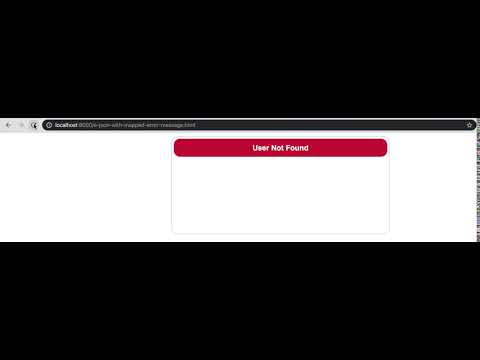
  Request URL: http://localhost:8000/profile?name=Unknown
  Request Method: GET
  -------------------------------------------------------
  Status Code: 404 profile is not found
  Content-Type: application/json
`
json
  {
    "error": "profile is not found"
  }
`
code
html
data-response-name="profileResponse"
data-actions-on-response="mapToTemplate('${profileResponse}', '#profile-template')"
data-ajax-icon="#ajax-icon"
>

User Not Found
`
link to the source codeE-JSON as a template
demo
response
bash
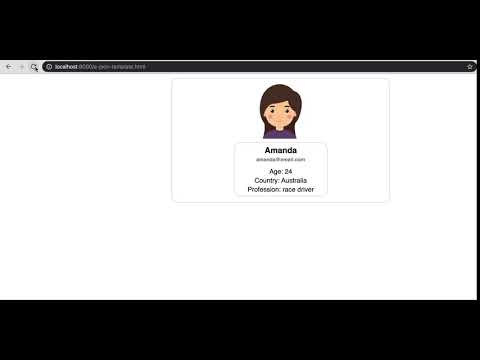
  Request URL: http://localhost:8000/profile?name=Amanda
  Request Method: GET
  -----------------------------------------------------
  Status Code: 200 ok
  Content-Type: application/json
`
json
  {
    "photo": "/../images/Amanda.svg",
    "name": "Amanda",
    "email": "amanda@email.com",
    "age": 24,
    "country": "Australia",
    "profession": "race driver"
  }
`
code
html
data-src="/../profile?name=Amanda"
data-ajax-icon="#ajax-icon"
data-object-name="profileResponse"
>
`
link to the source codeSimple E-FOR-EACH
demo
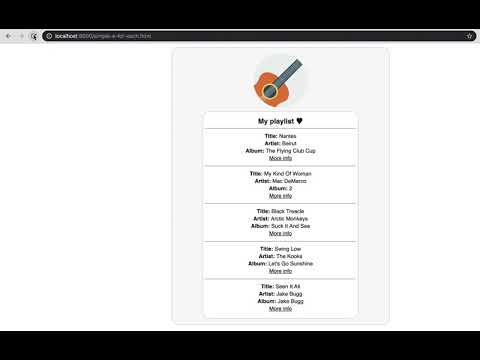
response
bash
  Request URL: http://localhost:8000/playlist
  Request Method: GET
  -------------------------------------------
  Status Code: 200 ok
  Content-Type: application/json
`
json
  {
    "title": "My playlist ♥",
    "photo":"/../images/guitar.svg",
    "songs":[
      { "title":"Nantes", "artist": "Beirut", "album": "The Flying Club Cup", "link": "https://genius.com/Beirut-nantes-lyrics" },
      { "title": "My Kind Of Woman", "artist": "Mac DeMarco", "album": "2", "link": "https://genius.com/Mac-demarco-my-kind-of-woman-lyrics" },
      { "title": "Black Treacle", "artist": "Arctic Monkeys", "album": "Suck It And See", "link": "https://genius.com/Arctic-monkeys-black-treacle-lyrics" },
      { "title": "Swing Low", "artist": "The Kooks","album":"Let's Go Sunshine", "link":"https://genius.com/The-kooks-swing-low-lyrics" },
      { "title": "Seen It All", "artist": "Jake Bugg", "album": "Jake Bugg", "link":"https://genius.com/Jake-bugg-seen-it-all-lyrics" }
    ]
  }
`
code
html
data-response-name="response"
data-actions-on-response="mapToTemplate('${response.body}', '#response-template')"
data-ajax-icon="#ajax-icon"
>
`
link to the source codeSimple E-IF
demo
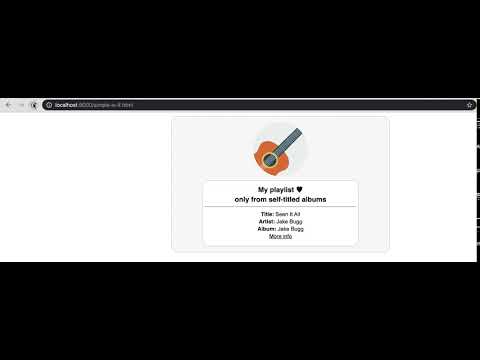
response
bash
  Request URL: http://localhost:8000/playlist
  Request Method: GET
  -------------------------------------------
  Status Code: 200 ok
  Content-Type: application/json
`
json
  {
    "title": "My playlist ♥",
    "photo":"/../images/guitar.svg",
    "songs":[
      { "title":"Nantes", "artist": "Beirut", "album": "The Flying Club Cup", "link": "https://genius.com/Beirut-nantes-lyrics" },
      { "title": "My Kind Of Woman", "artist": "Mac DeMarco", "album": "2", "link": "https://genius.com/Mac-demarco-my-kind-of-woman-lyrics" },
      { "title": "Black Treacle", "artist": "Arctic Monkeys", "album": "Suck It And See", "link": "https://genius.com/Arctic-monkeys-black-treacle-lyrics" },
      { "title": "Swing Low", "artist": "The Kooks","album":"Let's Go Sunshine", "link":"https://genius.com/The-kooks-swing-low-lyrics" },
      { "title": "Seen It All", "artist": "Jake Bugg", "album": "Jake Bugg", "link":"https://genius.com/Jake-bugg-seen-it-all-lyrics" }
    ]
  }
`
code
html
data-response-name="response"
data-actions-on-response="mapToTemplate('${response.body}', '#response-template')"
data-ajax-icon="#ajax-icon"
>
`
link to the source codeSimple E-FORM
demo
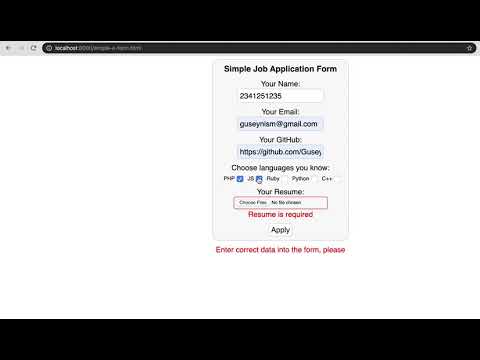
response
bash
  Request URL: https://guseyn.com/echo
  Request Method: POST
  Request Body: {"name":"Guseyn Ismayylov","email":"guseynism@gmail.com","github":"https://github.com/Guseyn","langs":["php","js"],"resume":[{"name":"resume.pdf","size":151153,"type":"application/pdf","content":"data:application/pdf;base64,JVBERi0x...}]}
  -------------------------------------------
  Status Code: 200 ok
  Content-Type: application/json
`
json
  {
    "name": "Guseyn Ismayylov",
    "email": "guseynism@gmail.com",
    "github": "https://github.com/Guseyn",
    "langs": [ "php", "js"],
    "resume": [
      {
        "name":"resume.pdf",
        "size":151153,
        "type":"application/pdf",
        "content":"data:application/pdf;base64,JVBERi0x.."
      }
    ]
  }
`
code
html
id="form"
data-validation-error-message="Enter correct data into the form, please"
data-validation-error-class-for-message-box="form-message-error">
Simple Job Application Form
Your Name:
name="name"
class="form-input"
required
data-validation-pattern="^[a-z ,.'-]+$"
data-validation-bad-format-error-message="Name can contain only alphabetic characters"
data-validation-absence-error-message="Name is required"
data-validation-error-class-for-element="elm-error"
data-validation-error-class-for-message-box="message-error">
Your Email:
name="email"
class="form-input"
required
data-validation-pattern="email"
data-validation-bad-format-error-message="This is not proper email address"
data-validation-absence-error-message="Email is required"
data-validation-error-class-for-element="elm-error"
data-validation-error-class-for-message-box="message-error">
Your GitHub:
name="github"
class="form-input"
required
pattern="url"
data-validation-absence-error-message="GitHub is required"
data-validation-error-class-for-element="elm-error"
data-validation-error-class-for-message-box="message-error">
Choose languages you know:
PHP
name="langs"
value="php">
JS
name="langs"
value="js">
Ruby
name="langs"
value="ruby">
Python
name="langs"
value="python">
C++
name="langs"
value="c++">
Your Resume:
name="resume"
class="form-input"
data-read-progress-bar="#read-progress-bar"
multiple required
data-validation-absence-error-message="Resume is required"
data-validation-min-files-number="1"
data-validation-error-class-for-element="elm-error"
data-validation-error-class-for-message-box="message-error">
data-request-method="POST"
data-request-headers="{}"
data-upload-progress-bar="#upload-progress-bar"
data-progress-bar="#progress-bar"
data-ajax-icon="#ajax-icon"
data-response-name="response"
onclick="this.form.submit(this)"
data-actions-on-response="
hideElms('#form-content');
showElms('.applying-response-box');
mapToTemplate('${response}', '#response-template');
">
Apply
`
css
  .elm-error {
    border: 1px solid red;
  }  .message-error {
    color: red;
  }  .form-message-error {
    text-align: center;
    color: red;
    font-family: sans-serif;
  }
`
validation patterns
You can specify in the attribute
following predefined patterns: date, dateTime, email, month, number, password, tel, time, url which have following formats:
`js
const VALIDATION_PATTERNS = {
date: /[0-3]\d\/[0-1]\d\/\d\d\d\d/,
dateTime: /[0-3]\d\/[0-1]\d\/\d\d\d\d, \d\d:\d\d/,
email: /^[a-zA-Z0-9.!#$%&’+/=?^_{|}~-]+@[a-zA-Z0-9-]+(?:\.[a-zA-Z0-9-]+)$/,month: /^\d\d\d\d-\d\d$/,
number: /(\d)+/,
password: /^.(?=.{8,})(?=.[a-zA-Z])(?=.\d)(?=.[!#$%&? "]).*$/,
tel: /[0-9]{0,14}$/,
time: /\d\d:\d\d/,
url: /((([A-Za-z]{3,9}:(?:\/\/)?)(?:[\-;:&=\+\$,\w]+@)?[A-Za-z0-9\.\-]+|(?:www\.|[\-;:&=\+\$,\w]+@)[A-Za-z0-9\.\-]+)((?:\/[\+~%\/\.\w\-_])?\??(?:[\-\+=&;%@\.\w_])#?(?:[\.\!\/\\\w]*))?)/
}
``
Or you can specify a string, which would be a base for RegExp with flags
.
E-REUSABLE template with E-FORM
demo
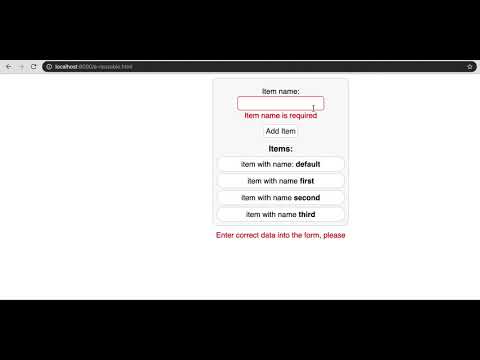
response
`bash
Request URL: https://guseyn.com/echo
Request Method: GET
Request Body: {"name": "some name"}
-------------------------------------------
Status Code: 200 ok
Content-Type: application/json
`
json
  {
    "name": "some name"
  }
`
code
id="form"
data-validation-error-message="Enter correct data into the form, please"
data-validation-error-class-for-message-box="form-message-error">
Item name:
name="name"
class="form-input"
required
data-validation-pattern="^[a-z ,.'-]+$"
data-validation-bad-format-error-message="Item name can contain only alphabetic characters"
data-validation-absence-error-message="Item name is required"
data-validation-error-class-for-element="elm-error"
data-validation-error-class-for-message-box="message-error">
data-request-method="POST"
data-ajax-icon="#ajax-icon"
data-response-name="response"