happy
v1.0.2
Happy simplifies your day-to-day git workflow
0/weekUpdated 1 years agoMITUnpacked: 355.3 KB
Published by Francisco Presencia
npm install happyHappy
Happy simplifies your day-to-day git workflow:
``bash`
$ happy
$ happy "Move the dates to ISO 8601"
$ happy "Quick hot fix" --now
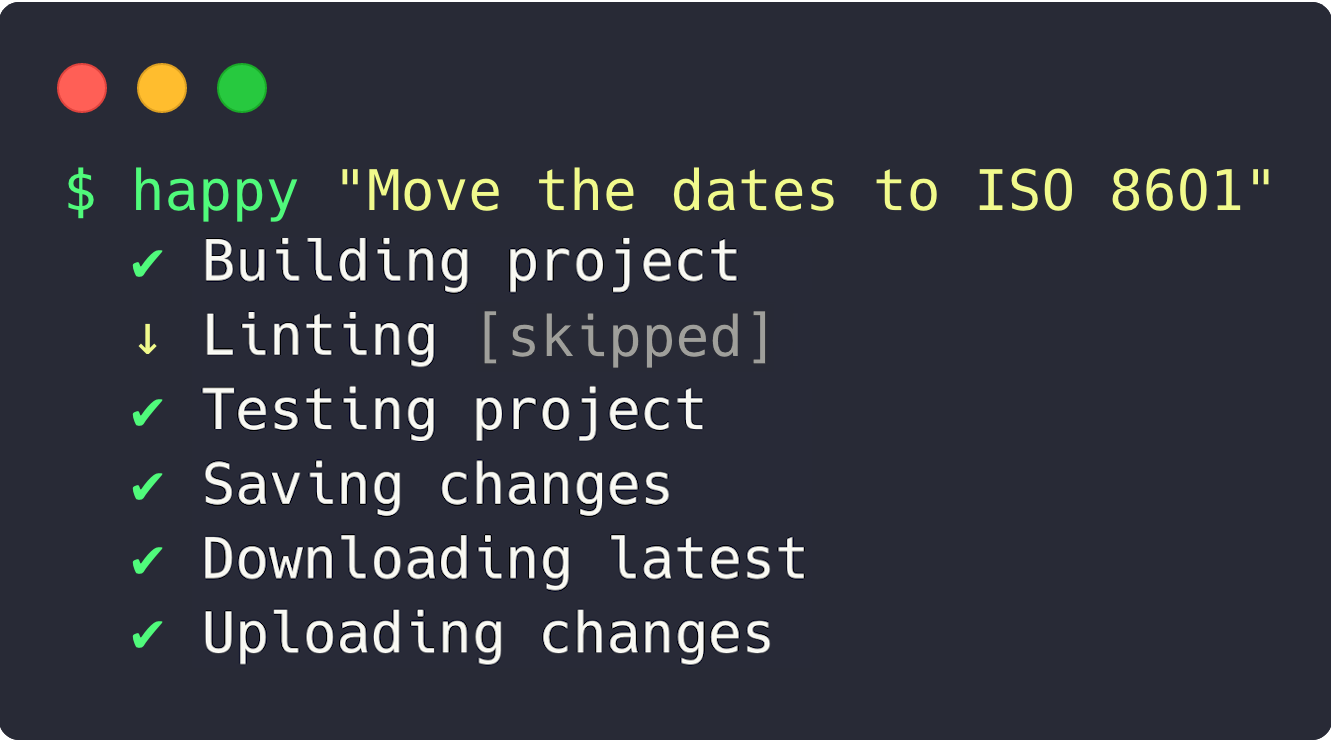
_happy_ analyzes your project to find the appropriate npm scripts to run and then commits and deploys those changes with git.
Getting started
First install it globally:
`bash`
npm install happy -g
Then you can run it in your console, either with just happy or with happy "Message". Run happy --help anytime:
`bash
$ happy --help
Happy simplifies your day-to-day git workflow.
Usage
$ happy
$ happy "Message here" --now
$ happy "Message here" --publish patch
Options
--now Skip build, lint and tests to deploy the changes now
--publish VERSION Publish your package to NPM with "np VERSION --yolo"
--patch Alias for --publish patch
--minor Alias for --publish minor
--major Alias for --publish major
Examples
$ happy
✔ Building project
↓ Linting
✔ Testing project
✔ Saving changes
✔ Downloading latest
✔ Uploading changes
$ happy "Move the dates to ISO 8601"
✔ Building project
↓ Linting
✔ Testing project
✔ Saving changes
↓ Downloading latest
✔ Uploading changes
$ happy --now
✔ Saving changes
↓ Downloading latest
✔ Uploading changes
`
What it does
It makes sure your project is ready to deploy, and then deploy it. For this, these are the steps:
- "Building project": run npm run build if the "build" script is found in your package.json.npm run lint
- "Linting": run if the "lint" script is found in the project package.json.npm test
- "Testing project": run if the "test" script is found in the project package.json.git add . && git commit -m "Saved on $TIME"
- "Saving changes": add all of the files with git, equivalent to . Provide a message for a custom git message.--publish
- "Downloading latest": git pull
- "Uploading changes": git push
- "Publish to npm": _only_ if the flag is passed, publish it to npm.
$3
Run the npm run build script if this script is found in your package.json configuration. Example:
`json`
{
"scripts": {
"build": "rollup -c"
}
}
This step will be skipped if:
- The script "build" is not found in the project package.json.--now
- The flag was passed.
$3
Run the npm run lint script if this script is found in your package.json configuration. Example:
`json`
{
"scripts": {
"lint": "eslint"
}
}
This step will be skipped if:
- The script "lint" is not found in the project package.json.--now
- The flag was passed.
$3
Run the npm test script if this script is found in your package.json configuration. Example:
`json`
{
"scripts": {
"test": "jest"
}
}
The test script will also set the environment variable CI=true to avoid some common issues.
This step will be skipped if:
- The script "test" is not found in the project package.json.--now
- The flag was passed.
$3
This is the equivalent of _adding_ and _commiting_ the changed files to Git. The message for the commit is the string that you pass:
`bash`
happy "Added that new cool feature"
When no string is provided, it will save the changes with a generic commit with the current timestamp like:
`
Saved on 2020-08-13T10:20:00Z
This step will be skipped if:
- There are no changes to add or commit.
- The changes were already commited.
$3
Try to pull the latest changes from the remote repo to combine them locally. It will exit if there's a problem with the merge so that you can merge it manually.
> This step might take longer than the others since it talks to your git server.
This step will be skipped if:
- There were no changes in the remote repo (you are up to date).
This step will throw an error if:
- The origin is not set.
> TODO: ask/fix the origin if it's not set
$3
Take all of your changes and upload them to the origin that is set in your project. This is specially useful when combined with e.g. Heroku, and you set heroku as the origin, since it will also deploy the full website.
This step takes longer than the others since it's talking to your git server.
This step will be skipped if:
- There were no changes in the local repo.
$3
> You need to have the library np installed for this, please do npm i np -g
Add a --publish VERSION flag to publish the current package to npm with np:
`bash
happy --publish patch
happy --publish minor
happy --publish major
happy --publish 5.0.0
`
As an alias, you can do with just --patch, --minor or --major instead:
`bash
happy --patch
happy --minor
happy --major
happy --publish 5.0.0
``