image-resizing
v0.1.3TypeScript
Node.js backend (middleware) for image manipulation needs (transform, resize, optimize).
0/weekUpdated 3 years agoMITUnpacked: 46.1 KB
Published by Kriasoft
npm install image-resizingCloud Image Resizing · [![npm package][npm-badge]][npm]
[npm-badge]: https://img.shields.io/npm/v/image-resizing.svg?style=flat-square
[npm]: https://www.npmjs.org/package/image-resizing
Node.js backend (middleware) for image manipulation needs (transform, resize,
optimize) that can be hosted in a serverless environment such as Google Cloud
Functions.
Getting Started
Create a Google Cloud Function project that exports image transformation HTTP handler:
``
$ npm install image-resizing --save
`js
const { createHandler } = require("image-resizing");
module.exports.img = createHandler({
// Where the source images are located.
// E.g. gs://s.example.com/image.jpg
sourceBucket: "s.example.com",
// Where the transformed images needs to be stored.
// E.g. gs://c.example.com/image__w_80,h_60.jpg
cacheBucket: "c.example.com",
});
`
Deploy it to GCP using Node.js v12+ runtime and configure a CDN on top of it.
Resizing and cropping images
You can resize and crop images in order to match the graphic design of your web
site or mobile application. Whether images are uploaded in your server-side code
or by your users, the original hi-res images are stored in the cloud for further
processing and management. You can then dynamically create multiple resized,
cropped and manipulated images on-the-fly and deliver them via dynamic URLs.
To change the size of a image, use the width and height parameters (w andh in URLs) to assign new values. You can resize the image by using both the
width and height parameters or with only one of them: the other dimension is
automatically updated to maintain the aspect ratio.
Examples of resizing the uploaded jpg image named sample:
1. Resizing the height to 200 pixels, maintaining the aspect ratio:
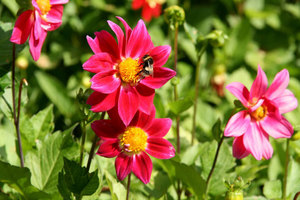
https://i.kriasoft.com/h_200/sample.jpg
2. Resizing to a width of 200 pixels and a height of 100 pixels:

https://i.kriasoft.com/w_200,h_100/sample.jpg
Fixed coordinates cropping
You can specify a region of the original image to crop by giving the x and y
coordinates of the top left corner of the region together with the andheight of the region. You can also use percentage based numbers instead of thex
exact coordinates for , y, w and h` (e.g., 0.5 for 50%) . Use this
method when you know beforehand what the correct absolute cropping coordinates
are, as in when your users manually select the region to crop out of the
original image.
For example, the following image shows many white sheep and one brown sheep.
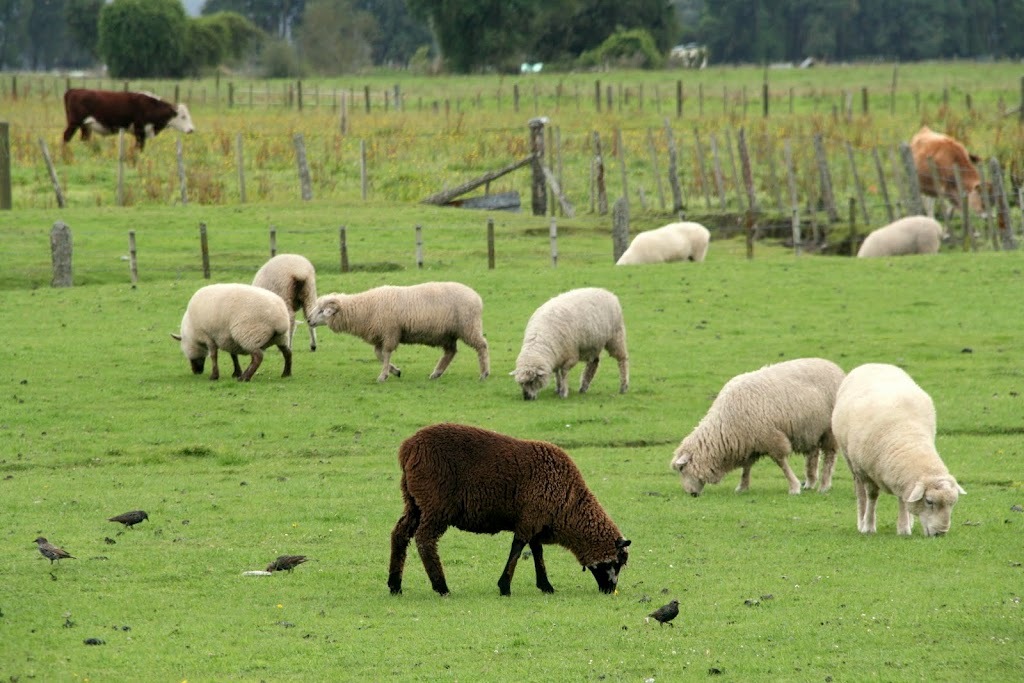
https://i.kriasoft.com/brown_sheep.jpg
To manipulate the picture so that only the brown sheep is visible, the image is cropped to a 300x200 region starting at the coordinate x = 355 and y = 410:
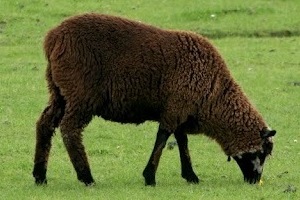
https://i.kriasoft.com/x_355,y_410,w_300,h_200,c_crop/brown_sheep.jpg
The image can be further manipulated with chained transformations. For example, the 300x200 cropped version above, also scaled down to 150x100:
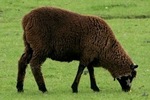
https://i.kriasoft.com/x_355,y_410,w_300,h_200,c_crop/w_150,h_100,c_scale/brown_sheep.jpg
References
- Google Cloud Functions: Quickstart Tutorial
- Google Cloud Functions: ImageMagick Tutorial
- ImageMagick Options
Contributing
Contributions of any kind are welcome! If you're unsure about something or need
directions, don't hesitate to get in touch on Discord.
License
Copyright © 2020-present Kriasoft. This source code is licensed under the MIT
license found in the LICENSE
file. Sample images and transformation options are borrowed from Cloudinary.
---
Made with ♥ by Konstantin Tarkus (@koistya, blog)
and contributors.