iobroker.zigbee
v3.3.5
Zigbee devices
0/weekUpdated 1 weeks agoMITUnpacked: 13.7 MB
Published by Kirov Ilya
npm install iobroker.zigbee!Logo
ioBroker.zigbee
!Number of Installations
!Number of Installations

!Test and Release


ioBroker adapter for Zigbee devices via Zigbee coordinator hardware.
Using specialized Zigbee-coordinator hardware, the adapter creates and manages a Zigbee Network which can control and connect a large number of Zigbee Devices. The list of compatible devices inlcudes > 4000 devices from > 450 different vendors. The number of devices in the network depends on the available coordinator hardware. Common coordinator hardware are USB sticks with Texas Instruments CC26xx, Silicon Labs EZSP or ZIGate chipsetz. Some branded USB devices (Sonoff ZB-Dongle, Dresden Electronic Conbee) can also be used. There are also network-based hubs from various manufacturers.
By working directly with the coordinator, the driver allows you to manage devices without additional application / gateways / bridge from device manufacturers (Xiaomi / TRADFRI / Hue / Tuya). More information about the Zigbee-network can be read here (in English).
Hardware
One coordinator device is required for each Zigbee Adapter instance. The device must be flashed with the respective coordinator firmware. A list of supported coordinators, the necessary equipment for the firmware and the device preparation process for different coordinator devices are described here in English or smarthomescene.com or here in Russian
$3
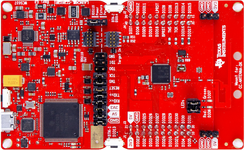
Recommended devices are based on either the CC2652 or CC1352 chip. Devices based on cc253x chips are still supported but are no longer recommended.
Only CC26xx/cc1352/cc2538 Devices support extraction of the NVRam backup which should allow to swap coordinator hardware without having to reconnect all zigbee devices to the network.
Current firmware files for these devices can be found on GitHub
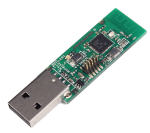
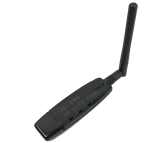
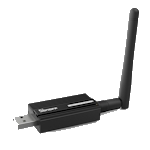
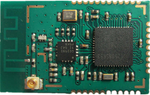
$3
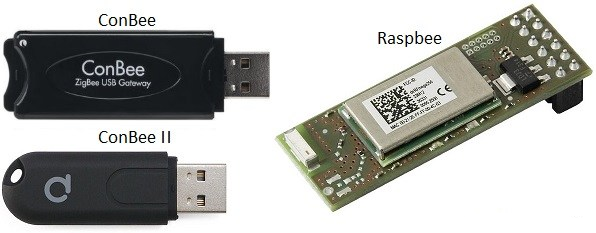
Conbee/RaspBee Support is no longer considered experimental in the zigbee-herdsman and zigbee-herdsman-converters libraries used by the zigbee Adapter, use of these devices with the adapter may limit functionality. Known issues are:
- link quality display may be incorrect
- device map metrics may be incorrect
- NVRam Backup is not currently supported.
- channel change is not currently supported.
$3
Support for Silicon Lab Zigbee based adapters is experimental. The initial support for EZSP v8 is still not yet considered stable, and the project is in need of more developers volunteering to help with this integration. Please refer to the respective documentation on this page and ongoing development discussion with regards to the state of Silabs EmberZNet Serial Protocol (EZSP) adapter implementation integration into the zigbee-herdsman and zigbee-herdsman-converters libraries which it depends on.
$3
Support for ZiGate based adapters is experimental. The initial support for ZiGate is still not yet considered stable, and the project is in need of more developers volunteering to help with this integration. Please refer to the respective documentation on this page and ongoing development discussion with regards to the state of ZiGate adapter implementation into the zigbee-herdsman and zigbee-herdsman-converters libraries which it depends on.
Getting started
The adapter should always be installed from within the ioBroker Admin. Direct npm and GitHub installations are not recommended.
At first start, it is vital to set up the adapter settings.
Please refer to the in depth documentation (german version, russian version) and/or the wiki for more information and a step-by-step guide on how to configure the adapter.
Once the adapter is up and running, the desired devices need to be integrated into the network. This requires for both the adapter and the device to be in pairing mode. Most new devices will be in pairing-mode when they are powered up for the first time, but some will require a special procedure for this. Please refer to the device manual for information on this.
The adapter is placed in pairing mode by pressing the pairing button:

A dialog showing a pairing countdown appears. When a new device is discovered, interviewed and paired with the network, messages will be shown in this dialog, and the device will show up in the grid of active devices. Any known device should show up with an image and the correct device name, as well as a number of changable settings. Any unknown device will show up with a device name and a ? as icon, while devices which failed the pairing will show up as 'unknown' with the same ? icon. These should be removed from the network to be paired again. Please refer to the documentation linked above for more details.
Configuration Tabs
The adapter configuration is done completely and solely through the instance settings. It is split into 4 sections, which are covered in detail below. Within the instance settings, there is only limited access to operational functionalities. There is no controllable list of devices, nor is there access to advanced pairing modes or device-level configurations. Instead, the configuration offers the option to rebuild the states and/or trigger a device image download through the Zigbee adapter buttons.
$3
This tab contains the general adapter settings. Most of the adapter behaviour is configured on this tab.
It also include the setting for external converters, which currently read relative to 2 folders:
- The adapters Data folder, i.e. the folder where the sheperd.db, nvbackup.json and LocalOverrides.json are located
- The adapters internal storage of external converters, i.e. iobroker.zigbee/converters.
Any user who whishes to share their external converters with the users of the adapter can open an issue or PR to have them added to the converters repository. Note: The adapter developers will not maintain these external converters. Each converter accepted into the repository will need to include some form of author identification.
External converters are only loaded when configured, i.e. without the respective entry in the External converters field, they will remain unused.
Changes to this tab trigger an automatic restart of the adapter upon leaving the settings.
$3
This tab contains the Zigbee-Hardware specific settings. Network and Coordinator parameters are set in this tab. It also offers the option to test hardware related settings without saving them, giving the user the ability to see how a change in hardware parameters will affect their network. Local backup/restore options for zigbee-adapter local data (Zigbee database, NVRam backup and Local Overrides) are also provided.
Note This tab also contains the option if to start the zigbee network automatically.
Changes to this tab trigger an automatic restart of the adapter upon leaving the settings.
$3
This tab offers the option to do model-level configuration for device behaviour. Currently, model Options, the default device name and the default device Icon can be set through this tab. Most of the advanced options from Z2M are made available for configuration here. It also offers the option to delete devices.
Changes to this tab do not trigger an automatic restart of the adapter upon leaving the settings.
$3
The developer tab offers the option to communicate directly with the device based on ZCL Clusters and attributes. Proper use of this requires access to the cluster definition as well as additional device specific documentation. The results generated through this help with generating an external converter for a currently unknown device.
Changes to this tab do not trigger an automatic restart of the adapter upon leaving the settings.
Sidebar Tabs
Most of the 'normal' operation of the adapter should be performed using the sidebar tabs. Through the Zigbee adapter buttons, the tab offers the ability to
- trigger a firmware update check for all devices
- create a new group
- perform a touchlink reset
- pair devices which require a pairing code
$3
The devices tab shows the device tiles, which offer access to a subset of states to display / control for each device, as well as general information on the device. Device tiles can be flipped over to reveal additional information and a row of buttons which allow the operator to rename the devivc, assign device-level options, change the device icon, enable/disable the device or per-device debug and reconfigure the device and manage group membership of devices which can join groups.
$3
The network map shows a Snapshot of the mesh network. The accuracy of the snapshot relies heavily on the stability of the network and the willingness of the included devices to respond to LQI and Routing requests. After the adapter is started, the map is inactive and incomplete. It must first be generated using the button on the map background or from the map settings. Once a map was generated, it is available in any openend browser window or tab without regeneration. Generating the map can take several minutes to complete, during which time an additional button will appear in the title bar to show the progress.
Additional info
There is a friendly project with similar functionality which is based on the same technology. It uses the same base libraries for hardware communication and device integration. Any device listed as compatible in this project is likely to be compatible with the ioBroker.zigbee Adapter. Note that there is a delay between device integration into zigbee2mqtt.io and the Zigbee-Adapter, as compatibility with the hardware libraries requires verification before the adapter can move to the latest version.
There are knowledge bases that can be useful for working with Zigbee-devices and equipment:
* in English https://www.zigbee2mqtt.io/ or https://zigbee.blakadder.com
* in Russian https://myzigbee.ru/
Supported devices
Pleae refer to this list to check compatibility. Once a device is listed as compatible there, it is either already compatible with the Zigbee Adapter or can be made compatible using an external converter.
Donate
You can thank the authors by these links:
* to Arthur Rupp https://paypal.me/ArthurRupp
-----------------------------------------------------------------------------------------------------
Changelog
$3
* Bugfix - Error on startup from onEvent
* fix: send_payload read with array of cluster
*
$3
* ZHC 25.112.0
* ZH 8.1.0
* Fix: Admin does not load com ports
$3
* Fix crash bug
* getter for composite states V1
* zhc
*
$3
* Fix sync brightness / state
* Fix bug in expose
* Fix rewrite state config
*
$3
* Update documentation
* Color Hue/Saturation in Groups
* Zigbee-Herdsman v8.x.x
* Sort by model in Admin
* Object for complex exposes
* POSSIBLY BREAKING: Complex exposes changed to 'channel / state' structure
* Bugfixes
*
$3
* Fix: dynamic model assignment when exposes is function (PTVO, BuschJaeger)
* Fix: Roles
* Refactor: Legacy code moved
* Refactor: Expose creation changed.
* Refactor: Exposes no longer use states from legacy code
* Feature: Offer state rebuild function in Settings
* (mh2134): Additional filters for device display
* Fix: Orphaned group states detected, marked and deletable
* Update: ZH 7.x
* Update: ZHC 25.84.0
$3
* (asgothian) changed setState for lasterror
$3
* (asgothian) added missing state
$3
* (asgothian) Improvements on debug UI
* (asgothian) Option 'resend_states' to publish state values to device on reconnect
* (asgothian) Improved group card
* (asgothian) Improved group info
* (asgothian) Modified coordinator card (2 sides)
* (asgothian) retry on error 25
* (asgothian) clear stashed error messages
* (asgothian) ZHC 25.50.0 or newer
$3
* (asgothian) Bugfix on delete object.
* (asgothian) improved device query.
* (asgothain) fixed delete device with local overrides.
*
$3
* (asgothian) fix bug #2640
*
$3
* (asgothian) remove local overrides tab from config
* (asgothian) establish local data tab in config to edit global and device level settings and options
* (asgothian) remove the local overrides tab
* (asgothian) remove the ability to set model level overrides from device tab.
* (asgothian) fix errors for 'polling' devices with changed poll times.
* (asgothian) warning icon for devices which are not completely interviewed.
* (asgothian) improved router detection for opening the network
* (asgothian) bugfix: open network on router
* (asgothian) ZHC 25.x latest, ZH 6.1.3,
* (asgothian) restore from in-adapter backup
$3
* (asgothian) Bugfixes
*
$3
* (asgothian) Bugfixes
* (asgothian) ZHC25.36.0
* (asgothian) reduced stopTimeout to 5s
$3
* (asgothian) Remove extra logging
* (asgothian) Add extra configurations
* (asgothian) Do not read states from deactivated devices
* (asgothian) Ignore deactivated devices for group state updates
* (asgothian) Change display for deactivated devices in the object tree (gray, no connected icon)
* (asgothian) more detailed device debug
* (asgothian) device debug UI improvements
* (asgothian) Pairing and device Query buttons on router cards
* (asgothian) ZHC 25.31.0, ZH 6.1.2 or newer
* (asgothian) Options based on ZHC defined options
$3
* (asgothian) Fix pairing bug
* (asgothian) add ping messages to device debug to verify ping failure reasons
* (asgothian) Fix bug that blocked group names and renaming
* (asgothian) removed extra warning message for resolveEntity
$3
* (asgothian) ZHC 25.x ZH 6.x
* (asgothian) Refactor main/statescontroller/zigbeecontroller
* (asgothian) Allow groups to trigger member state reads (via state memberupdate)
* (asgothian) Allow groups to set state based on accumulated member states (via state stateupdate)
* (asgothian) Trigger state read at device announce (via Settings: Read states at device announce)
* (asgothian) Trigger state read at adapter start for all pingable devices (via settings: 'try to read all states at adapter start' and 'read delay' (in seconds))
* (asgothian) Bugfix: Error in automatic restart function
* (asgothian) Bugfix: Error in device_query blocked certain states from being read
* (asgothian) Change to device Query: 15 second delay between queries only for automated queries. Manual queries are not affected
$3
* (asgothian) ZHC 24.9.0
* (asgothian) ZH 5.x
* (asgothian) extend and stop pairing countdown
$3
* (asgothian) fix random error where devices are not shown due to illegal groups
* (asgothian) drop support for node 18
* (asgothian) Required node Versions Node 20.19.0 or 22.11.0 or newer (courtesy of ZH 4.4.1 / ZHC 24.8.0)
$3
* (asgothian) fix 'icon' error for unknown devices
* (asgothian) fix state for level.color.rgb role (hex_color, accepts only #rrggbb values
* (asgothian) ZH 4.4.1
* (asgothian) ZHC 23.72.1
* (asgothian) preparation for breaking change in ZHC 24.0.0
$3
* (asgothian) fix images
$3
* (AlexHaxe) Fix for Ikea SOMRIG configuration raising 'definition.endpoint is not a function' error.
* (asgothian) Access to 'zigbee2mqtt options as settings in zigbee adapter (ALPHA Stage !)
* (asgothian) Fix for 'error: zigbee.0 (1118300) zigbee.0 already running' at adapter start (Alpha Stage)
* (asgothian) Updated hardware configuration panel - exchanged text buttons for buttons with icons.
* (asgothian) Limited states on device tiles to states which are read only or which can be modified sensibly via the device tile.
*
$3
* (asgothian) Breaking change: Start of zigbee subsystem requires checking the 'start the Zigbee network automatically' checkbox. !!!
* (asgothian) Hardware configuration panel
* (asgothian) Update for external converter - detect /dist/ subfolder
* (asgothian) Update device image: use of icons defined in external converter (beta)
*
$3
* (asgothian) ZHC 23.6.0
* (asgothian) ZH 3.3.x
* (asgothian) removed extra logging
* (asgothian) fixed memory issue.
* (asgothian) Configure on Message - 5 attempts.
* (arteck) update transmitPower
* (asgothian) fix crash in ZigbeeController.ByteArrayToString
* (AlexHaxe) device designation for devices without mapped model (allows use in groups and bindings)
*
$3
* (arteck) back to 2.0.2
$3
* (asgothian) fix configured info
* (asgothian) fix battery voltage (V -> mV)
* (asgothian) enable debug interface v1.0
* (asgothian) Push Zigbee-Herdsman to 2.5.7
* (asgothian) Push Zigbee-Herdsman-Converters to 23.1.1
* (asgothian) fix configure on message
* (asgothian) remove extra warning messages
* (asgothian) fix Adapter-Checker notes
* (asgothian) improve base64 image detection
* (asgothian) removed unused adaptert objects (info.groups, excludes) from adapter config
$3
* (asgothian) expose generation with expose function requiring a device. (Issue #1842)
* (asgothian) fix failure to configure for devices needing multiple configurations (Issue #2375)
* (asgothian) fix hold/release and press/release action handling (Issue #2387)
* (asgothian) fix lib/legacy requirement for external converters (Issue #2376)
* (asgothian) improved external converter handling
* (asgothian) fix OTA bug
* (asgothian) improved message handling for devices which report values outside their defined ranges
* (asgothian) preparation for ZHC 22.x (model definition loaded on demand
* (asgothian) fix legacy definition for devices
* (asgothian) added action state for remotes.
*
$3
* BREAKING CHANGES
*
* switch to converters 21 changes the exposes for a large numbern of devices (mostly remotes)
* new method for controlling color based on subchannels for rgb, hs and xy
* Exposes as default for ALL devices. Use of old definition as option only
* Requires Node 20.x or newer
*
* (asgothian) Fix Pairing
* (asgothian) change ping
* (asgothian) delay map generation until refresh is activated, map messages after generation
* (asgothian) remove bindings tab from zigbee tab
* (asgothian) reorder tabs in configuration
* (asgothian) remove binding tab from configuration
* (asgothian) remove map from configuration
* (asgothian) add debug to zigbee tab
* (asgothian) Herdsman 3.2.5, Converters 21.30.0
* (asgothian) Exposes as default, use of old device definitions as legacy optional
* (asgothian) User specific images (model based, device based)
* (asgothian) Improved group editing - remove members from group card
$3
* (arteck) Herdsman 2.1.9, Converters 20.58.0
* (asgothian) Fix: Aqara T1M (CL-L02D)
* (arteck) deleteDeviceStates change to deleteObj
$3
* (arteck) corr icon download bug (axios)
$3
* (asgothian) corr Channel Scan
$3
* BREAKING CHANGE
*
* bugs : ChannelScan is currently not available
*
*
* (lebrinkma) fix linter errors
* (asgothian) disable map display for deactivated devices
* (asgothian) new option on map: disable physics interaction
* (asgothian) new zigbee-herdsman-converters 20.28.0
* (asgothian) new zigbee-herdsman 2.1.1
* (asgothian) Allow use of keyless converters (used for TuYa and compatible devices in zigbee-herdsman-converters
* (arteck) swap from request to axios
* (arteck) delete groups works again
$3
* (arteck) typo admin settings
* (arteck) eslint config
$3
* (arteck) corr admin settings
* (arteck) add new eslint version
$3
* (arteck) add flow control option
* (asgothian) add new NewHerdsman
* (arteck) add new ezsp coordinator Firmware (7.4.1.0)
$3
* (arteck) icon ota device update
* (arteck) icon fix
$3
* (arteck) core update
* (arteck) dependency update
$3
* (arteck) dependency update
$3
* (arteck) dependency update
$3
* (arteck) Baudrate is now configurable. works ONLY with Deconz/Conbee(38400)
* (arteck) add nvbackup.json delete button
$3
* (arteck) new zigbee-herdsman-converters 18.x
* (arteck) configure message is now a warning
*
$3
* Powered by new zigbee-herdsman library and new converters database
* Drop support NodeJS 6
* Serialport 8.0.5 (in zigbee-herdsman)
* More new devices
* Some design update
* Binding
------------------------------------------------------------------------------
License
The MIT License (MIT)
Copyright (c) 2018-2026 Kirov Ilya
Permission is hereby granted, free of charge, to any person obtaining a copy
of this software and associated documentation files (the "Software"), to deal
in the Software without restriction, including without limitation the rights
to use, copy, modify, merge, publish, distribute, sublicense, and/or sell
copies of the Software, and to permit persons to whom the Software is
furnished to do so, subject to the following conditions:
The above copyright notice and this permission notice shall be included in
all copies or substantial portions of the Software.
THE SOFTWARE IS PROVIDED "AS IS", WITHOUT WARRANTY OF ANY KIND, EXPRESS OR
IMPLIED, INCLUDING BUT NOT LIMITED TO THE WARRANTIES OF MERCHANTABILITY,
FITNESS FOR A PARTICULAR PURPOSE AND NONINFRINGEMENT. IN NO EVENT SHALL THE
AUTHORS OR COPYRIGHT HOLDERS BE LIABLE FOR ANY CLAIM, DAMAGES OR OTHER
LIABILITY, WHETHER IN AN ACTION OF CONTRACT, TORT OR OTHERWISE, ARISING FROM,
OUT OF OR IN CONNECTION WITH THE SOFTWARE OR THE USE OR OTHER DEALINGS IN
THE SOFTWARE.