lets-lighthouse
v1.1.8
This tool enables the generation of lighthouse reports for multiple URLs, both for desktop and mobile, utilizing config.yaml, and allows for easy comparison of the results.
0/weekUpdated 1 years agoISCUnpacked: 57.7 KB
Published by Rohit Shrivastava
npm install lets-lighthouseLets Lighthouse
Evaluate the performance of your webpage and enhance it before it's too late.
The "Let's Lighthouse" tool facilitates straightforward analysis, reporting, and comparison, supported by "Lighthouse," a reliable tool for assessing your page's performance.
This tool enables the generation of lighthouse reports for multiple URLs, both for desktop and mobile, utilizing config.yaml, and allows for easy comparison of the results.
Note! 👋
⚡️⚡️⚡️⚡️⚡️⚡️⚡️⚡️⚡️⚡️
The large size of the unpacked file for this project is a result of the presence of sample lighthouse JSON files located within the dist folder.
⚡️⚡️⚡️⚡️⚡️⚡️⚡️⚡️⚡️⚡️
Required Node & NPM version
``
bash
node >= 20.5.1npm  >=9.8.0
`
Installation
Use the package manager npm to install Lets Lighthouse.
bash
npm i lets-lighthouse
`Simple setup
$3
bash
  npm run init
`Heart of the project
To use this tool, you will need to edit the following configuration structure in config.yaml file
Create config.yaml file (if not exits) in parallel to your project's package.json file.
Note: _In the YAML file, Whitespace indentation is used to indicate nesting and overall structure._
Here is the read about YAML
Please be advised to refrain from using special characters in page names.
---
- name: Dummy
  items:
      - name: Google
        path: https://www.google.com/
      - name: Google - Desktop
        path: https://www.google.com/
        device: desktop
- name: News
  items:
      - name: Times of India
        path: https://timesofindia.indiatimes.com/
      - name: Bhaskar
        path: https://www.bhaskar.com/
        device: desktop
      - name: BBC News
        path: https://www.bbc.com/news
Usage
$3
bash
Execute the below command to start lighthouse analysis on
multiple URLs(uses config.yaml)  npm run analysis
`
The above command will create the tests folder under your project root
with all the analysis info as follows, you will also get a consolidated report
in CSV format under the tests folder refer to screenshot: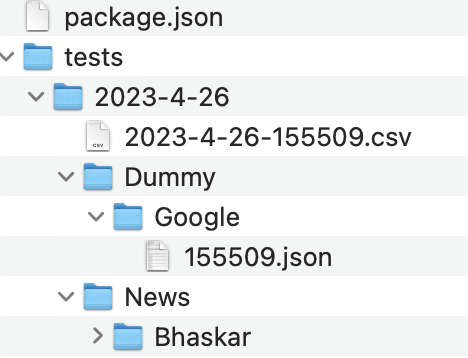
$3
bash
Compare 2 JSON files generated from the lighthouse.
Refer to the JSON path from the above screenshot.  npm run compare /2023-4-27/Dummy/Google/105453.json /2023-4-27/Dummy/Google/105658.json
`$3
In order to use this command, you have to follow some steps:
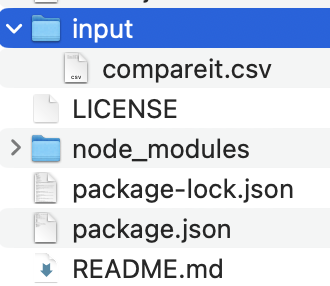
1. Create an input folder to the root of the project, for example:
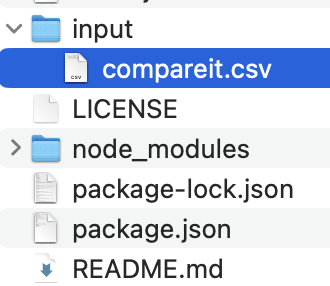
2. Now, create compareit.csv file under input folder like as follows:
3. It is time to edit the compareit.csv file as follows:

Note: Kindly follow the same header names, you can add Test IDs to compare, generated using command 1.
#### Execute the below command, this command will use Lighthouse Report Viewer
bash npm run compare-csv
`#### Execute the below command if you want to use Lighthouse Report Diff Tool
bash npm run compare-csv v2
``Contributing
Pull requests are welcome. For major changes, please open an issue first
to discuss what you would like to change.
Please make sure to update tests as appropriate.