nightscout-ps1-daemon
v2.1.1
Syncs the latest blood glucose reading from Nightscout to an ini file
0/weekUpdated 3 years agoMIT
Published by Nathan Rajlich
npm install nightscout-ps1-daemonnightscout-ps1-daemon

Periodically syncs the latest entry from Nightscout to a source-able file,
so that you can include your latest blood glucose entry in your terminal
prompt (also known as the $PS1 variable).
The trend and target high/low values are also provided, so that you may
render arrows and colors as desired:
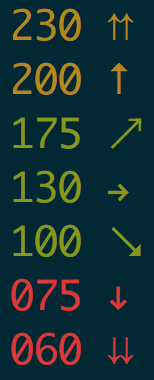
$3
Preferred installation is by downloading a pre-compiled binary for your platform:
If there is no binary for your platform, or you would simply like to install
from source, do so from npm:
``bash`
$ npm install -g nightscout-ps1-daemon
$3
As a programmer, your $PS1 is a highly intimate thing which you should take somenightscout-ps1
time to create a setup that is pleasing to you. After all, you are staring at it
all day. That said, how you _use_ the variables is up to you!
However, for convenience, the setup from the screenshots above is included here as
well. OK, on to the technical stuff.
The main key is to source the ~/.bgl-cache file in a function which gets$PS1
executed in the . The cache file looks something like:
`bash`
local nightscout_ts="1513457266000"
local nightscout_bgl="104"
local nightscout_trend="FortyFiveDown"
local nightscout_target_top="180"
local nightscout_target_bottom="80"
local nightscout_mgdl="104"
local nightscout_mills="1513457266000"
local nightscout_device="share2"
local nightscout_direction="FortyFiveDown"
local nightscout_scaled="104"
To achieve a setup similar to the screenshots above, include the code below as a
starting point. Typically you define your $PS1 in your .bashrc, .profile,
or other similar files that get executed every time a shell session is started.
`bash
RED="$(tput setaf 1 2>/dev/null || echo '')"
GREEN="$(tput setaf 2 2>/dev/null || echo '')"
YELLOW="$(tput setaf 3 2>/dev/null || echo '')"
NO_COLOR="$(tput sgr0 2>/dev/null || echo '')"
function __ps1_bgl {
source ~/.bgl-cache
local trend="?"
case "${nightscout_trend}" in
DoubleUp) trend="⇈";;
SingleUp) trend="↑";;
FortyFiveUp) trend="↗";;
Flat) trend="→";;
FortyFiveDown) trend="↘";;
SingleDown) trend="↓";;
DoubleDown) trend="⇊";;
esac
if [ "${nightscout_bgl}" -ge "${nightscout_target_top}" ]; then
printf "\001${YELLOW}\002"
elif [ "${nightscout_bgl}" -le "${nightscout_target_bottom}" ]; then
printf "\001${RED}\002"
else
printf "\001${GREEN}\002"
fi
printf "%03d %s" "${nightscout_bgl}" "${trend}"
printf "\001${NO_COLOR}\002"
}
export PS1="\$(__ps1_bgl) $ "
`
Remember to customize the $PS1 further as you like! Restart your shellsource
session, or the file again to see the changes in effect.
$3
`bash`
cp service/io.n8.nightscout-ps1.plist ~/Library/LaunchAgents/
launchctl load ~/Library/LaunchAgents/io.n8.nightscout-ps1.plist
$3
`bash``
cp service/nightscout-ps1.service /etc/systemd/system/
sudo systemd start nightscout-ps1
sudo systemd enable nightscout-ps1
$3
Check out this blog post by Scott Hanselman to
setup as a Windows Service:
* Visualizing your real-time blood sugar values AND a Git Prompt on Windows
PowerShell and Linux
Bash