painterro
v1.2.92
HTML5 image editing widget (js paint plugin)
paintpaint pluginimage editorpaint widgetscreenshots editjs paintcanvas paintimagejs paint pluginhtml5 canvas
3.2K/weekUpdated 6 months agoMITUnpacked: 7.9 MB
Published by Ivan Borshchov
npm install painterro
live demo | npm | GitHub
!npmvers !npmDown !totalNpm !ghdownloads
JavaScript painting plugin which allows editing images in a browser.
Can be easily integrated into any website or webapp by calling simple initialization code.
🆕 Check out our simple and game-changing opensource Vue admin framework with a great look and extensibility!
> 🙏🙏🙏 Scream for help to Ukraine
>
> 24 February 2022, Russia started bombing cities with peacefully civilized population in whole Ukraine. And has been doing it up to this day. Breaking all laws of war. Their bombs has been killing children and adults. This deserves Hague court.
> - 🏠 If you are from Russia, please stop your government by any means including protests, don't trust local media, they are bribed by the government. They always was. I am sure you already feel lie by unexplainable crazy things in your country caused by world sanctions.
> - 💣 Please spread the information about bombing of Ukraine in all social way you could. Russia treacherously broke into the territory of a sovereign state. Do not trust to anything from Russian media, most likely it will be bullshit
> - 💼 If you have any kind of business cooperation with Russia, please block it now and keep most of money on your side, this is the only possible ethical decision
> - ☢️ Ask your government to stop Russia from spreading invasion in any way. Russia is nuclear threat to the whole world. You think it is not possible? We thought that bombing of independent country with population of 44.13 million is also not possible.
Features
========
- Paste image from clipboard with Ctrl+V (e.g. PtnScr screenshot), drag and drop it into widget, or load with file select dialog
- Crop image by defined area
- Paint primitives: line, rectangle, ellipse (alpha color can be used)
- Brush – free drawing tool e.g. to implement finger-based signatures on tablet screens
- Add text (you can use Ctrl+B - bold, Ctrl+I - italic, Ctrl+U - underlined, or just pase formatted HTML)
- Rotate / resize, scale image
- Pixelize some area to hide sensitive data
- Draw arrows
- Trash can tool to clear the canvas
- Paint bucket tool for color fills
- Add filters to images
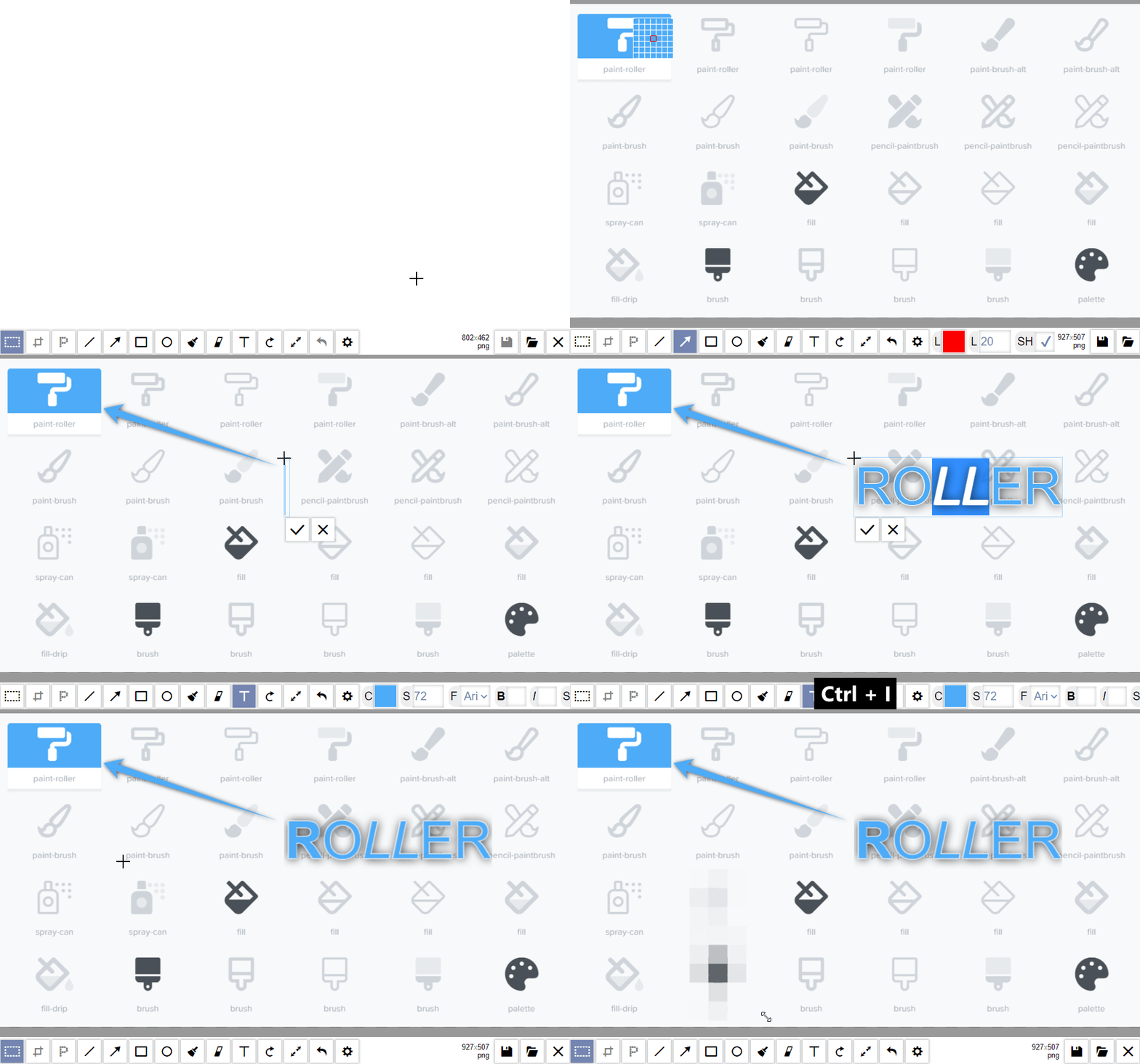 style="box-shadow: 0 0 20px lightgrey; margin: 0 0 20px 0;" />
Used by
=================
 NASA Open MCT |  Cisco DevNet |  Tracklify |  FastDivs |
Advantages 💪
=============
- It is lightweight and minimalistic - written with vanilla JS, you don't need dependencies to use it
- Designed to process images with minimal clicks, most actions support hot-keys
- Could be easily integrated into SPA application (React, Vue, Angular)
- Could be used in Electron and Cordova apps
- Flexibale image saving - you provide your save handler, and get base64 data with any jpeg/png compression
- Could be translated to any language
Originally Painterro was designed for quick screenshots processing: You make screenshot by pressing PrtSc button,
then open Painterro on your website, paste an image with Ctrl+V,
crop it to interested area, highlight something with line/rectangle tool and/or add some text
to the image and save on server with custom save handler (e.g. simple XHR request to your backend).
In addition, you can use Painterro as image editor for any kind of raster images. Please try a demo.
Also painterro has Wordpress Plugin.
If you want to see some feature in Painterro, please leave (or vote for) an issue here.
There is no promise that it will be implemented soon or ever, but it is interesting to know what features users want to have.
Usefull hints and tweaks 😋:
- Painterro JS paint features review on HINTY
- Dark theme for Painterro JS paint
- Round buttons for Painterro JS paint
Table of contents
=================
* Table of contents
* Installation
* With npm
* By including script
* Read after installation
* Supported hotkeys
* Configuration
* Events
* UI color scheme
* API
* Translation
* Saving image
* Base64 saving
* Binary saving
* Saving to WYSIWYG
* Format and quality
* Example: Open Painterro by Ctrl+V
* Development
* Building painterro
* Dev-server
* Regenerating icons font
Installation
============
With npm
--------
If you have npm-based project (e.g. SPA like React/Vue) you can run:
``bash`
npm install painterro --save
Then in your code
`js`
import Painterro from 'painterro'
...
Painterro().show()
By including script
-------------------
You can download latest painterro-*.min.js here https://github.com/devforth/painterro/releases/
or build it by yourself.
Then insert
`
Then in your code ( section, onclick handler, etc):`html`
See jsfiddle.net example
Read after installation
-----------------------
To be able to save edited images on server or client see Saving image. For configurations see Configuration
Supported hotkeys ⌨
=================
| | |
|-|-|
| Ctrl + Z | Cancel last operation |Ctrl + V
| | Paste image from clipboard |Ctrl + C
| | Copy selected aria to clipboard |Shift
| when drawing rect/ellipse | Draw square/circle |Shift
| when drawing line | draw at angles of 0, 45, 90, 135 etc degrees | Alt
| when using pipette | Hide zoom helper (colored grid) |Ctrl
| + Wheel mouse up/down | Zoom image |Ctrl + S
| | Save image |
Also some tools have own one-button hotkeys e.g. C - crop, you could see this shortcuts if you will hold mouse on toolbutton.
Configuration ⚙
=============
You can pass parameters map to Painterro constructor:
`js`
Painterro({
activeColor: '#00ff00', // default brush color is green
// ... other params here
})
| Param | Description | Default |
|-|-|-|
| id | If provided, then Painterro will be placed to some holder on page with this id, in other case holder-element will be created (fullscreen with margins). Important note: If you are using your block and id option, please add position:relative or absolute or fixed on your container, default (static) will lead to positioning issues | undefined |activeColor
|| Line/Text color that selected by default | '#ff0000' |activeColorAlpha
| | Transparancy of activeColor from 0.0 to 1.0, 0.0 = transparent | 1 |activeFillColor
| | Fill color that selected by default | '#000000' |activeFillColorAlpha
| | Transparancy of activeColor from 0.0 to 1.0 | 0 |defaultLineWidth
| | Line width in px that selected by default | 5 |defaultPrimitiveShadowOn
| | Enable Shadow for primitive tools (easier recognize them on a screenshots) | true |defaultEraserWidth
| | Eraser width in px that selected by default | 5 |backgroundFillColor
| | Default background color when image created/erased | '#ffffff' |backgroundFillColorAlpha
|| Transparancy of backgroundFillColor from 0.0 to 1.0 | 1.0 |textStrokeColor
|| Stroke color of text tool | '#ffffff' |textStrokeColorAlpha
|| Stroke color of text tool | 1.0 |shadowScale
|| Change text shadow blur for text and arrow | 1.0 |defaultFontSize
| | Default font size in pixels | 24 |backplateImgUrl
|| background for drawing, doesn't include in final image |undefined |defaultTextStrokeAndShadow
| | Enables Stroke and Shadow for text tool by default (easier recognize text on screenshots) | true |defaultSize
| | default image size, should be string in format in pixel, e.g. '200x100'. If value is 'fill'(default) than all container size will be used | 'fill' |defaultTool
| | Tool selected by default | 'select' | hiddenTools
| | List of tools that you wish to exclude from toolbar. Subset from this list ['crop', 'line', 'arrow', 'rect', 'ellipse', 'brush', 'text', 'rotate', 'resize', 'save', 'open', 'close', 'undo', 'redo', 'zoomin', 'zoomout', 'bucket'], You can't hide default tool | ['redo'] |initText
| | Display some centered text before painting (supports HTML). If null, no text will be shown | null |initTextColor
| | Color of init text | '#808080' |initTextStyle
| | Style of init text | "26px 'Open Sans', sans-serif" |pixelizePixelSize
| | Default pixel size of pixelize tool. Can accept values - x - x pixels, x% - means percents of minimal area rectangle side | 20% |pixelizeHideUserInput
| | Don't allow users to enter pixel size In settings tools (and save in localstorage), this would allow developer to freeze pixel size by using params pixelizePixelSize to make sure users will not set low pixel sizes | false |availableLineWidths
| | A list of the line width values that are available for selection in a drop down list e.g. [1,2,4,8,16,64]. Otherwise an input field is used. | undefined |availableArrowLengths
| | A list of the arrow sizes values that are available for selection in a drop down list e.g. [10,20,30,40,50,60]. Otherwise an input field is used. | undefined |defaultArrowLength
| | default arrow length | 15 |availableEraserWidths
| | A list of the eraser width values that are available for selection in a drop down list e.g. [1,2,4,8,16,64]. Otherwise an input field is used. | undefined |availableFontSizes
| | A list of the font size values that are available for selection in a drop down list e.g. [1,2,4,8,16,64]. Otherwise an input field is used. | undefined |toolbarPosition
| | Whether to position the toolbar at the top or bottom. | 'bottom' |fixMobilePageReloader
| | By default painterro adds overflow-y: hidden to page body on mobile devices to prevent "super smart" feature lice Chrom's reload page. Unfortunately we can't prevent it by preventDefault. If your want to scroll page when painterro is open, set this to false | true |language
| | Language of the widget. | 'en' |how_to_paste_actions
|| List of paste options that will be suggested on paste using some paste dialog e.g. ['extend_right', 'extend_down'] . If there is only one option in list, then it will chosen automatically without dialog | ['replace_all', 'paste_over', 'extend_right', 'extend_down'] |replaceAllOnEmptyBackground
|| Whether to select replace_all without dialog on first paste after painterro was just opened. So it will replaces background with image (will change dimensions to pasted image when background is empty) | true |hideByEsc
|| If true then ESC press will hide widget | false | saveByEnter
|| If true then ENTER press will do same as Ctrl+S | false | extraFonts
|| By default Text tool supports only several predefined fonts due to compatibility considirations , but yousing this option you can add any fonts you want if you are sure they are available on your page/app | ['Roboto'] |toolbarHeightPx
|| Height of toolbar in pixels | 40 | buttonSizePx
|| Button for toolbar in pixels | 32 |bucketSensivity
|| Bucket tool sensivity | 100 |customTools
|| List of the custom tools which will appear at the left menu after default options. Custom tool includes three options : | {name:string, callBack:function, iconUrl:dataURL string or URL} |disableWheelZoom
|| Disables the mousewheel zoom with ctrl | false |
Events
| Param | Description | Accepted Arguments |
|-|-|-|
| onBeforeClose | Function that will be called when user closes painterro it, call doClose to confirm close | hasUnsavedChaged: bool, doCloseCallback: function |onClose
| | If passed will be triggered when painterro closed by X button (use onHide for all close reasons) | undefined |onHide
| | If passed will be triggered when painterro hides (by X button or save or any other way) | undefined |onChange
| | Function that will be called if something will be changed (painted, erased, resized, etc) | | undefined |onUndo
| | Function that will be called if user will undo (Ctrl+Z) | { |onRedo
| | Function that will be called if user will redo (Ctrl+Z) | { |onImageFailedOpen
|| Function that will be called if image cant open | undefined |
| onImageLoaded | Function that will be called if you passed image to show and when it was loaded | undefined |
| saveHandler | Function that will be called when user presses Save (or Ctrl+S), Call doneCallback to reflect in painterro that image was saved | {, doneCallback : function |
Events accepted arguments:
* { is object:
``
{
image: {
asBlob: ƒ asBlob(type, quality) // returns blob
asDataURL: ƒ asDataURL(type, quality) // returns e.g. "data:image/jpeg;base64,/9j/4AAQS...."
suggestedFileName: ƒ suggestedFileName(type) // returns string
hasAlphaChannel(): ƒ suggestedFileName() // returns true or false
getOriginalMimeType: ƒ getOriginalMimeType() // e.g. image/jpeg;
getWidth: ƒ getWidth() // integer
getHeight: ƒ getHeight() // integer
}
operationsDone: int // integer
}
* { is object:
`
{
prev: {
next: {
prevCount: int
sizeh: int
sizew: int
}
UI color scheme
---------------
Next group of params used to configure painterro user interface in simple "JS way".
They should be placed under colorScheme group, for example:`js`
Painterro({
colorScheme: {
main: '#fdf6b8', // make panels light-yellow
control: '#FECF67' // change controls color
}
}).show()
| Param | Description | Default |
|-|-|-|
|main | Color of panels, take most of UI space | '#fff' |control
| | Color of controls background (e.g. button background) | '#fff' |controlShadow
| | Color controls box shadow | '0px 0px 3px 1px #bbb' |controlContent
| | Content of controls (e.g. button text) | '#000000' |activeControl
| | Color for control when it active (e.g. button pressed) | '#7485B1' |activeControlContent
| | Color for activated control content | main |inputBorderColor
| | You can add border to inputs, by default color is same as main so borders will not be seen | main |inputBackground
| | Background of inputs | '#ffffff' |inputShadow
| | shadow of input | 'inset 0 0 4px 1px #ccc' |inputText
| | Color of text in input | activeControl |backgroundColor
|| Background color of component area which left outside of image due to it size/ratio | '#999999' |dragOverBarColor
|| Color of bar when dropping file to painterro | '#899dff' |hoverControl
|| Controls color when mouse hovered | control |hoverControlContent
|| Controls background color when mouse hovered | '#1a3d67' |toolControlNameColor
|| Color of toolbar labels that prepend controls | rgba(255,255,255,0.7) |
> NOTE: all these params are defined only for simplicity, you are free to redefine them in your cascade style files (we don't use importants and so on, so all props should be easily editable). This mettod is recommended for experts - because you can use your CSS preprocessor variables and adopt Painterro for your design. Example usecase is different color of shadows for a buttons with ::after/::before
API
-------
.show([optional]openImage, [optional]initialMimeType) - Shows painterro instance. openImage can have next values:
* false - will open image that already was drawn before last closesome string value
* , e.g. 'http://placehold.it/120x120&text=image1' - will try to load image from url
* all another values - will clear content before open
initialMimeType could be used to help painterro understand which file do you try to load there. Could be useful if you want to save the original mime and file opened explicitly (painterro open tool or dnd/ctrl+v handlers get it automatically)
.hide() - hide instance
.setColor(options) - sets the color of the chosen tool , or changes initial value of color. options should be array with two values, [target,colorWidgetState]
available values for target:
|line|, |bg|
colorWidgetState - object with requred properties :
* palleteColor - color string . Just indicates which color will be shown on the collor pallete.alpha
* - number in range from 0 to 1. The same but for alpha channel. alphaColor
* - color string. Color with alpha, which will be using for drawing element.
>NOTE: paleteColor and alpha is using only for displaing right values in color picker widget, this two options don't effect on color which will be used for drawing elements.
.setLineWidth() - set line width for chosen tool.
.setArrowLength() - set width for chosen arrow.
.setEraserWidth() - set width of eraser
.setShadowOn() - set shadowfor line elements or arrow element. It takes boolean value.
.save() - call save (same save as on buttons bar). Can be used if save button is hidden (hiddenTools: ['save'])
.doScale({ width, height, scale }) - scale the image and resize area.
Scale to match the width and scale height proportinally (e.g. 50x32 will become 100->64):
`
.doScale({width: 100})
Scale to fill width and height (e.g. 50x32 will become 11->15):
`
.doScale({width: 11, height: 15})
Scale x2 (e.g. 11x12 will become 22->24):
`
.doScale({ scale: 2 })
setZoom(zoomPercentage) - sets the current zoom percentage
Example:
`js`
var p = Painterro()
p.show()
Translation 📙
--------------
Want to translate Painterro into your language?
If you need one of languages in table below, just pass pass language parameter, for example:`
js`
Painterro({
language: 'es' // Spanish
}).show()
Translated languages:
| language param | Name |ca
|-|-|
| | Catalan |de
| | German |en
| | English |es
| | Spanish |fa
| | Iran-Farsi (Persian (Ir-Fa) |fr
| | French |ja
| | Japanese |pl
| | Polish |pt-PT
| | European Portuguese |pt-BR
| | Brazilian Portuguese |ru
| | Russian |nl
| | Dutch |
If you want to add another language, then:
1. fork to your GitHub with button on top.
2. Create empty file in folder langs [ should follow ISO 639-1'Strings'
3. Copy content from [langs/en.lang.js] to a new file
4. Then translate all
5. Add reference in [js/translation.js] inside of your repo.
5. After that create pull-request, or just open issue if you don't know how to create a PR.
🤔 Found a bug in some word for your language? Feel free to edit on GitHub directly and suggest a fix.
If you want to translate or change strings without contributing you can do this by passing
translation parameter, for example:
`js`
Painterro({
translation: {
name: 'ua',
strings: {
apply: 'Застосувати'
// other strings
}
}
}).show()
For all strings that should be translated, see [langs/en.lang.js]
Saving image 💾
===============
You should provide your own save handler, that will post/update image on server or will pass image to other
frontend components. In this section we will provide several backend examples on python Flask (easiest web server for python). Anyway if you will face any python exception you can use super-helpfull fixexception.com service to fix any issue you will face 💪.
Binary saving
-------------
You can post data with binary multipart/form-data request which is the most efficient way to pass data to backend. Example uses raw XMLHttpRequest. Of course,fetch
you can use , jQuery, etc insead.
`js`
var ptro = Painterro({
  saveHandler: function (image, done) {
var formData = new FormData();
formData.append('image', image.asBlob());
// you can also pass suggested filename
// formData.append('image', image.asBlob(), image.suggestedFileName());
var xhr = new XMLHttpRequest();
xhr.open('POST', 'http://127.0.0.1:5000/save-as-binary/', true);
xhr.onload = xhr.onerror = function () {
// after saving is done, call done callback
done(true); //done(true) will hide painterro, done(false) will leave opened
};
xhr.send(formData);
}
})
ptro.show();
Here is python flask backend example (of course same can be implemented using any technology):python`
@app.route("/save-as-binary/", methods=['POST'])
def binary_saver():
filename = '{:10d}.png'.format(int(time())) # generate some filename
filepath = os.path.join(get_tmp_dir(), filename)
request.files['image'].save(filepath)
return jsonify({})
See full example in example directory. You can run it used python3 with installed Flask (pip install flask).
Base64 saving
-------------
You can also same image by posting base64 string via plain POST json call.1920 x 1080
Please note that base64 encoding is less efficient then binary data, for example some image took 402398 bytes for base64 upload.301949
The same image took bytes with multipart/form-data.
`js`
var ptro = Painterro({
saveHandler: function (image, done) {
// of course, instead of raw XHR you can use fetch, jQuery, etc
var xhr = new XMLHttpRequest();
xhr.open("POST", "http://127.0.0.1:5000/save-as-base64/");
xhr.setRequestHeader("Content-Type", "application/json");
xhr.send(JSON.stringify({
image: image.asDataURL()
}));
xhr.onload = function (e) {
// after saving is done, call done callback
done(true); //done(true) will hide painterro, done(false) will leave opened
}
},
activeColor: '#00b400' // change active color to green
});
ptro.show();
Backend should convert to binary and save file:`python`
@app.route("/save-as-base64/", methods=['POST'])
def base64_saver():
filename = '{:10d}.png'.format(int(time())) # generate some filename
filepath = os.path.join(get_tmp_dir(), filename)
with open(filepath, "wb") as fh:
base64_data = request.json['image'].replace('data:image/png;base64,', '')
fh.write(base64.b64decode(base64_data))
return jsonify({})
Saving to WYSIWYG
-----------------
You can just insert image as data url to any WYSIWYG editor, e.g. TinyMCE:
`js`
tinymce.init({ selector:'textarea', });
var ptro = Painterro({
saveHandler: function (image, done) {
tinymce.activeEditor.execCommand('mceInsertContent', false, '');
// after saving is done, call done callback
done(true); //done(true) will hide painterro, done(false) will leave opened
}
})
Format and quality
------------------
When you call image.asDataURL() or image.asBlob(), you can also specify image mime type (format), e.g.image.asDataURL('image/jpeg').
Default type is mimetype used by image which was loaded into Painterro, or "image/png" if image was created from scratch.
If type is image/jpeg or image/webp, you can also define image quality from 0.0 to 1.0, default is 0.92,image.asDataURL('image/jpeg', 0.5)
example:
Save to jpeg or png depending on whether there is an alpha channel
------------------
An efficient way to save an image might be implmented by checking whether image has some alpha pixels:
* If yes - we need to serve image in less efficient png format
* Otherwise lets just use JPEG
This is very simple with next:
`
var ptro = Painterro({
saveHandler: function (image, done) {
image.asBlob(image.hasAlphaChannel() ? 'image/png' : 'image/jpeg');
// upload blob
}
})
`
Example: Open Painterro by Ctrl+V
-----------------
`js`
document.onpaste = (event) => {
const { items } = event.clipboardData || event.originalEvent.clipboardData;
Array.from(items).forEach((item) => {
if (item.kind === 'file') {
if (!window.painterroOpenedInstance) {
// if painterro already opened - it will handle onpaste
const blob = item.getAsFile();
const reader = new FileReader();
reader.onload = (readerEvent) => {
window.painterroOpenedInstance = Painterro({
onHide: () => {
window.painterroOpenedInstance = undefined;
},
saveHandler: (image, done) => {
console.log('Save it here', image.asDataURL()); // you could provide your save handler
done(true);
},
}).show(readerEvent.target.result, item.type);
};
reader.readAsDataURL(blob);
}
}
});
};
If you face any painterro errors (exceptions), please reffer to Painterro page on FixJSError
Development 🔨
==============
Latest supported NodeJS version is 16, use nvm to switch to it:
`
nvm install 16
nvm use 16
Code written on ES6 which transplited by Babel and packed (minified) to a single file using webpack. All configs are inside so all you have to do after pulling repo is installing node modules:
`bash`
cd painterro
npm ci
Building painterro
------------------
`bash`
npm run build
Result file for