Fast, disk space efficient package manager
npm install pnpm-glitch


> Fast, disk space efficient package manager
Features:
* Fast. Faster than npm and Yarn.
* Efficient. One version of a package is saved only ever once on a disk.
* Deterministic. Has a lockfile called shrinkwrap.yaml.
* Strict. A package can access only dependencies that are specified in its package.json.
* Works everywhere. Works on Windows, Linux and OS X.
* Hooks. node_modules is not a black box anymore.
* Aliases. Install different versions of the same package or import it using a different name.
Like this project? Let people know with a tweet.
* Background
* Install
* Usage
* pnpm CLI
* pnpx CLI
* Configuring
* Hooks
* Aliases
* Benchmark
* Limitations
* Frequently Asked Questions
* Support
* Awesome list
* Recipes
* Continuous Integration
* Advanced
* About the package store
* Symlinked node_modules structure
* How peers are resolved
* Contributing
pnpm uses hard links and symlinks to save one version of a module only ever once on a disk.
When using npm or Yarn for example, if you have 100 projects using the same version
of lodash, you will have 100 copies of lodash on disk. With pnpm, lodash will be saved in a
single place on the disk and a hard link will put it into the node_modules where it should
be installed.
As a result, you save gigabytes of space on your disk and you have a lot faster installations!
If you'd like more details about the unique node_modules structure that pnpm creates and
why it works fine with the Node.js ecosystem, read this small article: Why should we use pnpm?
Using a standalone script:
``
curl -L https://unpkg.com/@pnpm/self-installer | node
Via npm:
`
npm install -g pnpm
Once you first installed pnpm, you can upgrade it using pnpm:
`
pnpm install -g pnpm
> Do you wanna use pnpm on CI servers? See: Continuous Integration.
Just use pnpm in place of npm:
`
pnpm install lodash
npm commands that are re-implemented in pnpm:
* install
*
*
*
*
*
*
*
*
*
*
Also, pnpm has some custom commands:
* dislink
Unlinks a package. Like yarn unlink but pnpm re-installs the dependencystore status
after removing the external link.
*
Returns a 0 exit code if packages in the store are not modified, i.e. the
content of the package is the same as it was at the time of unpacking.
* store prune
Removes unreferenced (extraneous, orphan) packages from the store.
The rest of the commands pass through to npm.
For using the programmatic API, use pnpm's engine: supi.
npm has a great package runner called npx.
pnpm offers the same tool via the pnpx command. The only difference is that pnpx uses pnpm for installing packages.
The following command installs a temporary create-react-app and calls it,
without polluting global installs or requiring more than one step!
`
pnpx create-react-app my-cool-new-app
pnpm uses npm's programmatic API to read configs. Hence, you should set configs for pnpm the same way you would for npm.
Furthermore, pnpm uses the same configs that npm uses for doing installations. If you have a private registry and npm is configured
to work with it, pnpm should be able to authorize requests as well, with no additional configuration.
However, pnpm has some unique configs as well:
#### store
* Default: ~/.pnpm-store
* Type: path
The location where all the packages are saved on the disk.
The store should be always on the same disk on which installation is happening. So there will be one store per disk.
If there is a home directory on the current disk, then the store is created in . If there is noD
homedir on the disk, then the store is created in the root. For example, if installation is happening on disk
then the store will be created in .
It is possible to set a store from a different disk but in that case pnpm will copy, not link, packages from the store.
Hard links are possible only inside a filesystem.
#### offline
* Default: false
* Type: Boolean
If true, pnpm will use only packages already available in the store.
If a package won't be found locally, the installation will fail.
#### network-concurrency
* Default: 16
* Type: Number
Controls the maximum number of HTTP requests that can be done simultaneously.
#### child-concurrency
* Default: 5
* Type: Number
Controls the number of child processes run parallelly to build node modules.
#### lock
* Default: true
* Type: Boolean
Dangerous! If false, the store is not locked. It means that several installations using the same
store can run simultaneously.
Can be passed in via a CLI option. --no-lock to set it to false. E.g.: pnpm install --no-lock.
> If you experience issues similar to the ones described in #594, use this option to disable locking.
> In the meanwhile, we'll try to find a solution that will make locking work for everyone.
#### ignore-pnpmfile
* Default: false
* Type: Boolean
pnpmfile.js will be ignored. Useful together with --ignore-scripts when you want to make sure that
no script gets executed during install.
#### independent-leaves
* Default: false
* Type: Boolean
If true, symlinks leaf dependencies directly from the global store. Leaf dependencies are
packages that have no dependencies of their own. Setting this config to true might break some packages
that rely on location but gives an average of 8% installation speed improvement.
#### verify-store-integrity
* Default: true
* Type: Boolean
If false, doesn't check whether packages in the store were mutated.
#### package-import-method
* Default: auto
* Type: auto, hardlink, copy, reflink
Controls the way packages are imported from the store.
* auto - try to hardlink packages from the store. If it fails, fallback to copy
* hardlink - hardlink packages from the store
* copy - copy packages from the store
* reflink - reflink (aka copy-on-write) packages from the store
#### shrinkwrap-only
* Default: false
* Type: Boolean
When used, only updates shrinkwrap.yaml and package.json instead of checking node_modules and downloading dependencies.
pnpm allows to step directly into the installation process via special functions called hooks.
Hooks can be declared in a file called pnpmfile.js. pnpmfile.js should live in the root of the project.
An example of a pnpmfile.js that changes the dependencies field of a dependency:
`js
module.exports = {
hooks: {
readPackage
}
}
// This hook will override the manifest of foo@1 after downloading it from the registry
// foo@1 will always be installed with the second version of bar
function readPackage (pkg) {
if (pkg.name === 'foo' && pkg.version.startsWith('1.')) {
pkg.dependencies = {
bar: '^2.0.0'
}
}
return pkg
}
`
Aliases let you install packages with custom names.
Lets' assume you use lodash all over your project. There is a bug in lodash that breaks your project.lodash
You have a fix but won't merge it. Normally you would either install lodash from your forkrequire('lodash')
directly (as a git-hosted dependency) or publish it with a different name. If you use the second solution
you have to replace all the requires in your project with the new dependency name ( => require('awesome-lodash')).
With aliases, you have a third option.
Publish a new package called awesome-lodash and install it using lodash as its alias:
``
pnpm install lodash@npm:awesome-lodash
No changes in code are needed. All the requires of lodash will import awesome-lodash.
Sometimes you'll want to use two different versions of a package in your project. Easy:
`
pnpm install lodash1@npm:lodash@1
pnpm install lodash2@npm:lodash@2
Now you can require the first version of lodash via require('lodash1') and the second via require('lodash2').
This gets even more powerful when combined with hooks. Maybe you want to replace lodash with awesome-lodash
in all the packages in . You can easily achieve that with the following pnpmfile.js:
`js
module.exports = {
hooks: {
readPackage
}
}
function readPackage (pkg) {
if (pkg.dependencies && pkg.dependencies.lodash) {
pkg.dependencies.lodash = 'npm:awesome-lodash@^1.0.0'
}
return pkg
}
`
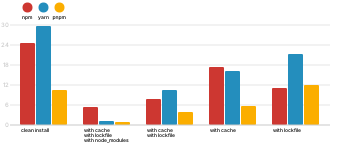
pnpm is faster than npm and Yarn. See this
benchmark which compares the three package managers on different types of applications.
Here are the benchmarks on a React app:
1. npm-shrinkwrap.json and package-lock.json are ignored. Unlike pnpm, npm can install thename@version
same multiple times and with different sets of dependencies.node_modules
npm's shrinkwrap file is designed to reflect the layout createdbundleDependencies
by npm. pnpm cannot create a similar layout, so it cannot respect
npm's lockfile format.
2. You can't publish npm modules with managed by pnpm.node_modules/.bin
3. Binstubs (files in ) are always shell files notnode_modules
symlinks to JS files. The shell files are created to help pluggable CLI apps
in finding their plugins in the unusual structure. This is very
rarely an issue and if you expect the file to be a js file, just reference the
original file instead, as described in #736.
4. Node.js doesn't work with the --preserve-symlinks flag when executed in a project that uses pnpm.
Got an idea for workarounds for these issues? Share them.
* npm. The oldest and most widely used. See pnpm vs npm.ied
* . Built on a very similar premise as pnpm. pnpm takes huge inspiration from it.Yarn
* . The first Node.js package manager that invented lockfiles and offline installations.
pnpm creates hard links from the global store to project's node_modules folders.foo
Hard links point to the same place on the disk where the original files are.
So, for example, if you have in your project as a dependency and it occupies 1MB of space,node_modules
then it will look like it occupies 1MB of space in the project's folder andfoo
the same amount of space in the global store. However, that 1MB is the same space on the disk
addressed from two different locations. So in total occupies 1MB,
not 2MB.
For more on this subject:
* Why do hard links seem to take the same space as the originals?
* A thread from the pnpm chat room
* An issue in the pnpm repo
Using symlinks on Windows is problematic indeed. That is why pnpm uses junctions instead of symlinks on Windows OS.
Early versions of npm had issues because of nesting all node_modules (see Node's nested node_modules approach is basically incompatible with Windows). However, pnpm does not create deep folders, it stores all packages flatly and uses symlinks to create the dependency tree structure.
Although pnpm uses symlinks to put dependencies into node_modules folders, circular symlinks are avoided because parent packages are placed into the same node_modules folder in which their dependencies are. So foo's dependencies are not in foo/node_modules but foo is in node_modules/foo, together with its own dependencies.
One package can have different sets of dependencies on one machine.
In project A foo@1.0.0 can have dependency resolved to bar@1.0.0 but in project B the same dependency of foo mightbar@1.1.0
resolve to . So pnpm hard links foo@1.0.0 to every project where it is used, in order to create different sets
of dependencies for it.
Direct symlinking to the global store would work with Node's --preserve-symlinks flag. But --preserve-symlinks` comes
with a bunch of different issues, so we decided to stick with hard links.
For more details about why this decision was made, see: https://github.com/nodejs/node-eps/issues/46.
- Stack Overflow
- Gitter chat
- Twitter