react-native-braintree-dropin-ui
v1.1.7
> React Native integration of Braintree Drop-in IOS V4 ANDROID V2 (Apple Pay &Android Pay Enabled)
0/weekUpdated 2 years agoMITUnpacked: 924.6 KB
Published by tony0130
npm install react-native-braintree-dropin-uireact-native-braintree-dropin-ui
> React Native integration of Braintree Drop-in for IOS & ANDROID (Apple Pay, Google Pay, Paypal, Venmo, Credit Card)
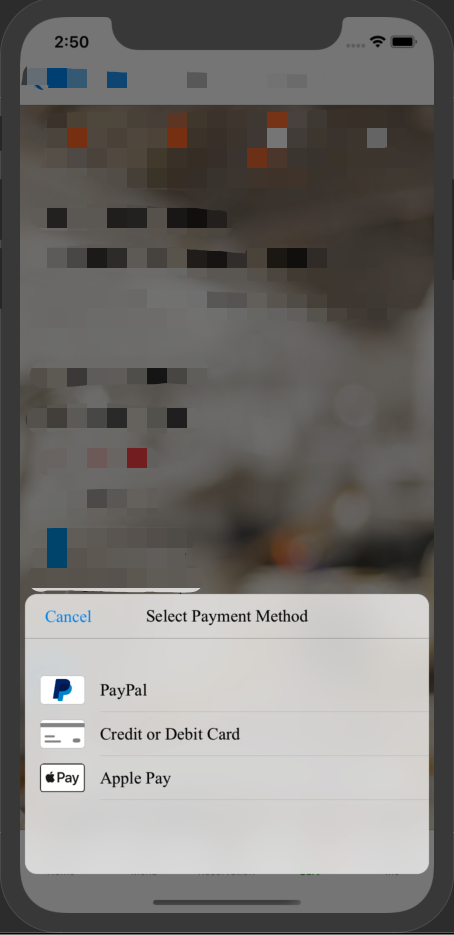
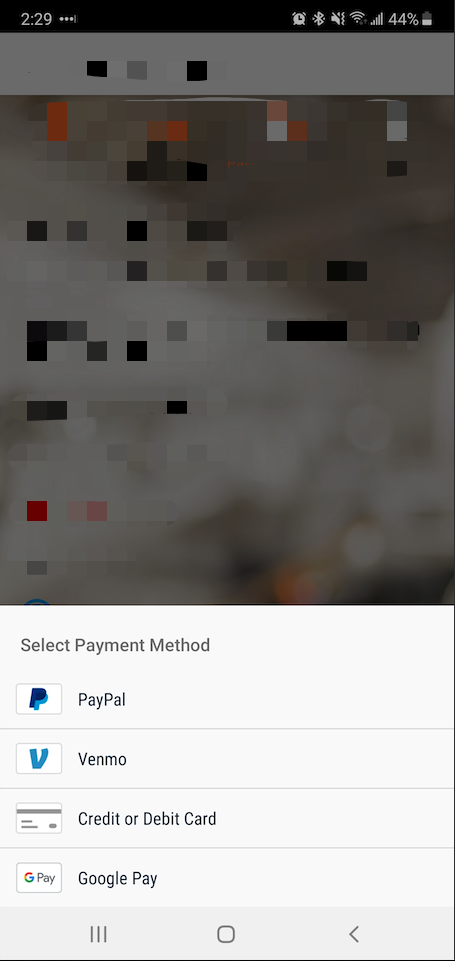
Getting started
For React Native versions >= 0.60
IOS
``bash
npm install react-native-braintree-dropin-ui --save
OR
yarn add react-native-braintree-dropin-ui
cd ./ios
pod install
`
Android
`bash
npm install react-native-braintree-dropin-ui --save
OR
yarn add react-native-braintree-dropin-u
`
Configurate Payment Method(For ALL RN VERSIONS)
See Braintree's documentation, [Apple Pay][7], [Google Pay][8], [Paypal][9], [Venmo][10]
Once you have finished setting up all the configurations, it will show in the dropin UI.
For React Native versions < 0.60
$3
`bash`
react-native link react-native-braintree-dropin-ui
#### iOS specific
You must have a iOS deployment target \>= 12.0.
If you don't have a Podfile or are unsure on how to proceed, see the [CocoaPods][1] usage guide.
In your Podfile, add:
`comment the next line to disable credit card scanning
pod 'CardIO'
`
When using React Native versions < 0.60, the following must also be added to your Podfile:
`
pod 'Braintree'
pod 'BraintreeDropIn'
# comment the next line to disable Apple pay
pod 'Braintree/ApplePay'
# comment the next line to disable PayPal
pod 'Braintree/PayPal'
# comment the next line to disable Venmo
pod 'Braintree/Venmo'
# Data collector for Braintree Advanced Fraud Tools
pod 'Braintree/DataCollector'
`
Then:
`bash`
cd ios
pod repo update # optional and can be very long
pod install
#### Apple Pay
The Drop-in will show Apple Pay as a payment option as long as you've completed the [Apple Pay integration][5] and the customer's [device and card type are supported][6].
#### PayPal
To enable paypal payments in iOS, you will need to add setReturnURLScheme to launchOptions of your AppDelegate.m / AppDelegate.mm
`objective-c`
- (BOOL)application:(UIApplication )application didFinishLaunchingWithOptions:(NSDictionary )launchOptions {
[BTAppContextSwitcher setReturnURLScheme:@"com.your-company-name.your-app-name.payments"]; // ADD THIS LINE
return YES;
}
#### Android specific
Add in your MainActivity.java:`
import tech.power.RNBraintreeDropIn.RNBraintreeDropInModule;
@Override
protected void onCreate(Bundle savedInstanceState) {
// ...
RNBraintreeDropInModule.initDropInClient(this);
}
`
Note: Only complete the next steps if using React Native versions < 0.60, autolinking will do these steps automatically.
Add in your app/build.gradle:
`
dependencies {
...
    implementation project(':react-native-braintree-dropin-ui')
    implementation "io.card:android-sdk:5.+"
    implementation 'com.braintreepayments.api:data-collector:2.+'
    implementation 'com.google.android.gms:play-services-wallet:11.4.0'
Add in your MainApplication.java:
`
import tech.power.RNBraintreeDropIn.RNBraintreeDropInPackage;
return Arrays.
... ...
new RNBraintreeDropInPackage() // <------ add here
);
`
The below steps apply to all versions of React Native
If you wish to support Google Pay, add in your AndroidManifest.xml:
`
android:value="true"/>
If you wish to support card swipe support, add in your 'app/build.gradle:
``
dependencies {
...
    implementation "io.card:android-sdk:5.+"
$3
For more configuration options, see Braintree's documentation ([iOS][2] | [Android][3]).
#### 3D Secure
If you plan on using 3D Secure, you have to do the following.
##### iOS
###### Configure a new URL scheme
Add a bundle url scheme {BUNDLE_IDENTIFIER}.payments in your app Info via XCode or manually in the Info.plist.Info.plist
In your , you should have something like:
`xml`
###### Update your code
In your AppDelegate.m:
`objective-c
#import "BraintreeCore.h"
...
- (BOOL)application:(UIApplication )application didFinishLaunchingWithOptions:(NSDictionary )launchOptions
{
...
[BTAppContextSwitcher setReturnURLScheme:self.paymentsURLScheme];
...
}
- (BOOL)application:(UIApplication *)application
openURL:(NSURL *)url
options:(NSDictionary
if ([url.scheme localizedCaseInsensitiveCompare:self.paymentsURLScheme] == NSOrderedSame) {
return [BTAppContextSwitcher handleOpenURL:url];
}
return [RCTLinkingManager application:application openURL:url options:options];
}
- (NSString *)paymentsURLScheme {
NSString *bundleIdentifier = [[NSBundle mainBundle] bundleIdentifier];
return [NSString stringWithFormat:@"%@.%@", bundleIdentifier, @"payments"];
}
`
In your AppDelegate.swift:
`swift
import Braintree
func application(_ application: UIApplication, didFinishLaunchingWithOptions launchOptions: [UIApplication.LaunchOptionsKey: Any]?) -> Bool {
...
BTAppContextSwitcher.setReturnURLScheme(self.paymentsURLScheme)
...
}
func application(_ app: UIApplication, open url: URL, options: [UIApplication.OpenURLOptionsKey : Any] = [:]) -> Bool {
if let scheme = url.scheme, scheme.localizedCaseInsensitiveCompare(self.paymentsURLScheme) == .orderedSame {
return BTAppContextSwitcher.handleOpen(url)
}
return RCTLinkingManager.application(app, open: url, options: options)
}
private var paymentsURLScheme: String {
let bundleIdentifier = Bundle.main.bundleIdentifier ?? ""
return bundleIdentifier + ".payments"
}
`
Usage
For the API, see the [Flow typings][4].
$3
`javascript
import BraintreeDropIn from 'react-native-braintree-dropin-ui';
BraintreeDropIn.show({
clientToken: 'token',
merchantIdentifier: 'applePayMerchantIdentifier',
googlePayMerchantId: 'googlePayMerchantId',
countryCode: 'US', //apple pay setting
currencyCode: 'USD', //apple pay setting
merchantName: 'Your Merchant Name for Apple Pay',
orderTotal:'Total Price',
googlePay: true,
applePay: true,
vaultManager: true,
payPal: true,
cardDisabled: false,
darkTheme: true,
})
.then(result => console.log(result))
.catch((error) => {
if (error.code === 'USER_CANCELLATION') {
// update your UI to handle cancellation
} else {
// update your UI to handle other errors
}
});
`
$3
`javascript
import BraintreeDropIn from 'react-native-braintree-dropin-ui';
BraintreeDropIn.show({
clientToken: 'token',
threeDSecure: {
amount: 1.0,
},
merchantIdentifier: 'applePayMerchantIdentifier',
googlePayMerchantId: 'googlePayMerchantId',
countryCode: 'US', //apple pay setting
currencyCode: 'USD', //apple pay setting
merchantName: 'Your Merchant Name for Apple Pay',
orderTotal:'Total Price',
googlePay: true,
applePay: true,
vaultManager: true,
payPal: true,
cardDisabled: false,
darkTheme: true,
})
.then(result => console.log(result))
.catch((error) => {
if (error.code === 'USER_CANCELLATION') {
// update your UI to handle cancellation
} else {
// update your UI to handle other errors
// for 3D secure, there are two other specific error codes: 3DSECURE_NOT_ABLE_TO_SHIFT_LIABILITY and 3DSECURE_LIABILITY_NOT_SHIFTED
}
});
`
$3
`javascript
import BraintreeDropIn from 'react-native-braintree-dropin-ui';
BraintreeDropIn.fetchMostRecentPaymentMethod(clientToken)
.then(result => console.log(result))
.catch((error) => {
// Handle error
});
`
$3
`javascript
import BraintreeDropIn from 'react-native-braintree-dropin-ui';
BraintreeDropIn.tokenizeCard(clientToken, {
number: '4111111111111111',
expirationMonth: '10',
expirationYear: '23',
cvv: '123',
postalCode: '12345',
})
.then(cardNonce => console.log(cardNonce))
.catch((error) => {
// Handle error
});
`
$3
`
BraintreeDropIn.show({
  ...,
  fontFamily: 'Averta-Regular',
  boldFontFamily: 'Averta-Semibold',
})
[1]: http://guides.cocoapods.org/using/using-cocoapods.html
[2]: https://github.com/braintree/braintree-ios-drop-in
[3]: https://github.com/braintree/braintree-android-drop-in
[4]: ./index.js.flow
[5]: https://developers.braintreepayments.com/guides/apple-pay/configuration/ios/v5
[6]: https://articles.braintreepayments.com/guides/payment-methods/apple-pay#compatibility
[7]: https://developers.braintreepayments.com/guides/apple-pay/overview
[8]: https://developers.braintreepayments.com/guides/google-pay/overview
[9]: https://developers.braintreepayments.com/guides/paypal/overview/ios/v5
[10]: https://developers.braintreepayments.com/guides/venmo/overview