react-native-floating-action
v1.22.0
Simple (FAB) floating action component for react-native
4.8K/weekUpdated 3 years agoMITUnpacked: 41.2 KB
Published by Gonzalo Santome
npm install react-native-floating-actionReact Native Floating Action
Floating action button for React Native
Table of Content:
- Expo example
- Example of how Expo looks
- Installation
- Example (local)
- How to use it
- Open and Hide it programatically
- Reference
- Props
- actions Props
- TODO
Expo example
Open the following click on your phone: Expo link
or user your phone and scan the following QR:

Example of how Expo looks
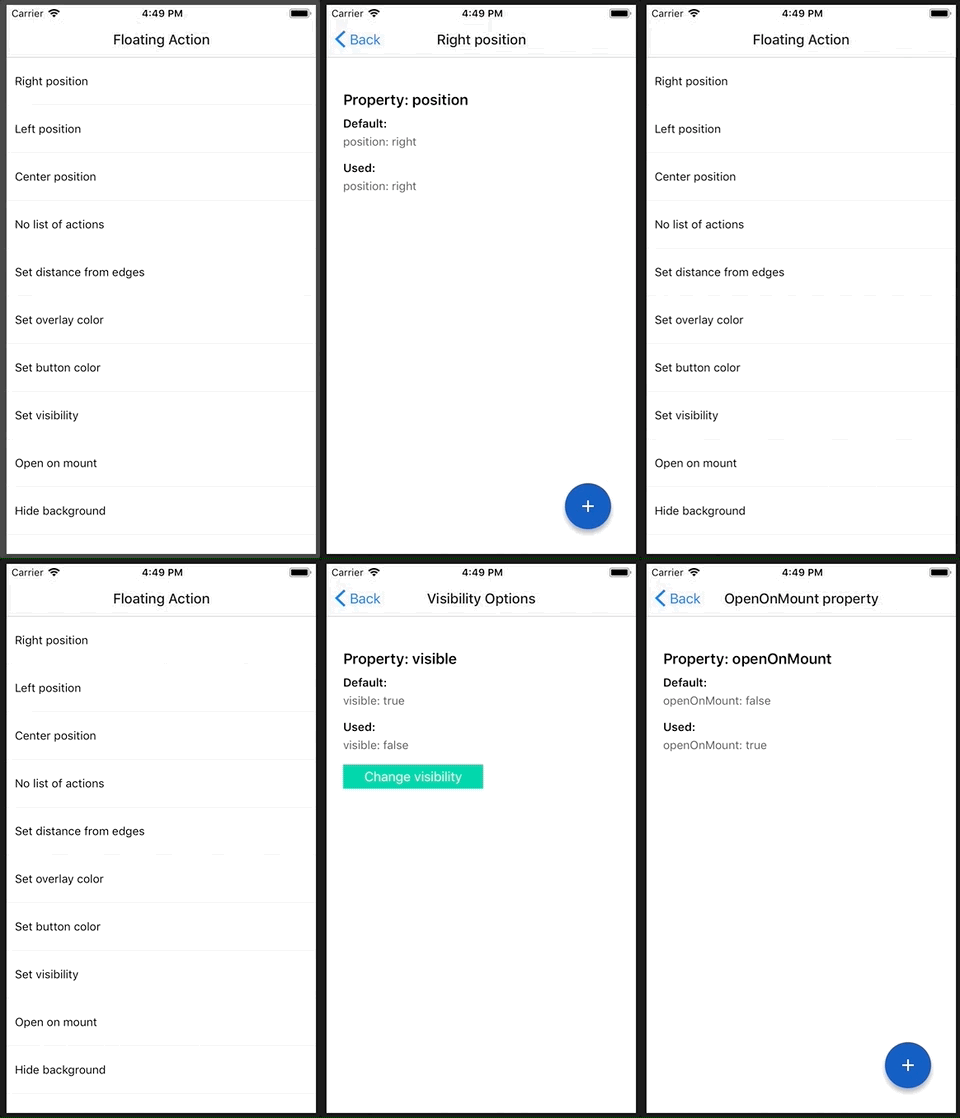
Installation
``
npm i react-native-floating-action --save
or
`
yarn add react-native-floating-action
Example
Take a look into example/ReactNativeFloatingAction-Expo
To execute the example using Expo run the following command:
`bash`
yarn run run:example
or open Expo link from your mobile
How to use it
First step: import the component:
`javascript`
import { FloatingAction } from "react-native-floating-action";
Second step: define the buttons
`javascript`
const actions = [
{
text: "Accessibility",
icon: require("./images/ic_accessibility_white.png"),
name: "bt_accessibility",
position: 2
},
{
text: "Language",
icon: require("./images/ic_language_white.png"),
name: "bt_language",
position: 1
},
{
text: "Location",
icon: require("./images/ic_room_white.png"),
name: "bt_room",
position: 3
},
{
text: "Video",
icon: require("./images/ic_videocam_white.png"),
name: "bt_videocam",
position: 4
}
];
Third step: use it
`javascriptselected button: ${name}
onPressItem={name => {
console.log();`
}}
/>
$3
There are some cases where you want to show or hide the component without pressing the main button:
`javascript`
actions={[...]}
...
/>
and then:
`javascript`
this.floatingAction.animateButton();
Reference
Props
#### actions: Array
Default: []
Actions to be shown when user press the main Floating Button. See Actions section for more info about the Object keys and values.
#### ~~buttonColor: String~~
Deprecated! use color instead!
#### color: String
Default: '#1253bc'
Color of the main button. Pass this String as an hexadecimal color respecting the default format.
#### distanceToEdge: Number | Object
Default: 30
Distance from button to edge. Can be a Number or an Object respecting the { vertical: Number, horizontal: Number } format.
#### visible: Boolean
Default: true
Hide or Show the component using an animation.
#### overlayColor: String
Default: 'rgba(68, 68, 68, 0.6)'
Color of the background overlay. The String must respect the rgba() pattern described in default value.
#### position: String
Default: 'right'
Position to render the main button and actions, options: (left, right, center).
#### overrideWithAction: String
Default: 'false'
Override the main action with the first action inside list actions, will not show other action.
#### floatingIcon: Node
Default: ReactElement
Change the default plus icon using require(pathToImage) or ReactElement.
#### showBackground: Boolean
Default: true
Show or Hide background after open.
#### openOnMount: Boolean
Default: false
Open component after mounting it, useful on some weird cases like tutorials.
#### actionsPaddingTopBottom: Number
Default: 8
Change distance between actions.
#### iconWidth: Number
Default: 15
Icon width of the main button.
#### iconHeight: Number
Default: 15
Icon height of the main button.
#### buttonSize: Number
Default: 56
Size of the main button.
#### listenKeyboard: Boolean
Default: false
Change position when the keyboard will appear.
#### dismissKeyboardOnPress: Boolean
Default: false
Dismiss keyboard when user press on the main button.
#### shadow: Object
Default: { shadowOpacity: 0.35, shadowOffset: { width: 0, height: 5 }, shadowColor: "#000000", shadowRadius: 3 }
Change how we render the shadow of every button, this style will apply to the main button and to every action button.
#### onPressItem: Function
Function to be called as soon as the user select an option from actions. Will return the name of the action.
#### onPressMain: Function
Function to be called as soon as use click main button and will return true or false depeneding of the state.
#### onPressBackdrop: Function
Function to be called as soon as the backdrop is clicked.
#### onClose: Function
Function to be called after set state to false.
#### onOpen: Function
Function to be called after set state to true.
#### onStateChange: Function
Function to be called after every state change. Will return state object.
#### animated: Boolean
Default: true
Enable the animation to be called after every state change. Will return state object.
actions Props
#### color: String
Default: '#1253bc'
Color of the action button.
#### icon: Any
Icon to be rendered inside the action, will accept an URL or React.Image. If we want to send an URL we need to send it in this way: icon: { uri: 'https://imageurl.com' } if we want to send a React.Image we will use it in this way: icon: require('path/image').
#### name: String
Name of the icon, this name is used as parameter for onPressItem prop.
#### buttonSize: Number
Default: 40
Size of of the action button.
#### text: String
Text to show near to the button. (Only apply for position = ['left', 'right']).
#### textStyle: Object | Array
Default: { fontSize: 12 }
Style to update text size.
#### textBackground: String
Default: #ffffff
Background color for Text container.
#### textColor: String
Default: #444444
Text color for every action.
#### ~~elevation: Number~~
*Deprecated! use textElevation instead!
#### textElevation: Number
Default: 5
Elevation property (also modifies "shadowOffset" in iOS)
#### render: Function => React Node
Default: 5
Custom render function for Action. If provided, other properties are not applicable. The provided function should return a React Node
#### margin: Number
Default: 8
Additional margin for action. This property is useful when we want to override the current margin for example using custom render
#### size: Number
Default: 40`
Size of of the icon rendered inside the action
TODO
- [x] first implementation
- [x] example
- [x] add colors configurations
- [x] add more positions like left, center and right
- [x] support hide or show the component with an animation
- [x] change plus icon to be customizable
- [x] use components as icon
- [x] hide background
- [x] open on mounting
- [ ] migrate to TypeScript
- [ ] allow user defined animations
- [ ] use crazy animations