react-native-keyboard-aware-scroll-view-dgjoy
v0.3.1TypeScript
A React Native ScrollView component that resizes when the keyboard appears.
0/weekUpdated 3 years agoMIT
Published by Alvaro Medina Ballester
npm install react-native-keyboard-aware-scroll-view-dgjoyreact-native-keyboard-aware-scroll-view



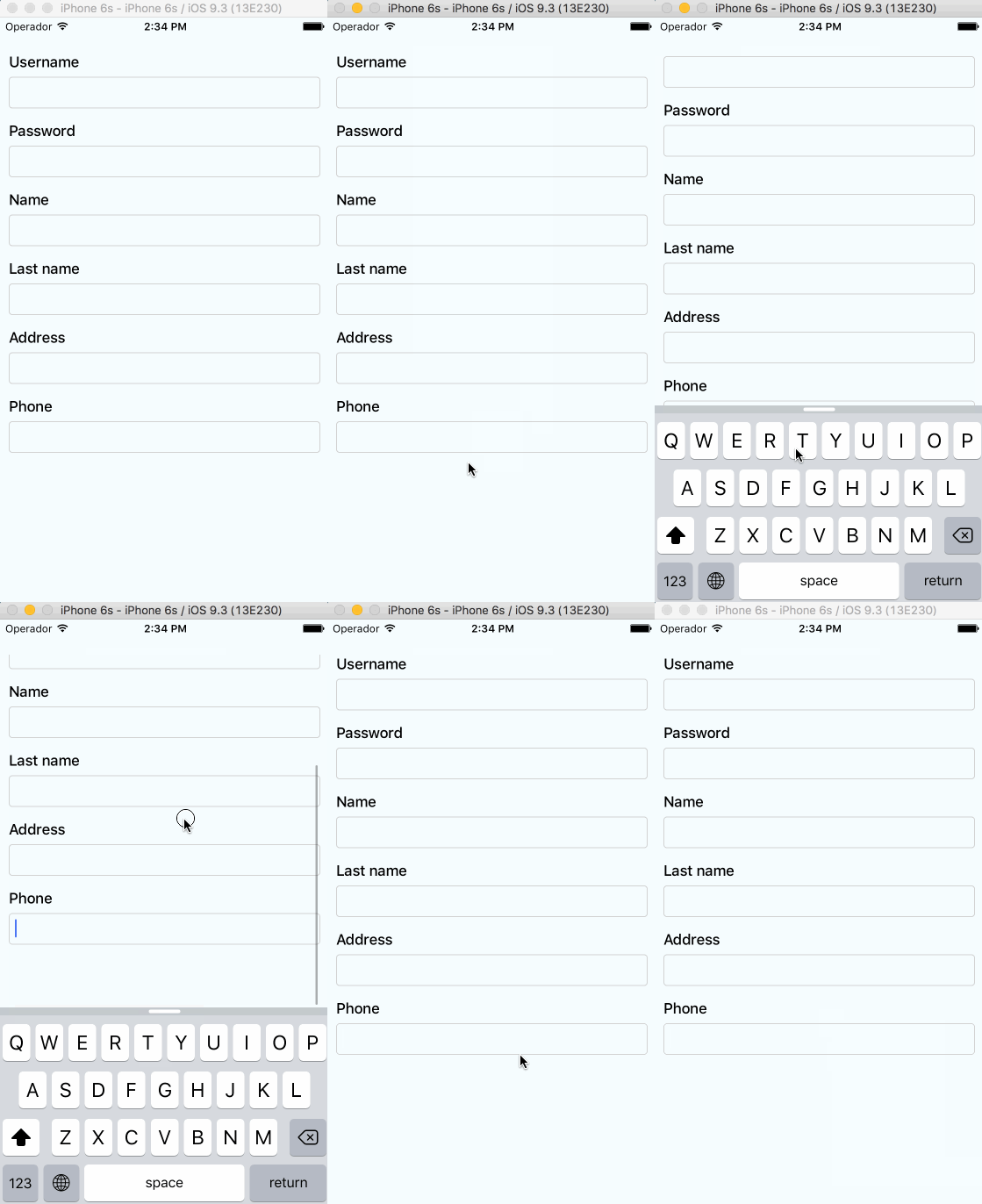
A ScrollView component that handles keyboard appearance and automatically scrolls to focused TextInput.
Supported versions
-
v0.2.0 requires RN>=0.32.0.-
v0.1.2 requires RN>=0.27.2 but you should use 0.2.0 in order to make it work with multiple scroll views.-
v0.0.7 requires react-native>=0.25.0.- Use
v0.0.6 for older RN versions.Installation
Installation can be done through `
npm:`shell
npm i react-native-keyboard-aware-scroll-view --save
`Usage
You can use the KeyboardAwareScrollView or the KeyboardAwareListView
components. Both accept ScrollView and ListView default props and
implements a custom KeyboardAwareMixin to handle keyboard appearance.
The mixin is also available if you want to use it in any other component.Import
react-native-keyboard-aware-scroll-view and wrap your content inside
it:`js
import { KeyboardAwareScrollView } from 'react-native-keyboard-aware-scroll-view'
`jsx
`Auto-scroll in
 fields
As of v0.1.0, the component auto scrolls to the focused TextInput 😎. For versions v0.0.7 and older you can do the following.$3
In order to scroll to any TextInput field, you can use the built-in method scrollToFocusedInput. Example:`js
_scrollToInput (reactNode: any) {
// Add a 'scroll' ref to your ScrollView
this.refs.scroll.scrollToFocusedInput(reactNode)
}
`jsx
{
// bind the function if you're using ES6 classes
this._scrollToInput(ReactNative.findNodeHandle(event.target))
}/>
`$3
There's another built-in function that lets you programatically scroll to any position of the scroll view:js
this.refs.scroll.scrollToPosition(0, 0, true)
`Register to keyboard events
You can register to events onKeyboardWillShow and onKeyboardWillHide:`js
console.log('Keyboard event', frames)
}}>
`Android Support
First, Android natively has this feature, you can easily enable it by setting in AndroidManifest.xml. Check here.But if you want to use feature like
extraHeight, you need to enable Android Support with the following steps:- Make sure you are using react-native
0.46 or above.
- Set windowSoftInputMode to adjustPan in AndroidManifest.xml.
- Set enableOnAndroid property to true.Android Suppor is not perfect, here is the support list:
| Prop | Android Support |
|----------|-----------------|
|
viewIsInsideTabBar | Yes |
| resetScrollToCoords | Yes |
| enableAutoAutomaticScroll | Yes |
| extraHeight | Yes |
| extraScrollHeight | Yes |
| enableResetScrollToCoords | Yes |
| keyboardOpeningTime | No |
API
$3
All the ScrollView/ListView props will be passed.| Prop | Type | Description |
|----------|----------|-----------------|
|
viewIsInsideTabBar | boolean | Adds an extra offset that represents the TabBarIOS height. |
| resetScrollToCoords | Object: {x: number, y: number} | Coordinates that will be used to reset the scroll when the keyboard hides. |
| enableAutoAutomaticScroll | boolean | When focus in TextInput will scroll the position, default is enabled. |
| extraHeight | number | Adds an extra offset when focusing the TextInputs. |
| extraScrollHeight | number | Adds an extra offset to the keyboard. Useful if you want to stick elements above the keyboard. |
| enableResetScrollToCoords | boolean | Lets the user enable or disable automatic resetScrollToCoords. |
| keyboardOpeningTime | number | Sets the delay time before scrolling to new position, default is 250 |
| enableOnAndroid | boolean | Enable Android Support || Method | Parameter | Description |
|------------|---------------|-----------------|
|
getScrollResponder | void | Get ScrollResponder |
| scrollToPosition | x: number, y: number, animated: bool = true | Scroll to specific position with or without animation. |
| scrollToEnd | animated?: bool = true` | Scroll to end with or without animation. |License
MIT.