react-native-payments
v0.8.4
Welcome to the best and most comprehensive library for integrating payments like Apple Pay and Google Pay into your React Native app.
reactreact-nativeapple-paystripebraintreepaymentspayment-requestscastrong customer authentication2 factor
1.9K/weekUpdated 3 years agoMITUnpacked: 170.5 KB
Published by Naoufal Kadhom & Freeman Industries
npm install react-native-paymentsreact-native-payments
 
Welcome to the best and most comprehensive library for integrating payments like Apple Pay and Google Pay into your React Native app.
This library is designed to be fully compatible with React Native 0.61 and onwards.
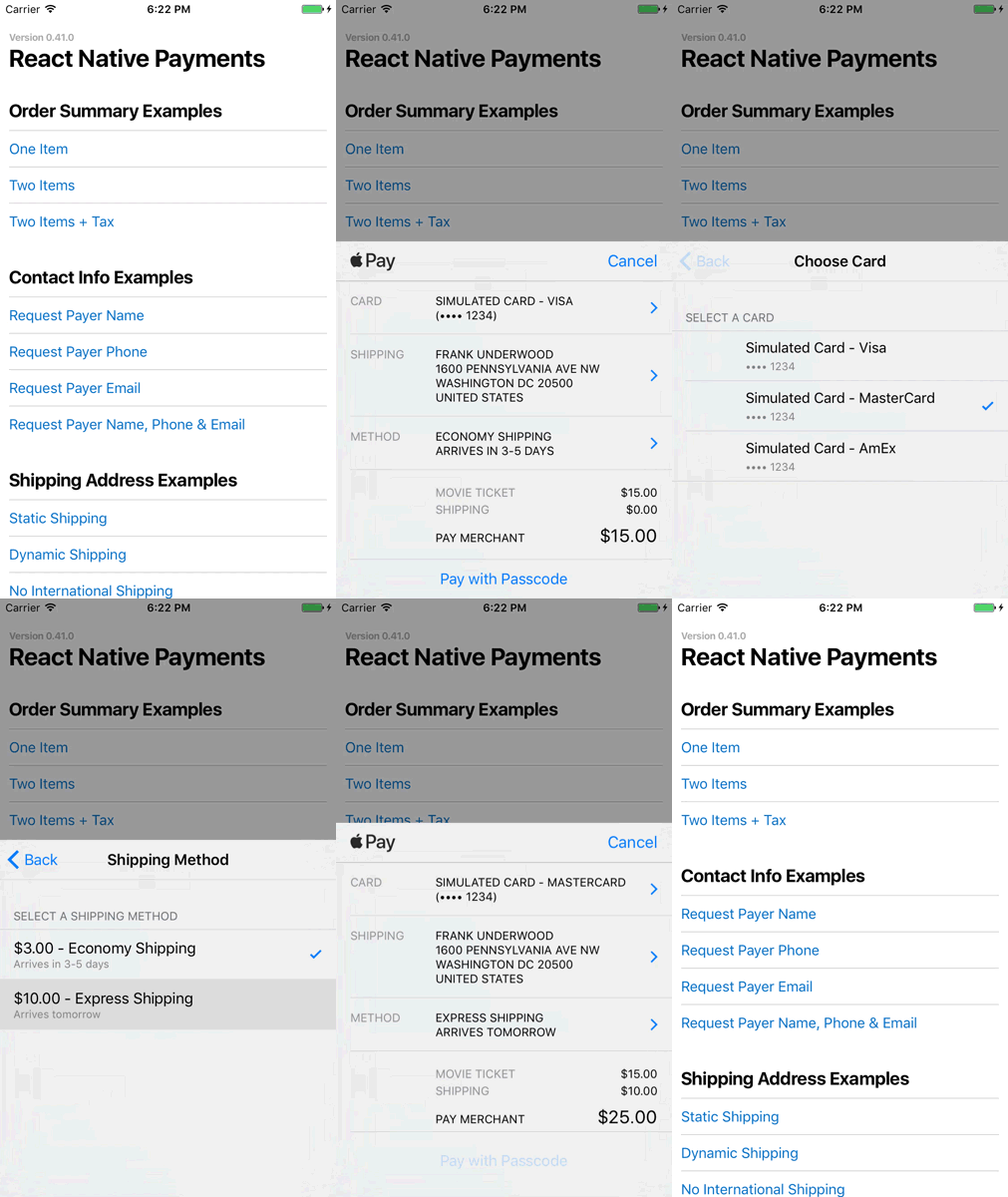
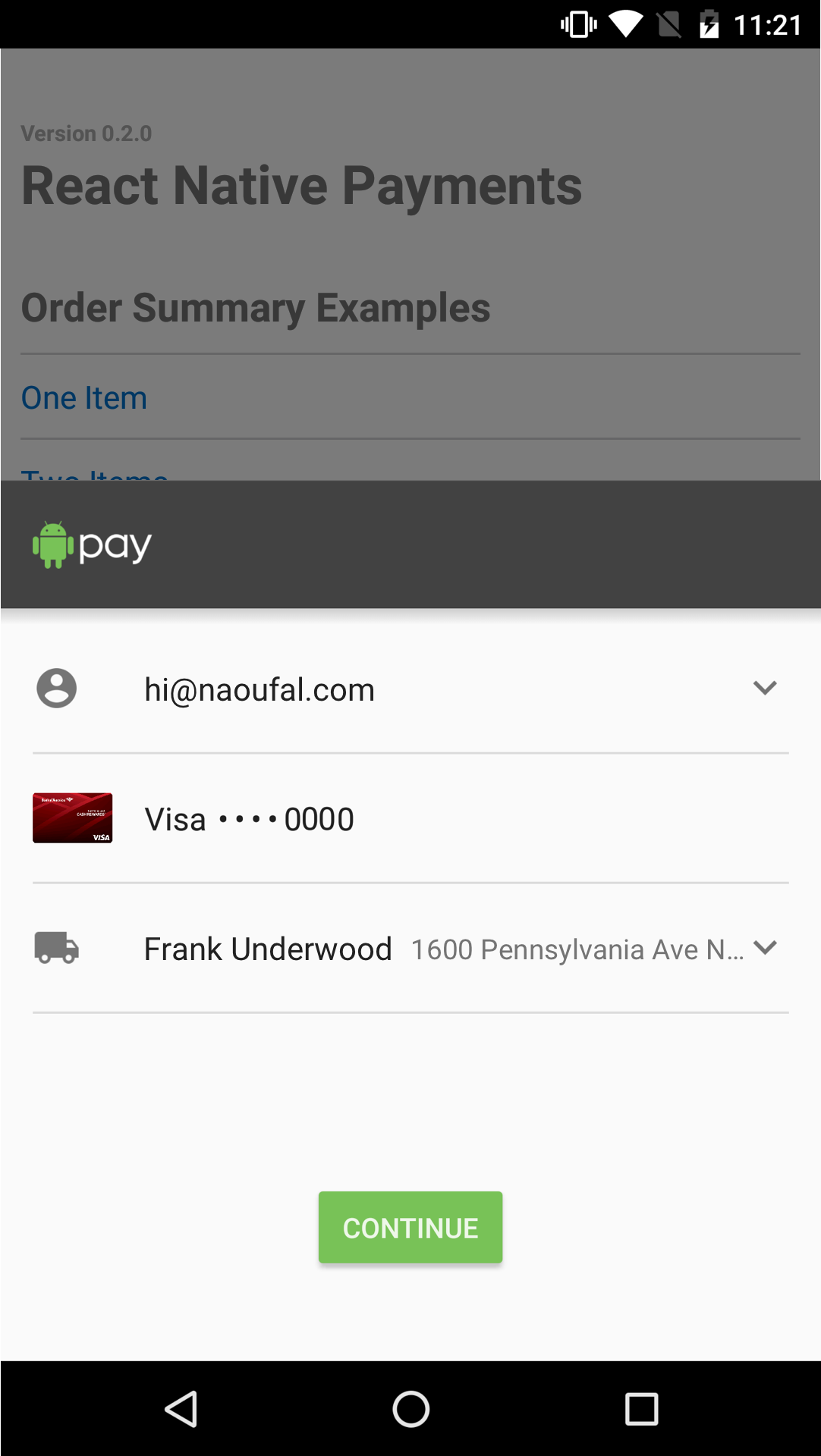
Installation
``
npm install --save react-native-payments
You'll need to autolink on each platform:
$3
`
npx jetify
$3
`
cd ios
pod install
Guides
Example projects
- iOS
Live demo
For a step by step guide, check out this talk by @naoufal.
https://www.youtube.com/watch?v=XrmUuir9OHc&t=652
API Spec
Down below we have a detailed specification for PaymentRequest and instructions for configuring Apple Pay and Google Pay, which is hopefully enough to get you started.
We also have some legacy example projects in the examples directory that will be rewritten soon and linked above.
Bear with us while we organize things a bit.
Roadmap
Completed
- Apple Pay Stripe
Completed, untested
- Apple Pay Braintree
- Google Pay (Stripe, Braintree)
- Web
In progress
- Stripe: Payment Intents (for SCA)
Planned
- Tutorial docs
Naoufal, the original author of this library, has done a lot of the hard work integrating iOS, Android, Web platforms and Stripe and Braintree gateways.
The library has fallen out of regular maintenance and we're working to test and update all parts to be compatible for RN in the 2020s.
If you're feeling brave give the untested platforms a try and let us know how it worked.
Contributors
Many people have contributed to the development of react-native-payments over time. The people below are currently available to help.
- @nabilfreeman ⚙️ ✏️
- @runticle ✏️
---
Merge PRs: ⚙️ | Review issues: ✏️
Join us!
All contributions, big or small are welcomed.
For large PRs, please open an issue and have a discussion with us first before you dive in.
Our plan for this library is for it to be useful to all React Native developers so we want to architect it carefully.
In the wild
These amazing people use react-native-payments in their projects.
- LeSalon (@lesalonapp)
- Truphone (My Truphone App)
To add your organization, open a PR updating this list.
---
🚧
🚧
🚧
🚧
🚧
---
> This project is currently in __beta and APIs are subject to change.__
React Native Payments


Accept Payments with Apple Pay and Android Pay using the Payment Request API.
__Features__
- __Simple.__ No more checkout forms.
- __Effective__. Faster checkouts that increase conversion.
- __Future-proof__. Use a W3C Standards API, supported by companies like Google, Firefox and others.
- __Cross-platform__. Share payments code between your iOS, Android, and web apps.
- __Add-ons__. Easily enable support for Stripe or Braintree via add-ons.
---
Table of Contents
- Demo
- Installation
- Usage
- Testing Payments
- Apple Pay button
- Add-ons
- API
- Resources
- License
Demo
You can run the demo by cloning the project and running:
`shell`
$ yarn run:demo
In a rush? Check out the browser version of the demo.
_Note that you'll need to run it from a browser with Payment Request support._
Installation
First, download the package:
`
shell
$ yarn add react-native-payments
`
Second, link the native dependencies:
shell
$ react-native link react-native-payments
`Usage
- Setting up Apple Pay/Android Pay
- Importing the Library
- Initializing the Payment Request
- Displaying the Payment Request
- Aborting the Payment Request
- Requesting Contact Information
- Requesting a Shipping Address
- Processing Payments
- Dismissing the Payment Request
$3
Before you can start accepting payments in your App, you'll need to setup Apple Pay and/or Android Pay.#### Apple Pay
1. Register as an Apple Developer
1. Obtain a merchant ID
1. Enable Apple Pay in your app
Apple has a documentation on how to do this in their _Configuring your Environment_ guide.
#### Android Pay
1. Add Android Pay and Google Play Services to your dependencies
1. Enable Android Pay in your Manifest
Google has documentation on how to do this in their _Setup Android Pay_ guide.
$3
Once Apple Pay/Android Pay is enabled in your app, jump into your app's entrypoint and make the globally available to your app.`es6
// index.ios.js
global.PaymentRequest = require('react-native-payments').PaymentRequest;
`$3
To initialize a Payment Request, you'll need to provide and PaymentDetails.#### Payment Method Data
The Payment Method Data is where you defined the forms of payment that you accept. To enable Apple Pay, we'll define a
supportedMethod of apple-pay. We're also required to pass a data object to configures Apple Pay. This is where we provide our merchant id, define the supported card types and the currency we'll be operating in.`es6
const METHOD_DATA = [{
supportedMethods: ['apple-pay'],
data: {
merchantIdentifier: 'merchant.com.your-app.namespace',
supportedNetworks: ['visa', 'mastercard', 'amex'],
countryCode: 'US',
currencyCode: 'USD'
}
}];
`
See Android Pay Example
es6
const METHOD_DATA = [{
  supportedMethods: ['android-pay'],
  data: {
    supportedNetworks: ['visa', 'mastercard', 'amex'],
    currencyCode: 'USD',
    environment: 'TEST', // defaults to production
    paymentMethodTokenizationParameters: {
      tokenizationType: 'NETWORK_TOKEN',
      parameters: {
        publicKey: 'your-pubic-key'
      }
    }
  }
}];
`#### Payment Details
Payment Details is where define transaction details like display items, a total and optionally shipping options.
Google has excellent documentation for Defining Payment Details.
es6
const DETAILS = {
  id: 'basic-example',
  displayItems: [
    {
      label: 'Movie Ticket',
      amount: { currency: 'USD', value: '15.00' }
    }
  ],
  total: {
    label: 'Merchant Name',
    amount: { currency: 'USD', value: '15.00' }
  }
};
`Once you've defined your
and details, you're ready to initialize your Payment Request.`es6
const paymentRequest = new PaymentRequest(METHOD_DATA, DETAILS);
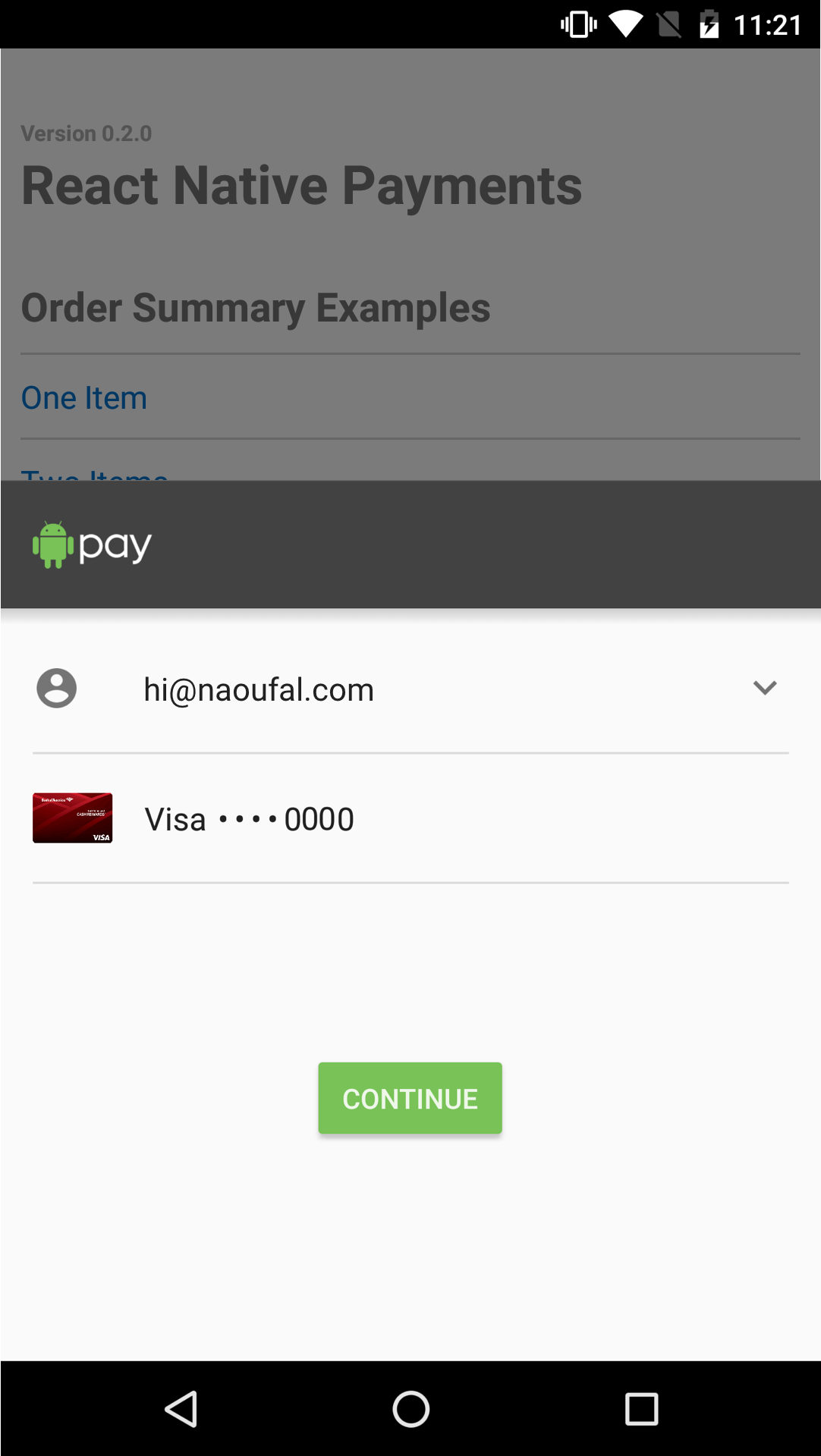
`🚨 _Note: On Android, display items are not displayed within the Android Pay view. Instead, the _User Flows documentation_ suggests showing users a confirmation view where you list the display items. When using React Native Payments, show this view after receiving the
._$3
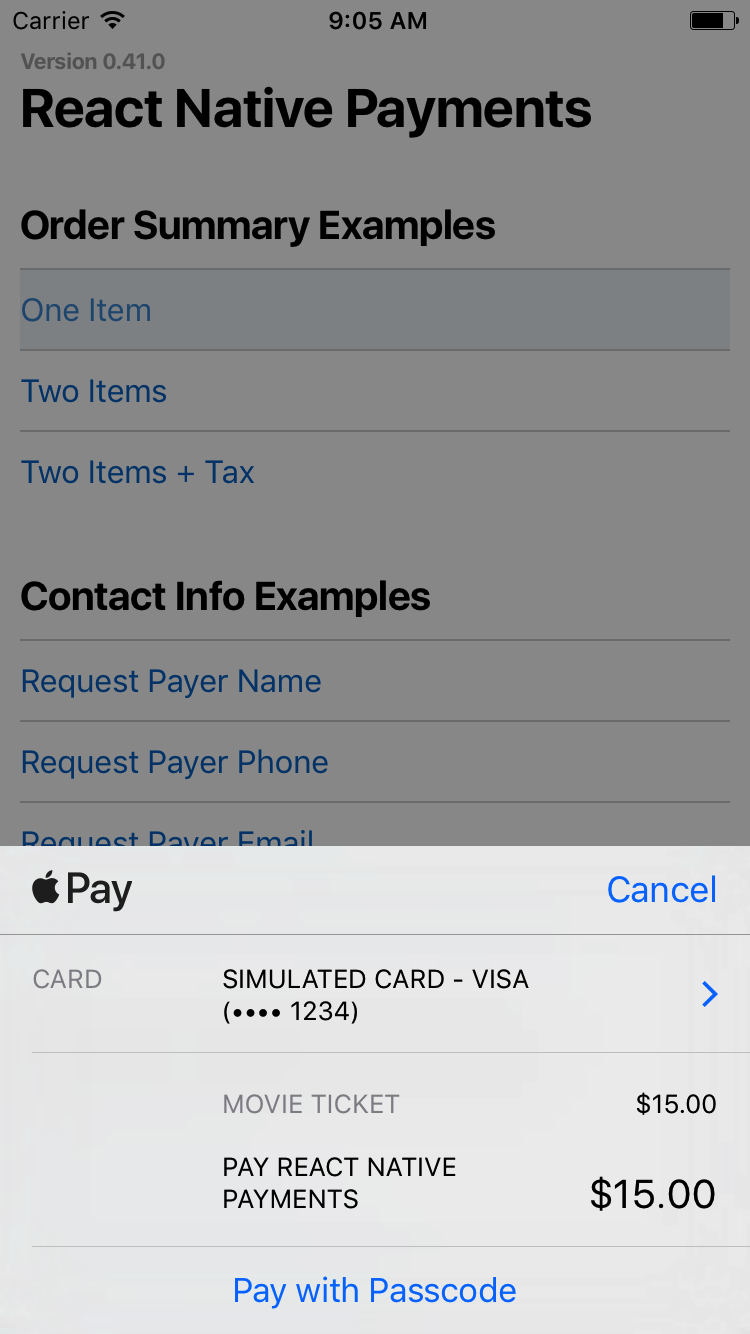
Now that you've setup your Payment Request, displaying it is as simple as calling the
show method.`es6
paymentRequest.show();
`
See Screenshots
$3
You can abort the Payment Request at any point by calling the method.`es6
paymentRequest.abort();
`🚨 _Note: Not yet implemented on Android Pay_
$3
Some apps may require contact information from a user. You can do so by providing a []() as a third argument when initializing a Payment Request. Using Payment Options, you can request a contact name, phone number and/or email.#### Requesting a Contact Name
Set
requestPayerName to true to request a contact name.`es6
const OPTIONS = {
requestPayerName: true
};
`
See Screenshots
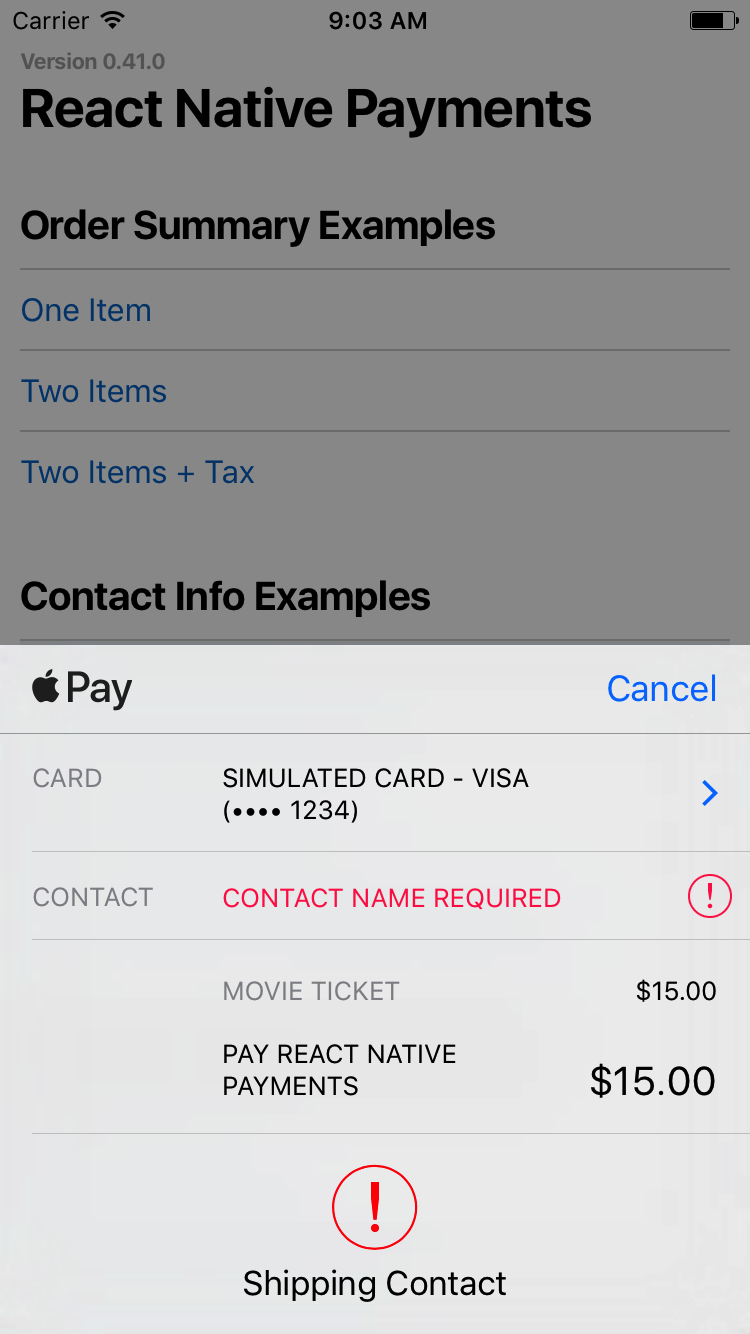
🚨 _Note: On Android, requesting a contact name will present the user with a shipping address selector. If you're not shipping anything to the user, consider capturing the contact name outside of Android Pay._
#### Requesting a Phone Number
Set
to true to request a phone number.`es6
const OPTIONS = {
requestPayerPhone: true
};
`
See Screenshots
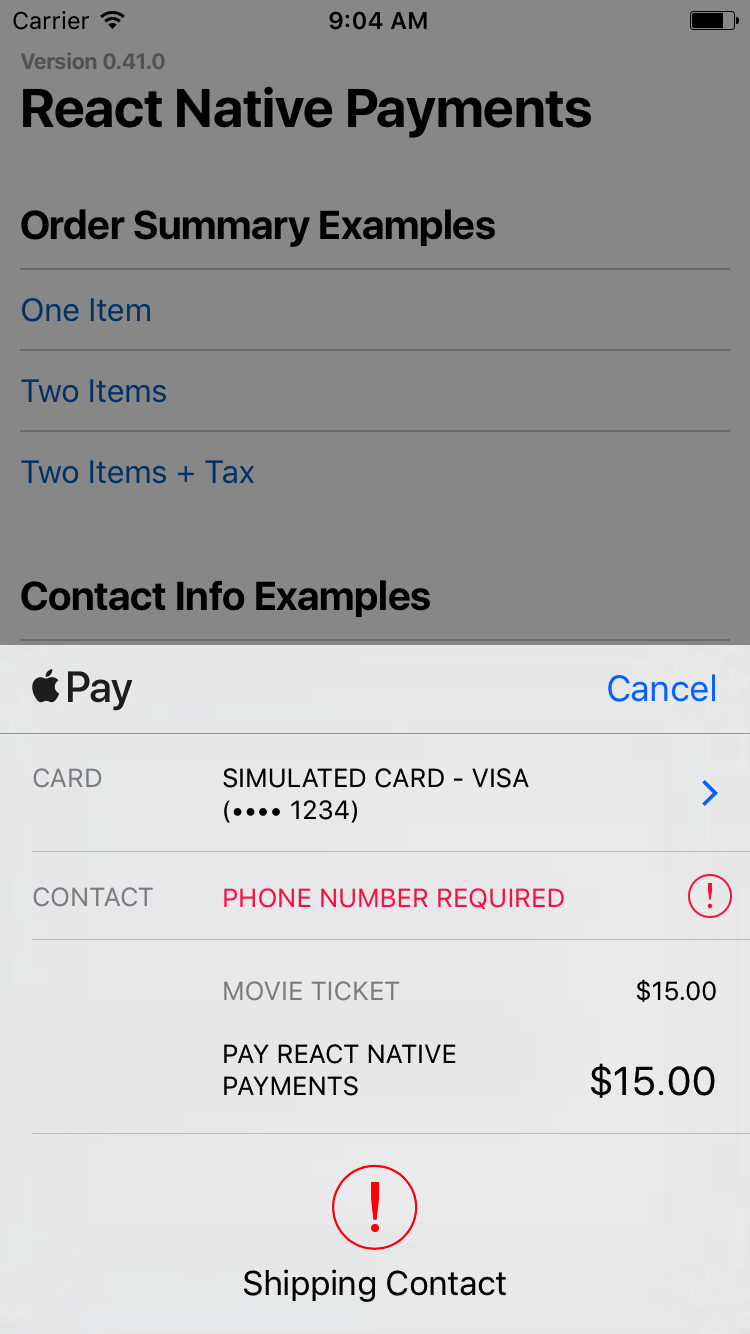
🚨 _Note: On Android, requesting a phone number will present the user with a shipping address selector. If you're not shipping anything to the user, consider capturing the phone number outside of Android Pay._
#### Requesting an Email Address
Set
to true to request an email address.`es6
const OPTIONS = {
requestPayerEmail: true
};
`
See Screenshots
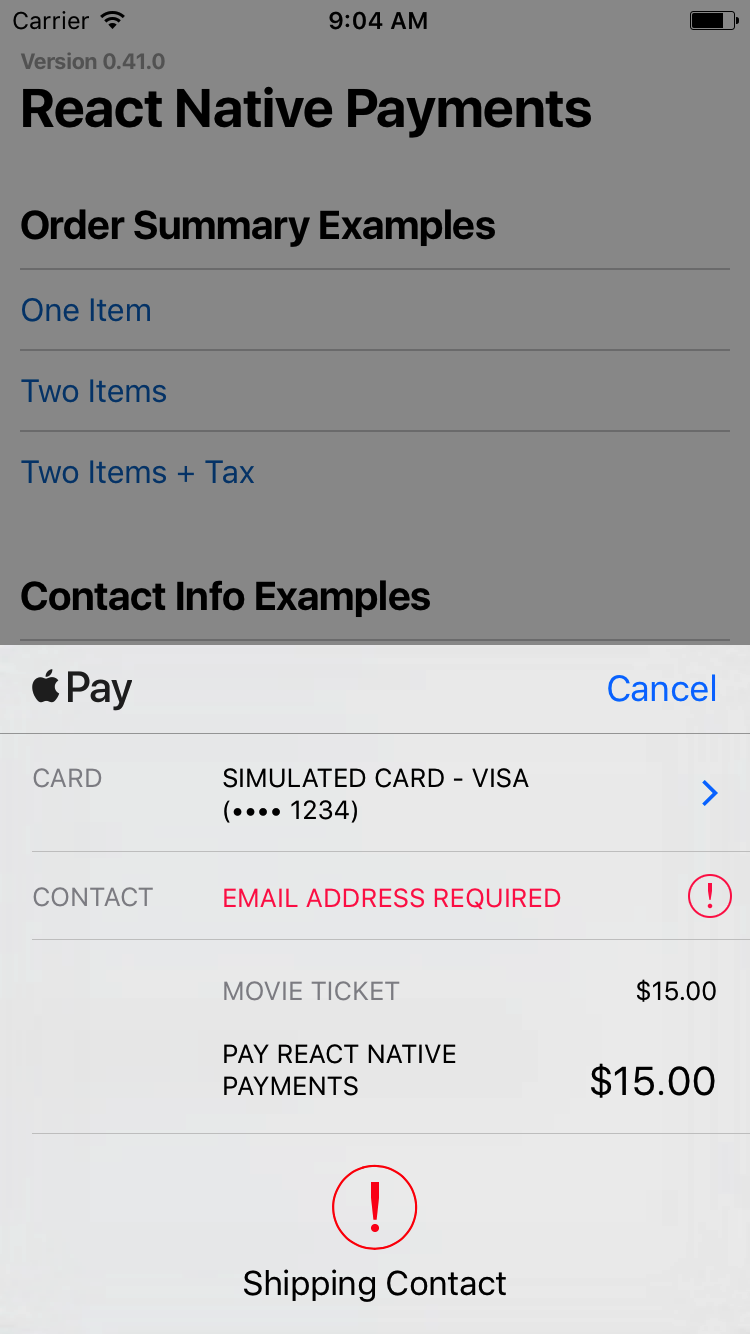
You can also request all three by setting them all to
.`es6
const OPTIONS = {
requestPayerName: true,
requestPayerPhone: true,
requestPayerEmail: true
};
`$3
Requesting a shipping address is done in three steps.First, you'll need to set
to true within PaymentOptions.`es6
const OPTIONS = {
requestShipping: true
};
`Second, you'll need to include
in your Payment Details.`diff
const DETAILS = {
id: 'basic-example',
displayItems: [
{
label: 'Movie Ticket',
amount: { currency: 'USD', value: '15.00' }
}
],
+ shippingOptions: [{
+ id: 'economy',
+ label: 'Economy Shipping',
+ amount: { currency: 'USD', value: '0.00' },
+ detail: 'Arrives in 3-5 days' // detail is specific to React Native Payments
+ }],
total: {
label: 'Merchant Name',
amount: { currency: 'USD', value: '15.00' }
}
};
`Lastly, you'll need to register event listeners for when a user selects a
and/or a shippingOption. In the callback each event, you'll need to provide new PaymentDetails that will update your PaymentRequest.`es6
paymentRequest.addEventListener('shippingaddresschange', e => {
const updatedDetails = getUpdatedDetailsForShippingAddress(paymentRequest.shippingAddress; e.updateWith(updatedDetails);
});
paymentRequest.addEventListener('shippingoptionchange', e => {
const updatedDetails = getUpdatedDetailsForShippingOption(paymentRequest.shippingOption);
e.updateWith(updatedDetails);
});
`For a deeper dive on handling shipping in Payment Request, checkout Google's _Shipping in Payment Request_.
🚨 _Note: On Android, there are no
and shippingoptionchange events. To allow users to update their shipping address, you'll need to trigger a new PaymentRequest. Updating shipping options typically happens after the receiving the PaymentResponse and before calling its getPaymentToken method._$3
Now that we know how to initialize, display, and dismiss a Payment Request, let's take a look at how to process payments.When a user accepts to pay,
PaymentRequest.show will resolve to a Payment Response.`es6
paymentRequest.show()
.then(paymentResponse => {
// Your payment processing code goes here return processPayment(paymentResponse);
});
`There are two ways to process Apple Pay/Android Pay payments -- on your server or using a payment processor.
#### Processing Payments on Your Server
If you're equipped to process Apple Pay/Android Pay payments on your server, all you have to do is send the Payment Response data to your server.
> ⚠️ Note: When running Apple Pay on simulator,
equals to null.`es6
import { NativeModules } from 'react-native';paymentRequest.show()
.then(paymentResponse => {
const { transactionIdentifier, paymentData } = paymentResponse.details;
return fetch('...', {
method: 'POST',
body: {
transactionIdentifier,
paymentData
}
})
.then(res => res.json())
.then(successHandler)
.catch(errorHandler)
});
`
See Android Pay Example
es6
paymentRequest.show()
  .then(paymentResponse => {
    const { getPaymentToken } = paymentResponse.details;    return getPaymentToken()
      .then(paymentToken => {
        const { ephemeralPublicKey, encryptedMessage, tag } = paymentResponse.details;        return fetch('...', {
          method: 'POST',
          body: {
            ephemeralPublicKey,
            encryptedMessage,
            tag
          }
        })
        .then(res => res.json())
        .then(successHandler)
        .catch(errorHandler)
      });
  });
`
You can learn more about server-side decrypting of Payment Tokens on Apple's Payment Token Format Reference documentation.
#### Processing Payments with a Payment Processor
When using a payment processor, you'll receive a
field within the details of the PaymentResponse. Use this token to charge customers with your payment processor.`es6
paymentRequest.show()
.then(paymentResponse => {
const { paymentToken } = paymentResponse.details; // On Android, you need to invoke the getPaymentToken method to receive the paymentToken. return fetch('...', {
method: 'POST',
body: {
paymentToken
}
})
.then(res => res.json())
.then(successHandler)
.catch(errorHandler);
});
`
See Android Pay Example
es6
paymentRequest.show()
  .then(paymentResponse => {
    const { getPaymentToken } = paymentResponse.details;    return getPaymentToken()
      .then(paymentToken => fetch('...', {
        method: 'POST',
        body: {
          paymentToken
        }
      })
      .then(res => res.json())
      .then(successHandler)
      .catch(errorHandler);
    });
  });
`
For a list of supported payment processors and how to enable them, see the Add-ons section.
$3
Dismissing the Payment Request is as simple as calling the method on of the PaymentResponse.`es6
paymentResponse.complete('success'); // Alternatively, you can call it with fail or unknown
🚨 _Note: On Android, there is no need to call
Testing Payments
$3
The sandbox environment is a great way to test offline implementation of Apple Pay for apps, websites, and point of sale systems. Apple offers detailed guide for setting up sandbox environment.
> ⚠️ Note: It is also important to test Apple Pay in your production environment. Real cards must be used in the production environment. Test cards will not work.
>
> ⚠️ Note: There are known differences when running Apple Pay on simulator and real device. Make sure you test Apple Pay on real device before going into production.
Apple Pay Button
Provides a button that is used either to trigger payments through Apple Pay or to prompt the user to set up a card.
Detailed docs and examples
Add-ons
Here's a list of Payment Processors that you can enable via add-ons:
- Stripe
- Braintree
🚨 _Note: On Android, Payment Processors are enabled by default._
API
$3
$3
$3
$3
Resources
$3
- Introducing the Payment Request API
- Deep Dive into the Payment Request API
- W3C API Working Draft
- Web Payments
- The Future of Web Payments
$3
- Getting Started with Apple Pay
- Configuring your Environment
- Processing Payments
- Payment Token Format Reference
$3
- Setup Android Pay
- Tutorial
- Brand Guidelines
- Gateway Token Approach
- Network Token Approach
License
Licensed under the MIT License, Copyright © 2017, Naoufal Kadhom.
See LICENSE for more information.