react-simple-code-editor
v0.14.1TypeScript
Simple no-frills code editor with syntax highlighting
0/weekUpdated 1 years agoMITUnpacked: 69.7 KB
Published by Satyajit Sahoo
npm install react-simple-code-editorreact-simple-code-editor
[![Build Status][build-badge]][build]
[![MIT License][license-badge]][license]
[![Version][version-badge]][package]
[![Bundle size (minified + gzip)][bundle-size-badge]][bundle-size]
Simple no-frills code editor with syntax highlighting.
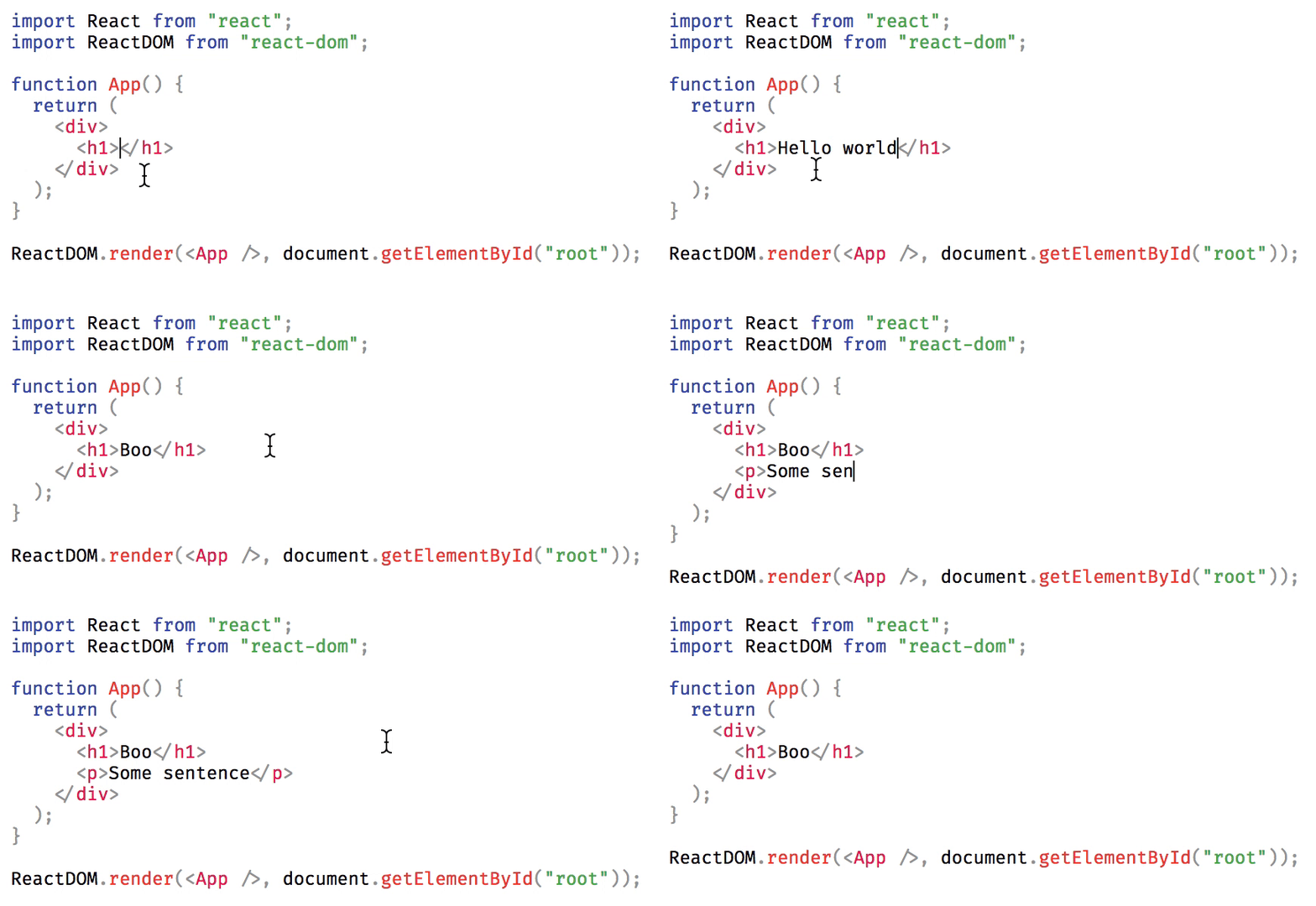
Why
Several browser based code editors such as Ace, CodeMirror, Monaco etc. provide the ability to embed a full-featured code editor in your web page. However, if you just need a simple editor with syntax highlighting without any of the extra features, they can be overkill as they don't usually have a small bundle size footprint. This library aims to provide a simple code editor with syntax highlighting support without any of the extra features, perfect for simple embeds and forms where users can submit code.
Features
- Modular syntax highlighting with third party library
- Indent line or selected text by pressing tab key, with customizable indentation
- Automatic indent on new lines
- Wrap selected text in parens, brackets, or quotes
- Undo whole words instead of letter by letter
- Accessible, use Ctrl+Shift+M (Mac) / Ctrl+M to toggle capturing tab key
Installation
``sh`
npm install react-simple-code-editor
or
`sh`
yarn add react-simple-code-editor
Usage
You need to use the editor with a third party library which provides syntax highlighting. For example, it'll look like following with prismjs:
`js
import React from 'react';
import Editor from 'react-simple-code-editor';
import { highlight, languages } from 'prismjs/components/prism-core';
import 'prismjs/components/prism-clike';
import 'prismjs/components/prism-javascript';
import 'prismjs/themes/prism.css'; //Example style, you can use another
function App() {
const [code, setCode] = React.useState(
function add(a, b) {\n return a + b;\n}
);
return (
onValueChange={code => setCode(code)}
highlight={code => highlight(code, languages.js)}
padding={10}
style={{
fontFamily: '"Fira code", "Fira Mono", monospace',
fontSize: 12,
}}
/>
);
}
Note that depending on your syntax highlighter, you might have to include additional CSS for syntax highlighting to work.
Props
The editor accepts all the props accepted by textarea. In addition, you can pass the following props:
- value (string): Current value of the editor i.e. the code to display. This must be a controlled prop.onValueChange
- (string => mixed): Callback which is called when the value of the editor changes. You'll need to update the value prop when this is called.highlight
- (string => string | React.Node): Callback which will receive text to highlight. You'll need to return an HTML string or a React element with syntax highlighting using a library such as prismjs.tabSize
- (number): The number of characters to insert when pressing tab key. For example, for 4 space indentation, tabSize will be 4 and insertSpaces will be true. Default: 2.insertSpaces
- (boolean): Whether to use spaces for indentation. Default: true. If you set it to false, you might also want to set tabSize to 1.ignoreTabKey
- (boolean): Whether the editor should ignore tab key presses so that keyboard users can tab past the editor. Users can toggle this behaviour using Ctrl+Shift+M (Mac) / Ctrl+M manually when this is false. Default: false.padding
- (number): Optional padding for code. Default: 0.textareaId
- (string): An ID for the underlying textarea, can be useful for setting a label.textareaClassName
- (string): A className for the underlying textarea, can be useful for more precise control of its styles.preClassName
- (string): A className for the underlying pre, can be useful for more precise control of its styles.
Demo
react-simple-code-editor.github.io/react-simple-code-editor
How it works
It works by overlaying a syntax highlighted
block over a