@capsizecss/core
v4.1.3TypeScript
Flipping how we define typography
0/weekUpdated 2 months agoMITUnpacked: 48.0 KB
Published by Michael Taranto
npm install @capsizecss/core

> Capsize makes the sizing and layout of text as predictable as every other element on the screen.
>
> Using font metadata, text can now be sized according to the height of its capital letters while trimming the space above capital letters and below the baseline.
``bash`
npm install @capsizecss/core
- Usage
- createStyleObject
- createStyleString
- Options
- Text size
- Line height
- Font Metrics
- Core
- createFontStack
- Usage in CSS stylesheet
- Usage with CSS-in-JS frameworks
- Additional font-face properties
- precomputeValues
- getCapHeight
- Metrics
- Unpack
- Integrations
- vanilla-extract
Usage
$3
Returns a CSS-in-JS style object.
1. Import createStyleObject passing the relevant options.
`ts
import { createStyleObject } from '@capsizecss/core';
const capsizeStyles = createStyleObject({
fontSize: 16,
leading: 24,
fontMetrics: {
capHeight: 700,
ascent: 1058,
descent: -291,
lineGap: 0,
unitsPerEm: 1000,
},
});
`
Note: It is recommended that you install the @capsizecss/metrics package and import the metrics from there:
`ts
import { createStyleObject } from '@capsizecss/core';
import arialMetrics from '@capsizecss/metrics/arial';
const capsizeStyles = createStyleObject({
fontSize: 16,
leading: 24,
fontMetrics: arialMetrics,
});
`
See the fontMetrics option documented below for more ways to obtain these metrics.
2. Apply styles to the text element, for example via the css prop.
`ts
// fontFamily: '...' etc,
...capsizeStyles,
}}
>
My capsized text 🛶
`
> ⚠️ Note: It is not recommended to apply further layout-related styles to the same element, as this will risk interfering with the styles used for the trim. Instead consider using a nested element.
$3
Returns a CSS string that can be inserted into a
tag or appended to a stylesheet.1. Import
createStyleString passing the relevant options.`ts
import { createStyleString } from '@capsizecss/core';
import arialMetrics from '@capsizecss/metrics/arial';const capsizedStyleRule = createStyleString('capsizedText', {
fontSize: 16,
leading: 24,
fontMetrics: arialMetrics,
});
`2. Add the styles into a stylesheet or
element and apply the specified class name.`ts
document.write(My capsized text 🛶
);
`> ⚠️ Note: It is not recommended to apply further layout-related styles to the same element, as this will risk interfering with the styles used for the trim. Instead consider using a nested element.
Options
$3
Capsize supports two methods of defining the size of text,
and fontSize.NOTE: You should only ever pass one or the other, not both.
####
capHeight: Sets the height of the capital letters to the defined value. Defining typography in this way makes aligning to a grid or with other elements, e.g. icons, a breeze.

####
Setting the font size allows you to get all the benefits of the white space trimming, while still specifying an explicit
for your text. This can be useful when needed to match a concrete design spec or fitting into an existing product.
$3
Capsize supports two mental models for specifying line height,
lineGap and leading. If you pass neither the text will follow the default spacing of the specified font, e.g. line-height: normal.NOTE: You should only ever pass one or the other, not both.
####
lineGap: Sets the number of pixels between lines, as measured between the baseline and cap height of the next line.
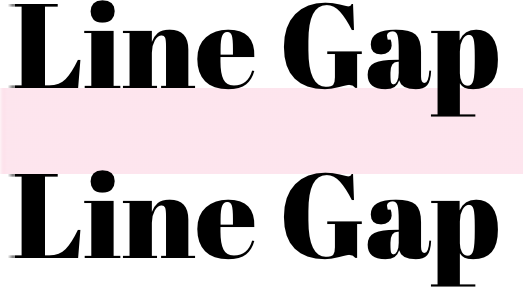
####
Sets the line height to the provided value as measured from the baseline of the text. This aligns the web with how typography is treated in design tools.

$3
This metadata is extracted from the metrics tables inside the font itself. There are a number of ways to find this information:
- If using a Google Font or system font, install the @capsizecss/metrics package and import the metrics by name. For example:
ts
  import arialMetrics from '@capsizecss/metrics/arial';
`
- If using a font from a file, install the @capsizecss/unpack package and extract the metrics from the font file directly. For example:
ts
  import { fromFile } from '@capsizecss/unpack';  const metrics = await fromFile(filePath);
`- Or, use the Capsize website to find these by selecting a font and referencing
tab in step 3.Core
The core package also provides a few other metrics-based features for improving typography on the web:
$3
Creates metrics-based
@font-face declarations to improve the alignment of font family fallbacks, which can dramatically improve the Cumulative Layout Shift metric for sites that depend on a web font.#### Usage
Consider the following example, where the desired web font is Lobster, falling back to
Helvetica Neue and then Arial, e.g. font-family: Lobster, 'Helvetica Neue', Arial.1. Import
createFontStack from the core package:`ts
import { createFontStack } from '@capsizecss/core';
`2. Import the font metrics for each of the desired fonts (see Font Metrics above):
ts
import lobster from '@capsizecss/metrics/lobster';
import helveticaNeue from '@capsizecss/metrics/helveticaNeue';
import arial from '@capsizecss/metrics/arial';
`3. Create your font stack passing the metrics as an array, using the same order as you would via the
CSS property.`ts
const { fontFamily, fontFaces } = createFontStack([
lobster,
helveticaNeue,
arial,
]);
`The returned value contains the generated font face declarations as well as the computed
with the appropriately ordered font aliases.#### Usage in CSS stylesheet or a style tag
The returned values can be templated into a stylesheet or a
style block. Here is an example handlebars template:`html
`This will produce the following CSS:
css
.heading {
  font-family:
    Lobster, 'Lobster Fallback: Helvetica Neue', 'Lobster Fallback: Arial',
    'Helvetica Neue', Arial;
}@font-face {
  font-family: 'Lobster Fallback: Helvetica Neue';
  src: local('Helvetica Neue');
  ascent-override: 115.1741%;
  descent-override: 28.7935%;
  size-adjust: 86.8251%;
}
@font-face {
  font-family: 'Lobster Fallback: Arial';
  src: local('Arial');
  ascent-override: 113.5679%;
  descent-override: 28.392%;
  size-adjust: 88.053%;
}
`#### Usage with CSS-in-JS frameworks
If working with a CSS-in-JS library, the returned
can be provided as a JavaScript style object by providing styleObject as a fontFaceFormat option.Here is an example using Emotion:
`tsx
import { Global } from '@emotion/core';const { fontFaces, fontFamily } = createFontStack(
[lobster, helveticaNeue, arial],
{
fontFaceFormat: 'styleObject',
},
);
export const App = () => (
<>
...
);
`> Also useful as a source for further manipulation given it is a data structure that can be iterated over or extended.
#### Providing additional
propertiesAdditional properties can be added to the generated
@font-face declarations via the fontFaceProperties option:`ts
const { fontFamily, fontFaces } = createFontStack(
[lobster, helveticaNeue, arial],
{
fontFaceProperties: {
fontDisplay: 'swap',
},
},
);
`This will result in the following additions to the declarations:
diff
 @font-face {
   font-family: 'Lobster Fallback: Helvetica Neue';
   src: local('Helvetica Neue');
   ascent-override: 115.1741%;
   descent-override: 28.7935%;
   size-adjust: 86.8251%;
+  font-display: swap;
 }
 @font-face {
   font-family: 'Lobster Fallback: Arial';
   src: local('Arial');
   ascent-override: 113.5679%;
   descent-override: 28.392%;
   size-adjust: 88.053%;
+  font-display: swap;
 }
`> [!NOTE]
> Passing any of the metric override CSS properties will be ignored as they are calculated by Capsize.
> However, the
 property is accepted to support fine-tuning the override for particular use cases.
> This can be used to finesse the adjustment for specific text, or to disable the adjustment by setting it to 100%.#### Scaling for different character subsets
For languages that use different unicode subsets, e.g. Thai, the fallbacks need to be scaled accordingly, as the scaling is [based on character frequency in written language].
A fallback font stack can be generated for a supported subset by specifying
subset as an option:`ts
const { fontFamily, fontFaces } = createFontStack([lobster, arial], {
subset: 'thai',
});
`> [!TIP]
> Need support for a different unicode subset?
> Either create an issue or follow the steps outlined in the [
 script] and open a PR.[based on character frequency in written language]: ../../packages/metrics/README.md#how-xwidthavg-is-calculated
[
generate-weightings script]: ../../packages/unpack/scripts/generate-weightings.ts$3
Returns all the information required to create leading trim styles for a specific font size given the provided font metrics. This is useful for integrations with different styling solutions.
Accepts the same options as createStyleObject and createStyleString.
`ts
import { precomputeValues } from '@capsizecss/core';
import arialMetrics from '@capsizecss/metrics/arial';const capsizeValues = precomputeValues({
fontSize: 16,
leading: 24,
fontMetrics: arialMetrics,
});
// => {
// fontSize: string,
// lineHeight: string,
// capHeightTrim: string,
// baselineTrim: string,
//}
`$3
Return the rendered cap height for a specific font size given the provided font metrics.
ts
import { getCapHeight } from '@capsizecss/core';
import arialMetrics from '@capsizecss/metrics/arial';const actualCapHeight = getCapHeight({
fontSize: 24,
fontMetrics: arialMetrics,
});
// => number
`Metrics
To make the retrieval of font metrics easy, Capsize provides the
package containing all the required data for both system and Google fonts.`bash
npm install @capsizecss/metrics
`See the package for documentation.
Unpack
If you are using a custom font or one not included in the
package, Capsize provides the @capsizecss/unpack package to extract the required data either via a URL or from a local file.`bash
npm install @capsizecss/unpack
``See the package for documentation.
Integrations
- vanilla-extract integration via @capsizecss/vanilla-extract
Thanks
- Vincent De Oliveira for writing Deep dive CSS: font metrics, line-height and vertical-align, which provided the research needed to build all this.
- Devon Govett for creating Fontkit, which does all the heavy lifting of extracting the font metrics under the covers.
- SEEK for giving us the space to do interesting work.
License
MIT.