@cometchat-pro/react-native-chat
v3.0.13-beta1
A complete chat solution.
0/weekUpdated 5 months agoSEE LICENSE IN LICENSE.mdUnpacked: 461.6 KB
Published by CometChat
npm install @cometchat-pro/react-native-chat

CometChat React Native SDK
CometChat Pro enables you to add voice, video & text chat for your website & app.
This guide demonstrates how to add chat to a React Native App using CometChat Pro.
Features
- 1-1 & Group Conversations
- Voice & video calling & conferencing
- Rich Media Attachments
- Typing Indicators
- Custom Messages
- Read receipts
- Online Presence Indicators
- Message History
- Single Sign-on
- Webhooks
- Bots
- Users & Friends List
- Groups List
- Conversations List
- Threaded Conversations
Extensions
Push Notification | Email Notification | SMS Notification | Thumbnail Generation | Link Preview | Rich Media Preview | Voice Transcription | Smart Reply | Message Translation | Emojis | Polls | Reactions | Stickers | Video Broadcasting | Collaborative Documents | Collaborative Whiteboards | Data Masking Filter | Profanity Filter | Image Moderation| Sentiment Analysis | In-flight Message Moderation | Virus & Malware Scanner | XSS Filter

!GitHub repo size
!GitHub contributors
!GitHub stars
!Twitter Follow

Prerequisites :star:
Before you begin, ensure you have met the following requirements:
✅ You have
Visual Studio Code or any other code editor installed in your machine.✅ To run native projects you will need to have
Android Studio & Xcode installed in your machine.✅ You have
npm installed in your machine.✅ You have read CometChat Key Concepts.
Installing CometChat React Native SDK
Setup :wrench:
To setup React Native SDK, you need to first register on CometChat Dashboard. Click here to sign up.
$3
Signup for CometChat and then:
1. Create a new app: Click Add App option available → Enter App Name & other information → Create App
2. At the Top in QuickStart section you will find Auth Key & App ID or else you can head over to the API & Auth Keys section and note the Auth Key and App ID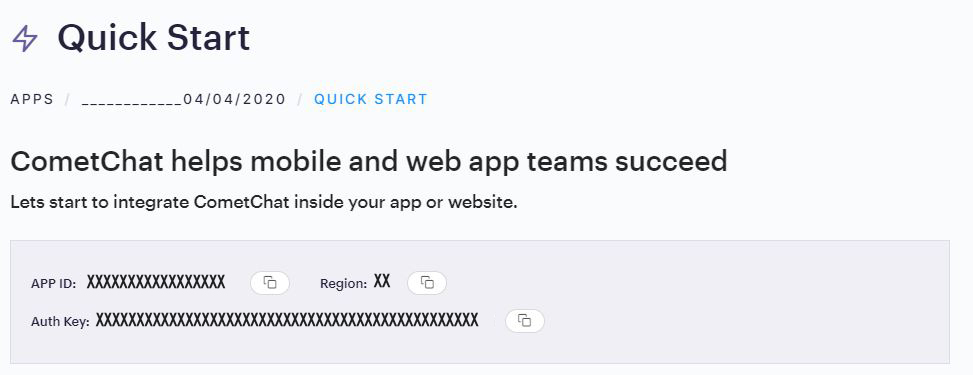
$3
Install via NPM
1. Run the following command to install the CometChat Pro React Native SDK``
javascript`
npm install @cometchat-pro/react-native-chat@3.0.11 --saveYou can refer to the below link for instructions on how to do so:
📝 Add CometChat Dependency
Configure CometChat React Native SDK
$3
We suggest you call the init() method on app startup, preferably in the index.js file.
`javascript`
var appID = "APP_ID";
var region = "REGION";
var appSetting = new CometChat.AppSettingsBuilder().subscribePresenceForAllUsers().setRegion(region).build();
CometChat.init(appID, appSetting).then(
() => {
console.log("Initialization completed successfully");
},
error => {
console.log("Initialization failed with error:", error);
}
);
| :information_source: Note: Make sure to replace region and appID with your credentials. |
|------------------------------------------------------------------------------------------------------------|
$3
Once initialisation is successful, you will need to create a user. You need to use createUser() method to create user on the fly.
`
javascript
let authKey = "AUTH_KEY";
var uid = "user1";
var name = "Kevin";var user = new CometChat.User(uid);
user.setName(name);
CometChat.createUser(user, authKey).then(
user => {
console.log("user created", user);
},error => {
console.log("error", error);
}
);
`
>:information_source: Note: Make sure that UID and name are specified as these are mandatory fields to create a user.
$3
Once you have created the user successfully, you will need to log the user into CometChat using the login() method.
javascript
var UID = "SUPERHERO1";
var authKey = "AUTH_KEY";CometChat.getLoggedinUser().then(
  user => {
    if(!user){
      CometChat.login(UID, authKey).then(
        user => {
          console.log("Login Successful:", { user });
        },
        error => {
          console.log("Login failed with exception:", { error });
        }
      );
    }else{
      // User already logged in
    }
  }, error => {
    console.log("getLoggedinUser failed with exception:", { error });
  }
);
``| :information_source: Note - The login() method needs to be called only once. Also replace AUTH_KEY with your App Auth Key. |
|------------------------------------------------------------------------------------------------------------|
📝 Please refer to our Developer Documentation for more information on how to configure the CometChat Pro SDK and implement various features using the same.
Learn more about UI-Kit
React Native UI Kit
Contributors :clap:
Thanks to the following people who have contributed to this project:
👨💻 @mayur-bhandari
👨💻 @jitvarpatil
Contact :mailbox:
Contact us via real time support present in CometChat Dashboard.