react-native-dialog
v1.0.3
A flexible react-native dialog
23.0K/weekUpdated 3 years agoISC
Published by Mazzarolo Matteo
npm install react-native-dialogreact-native-dialog

A flexible pure JavaScript React-Native dialog that follows closely the native UI guidelines.
Features
- Support for iOS and Android (JavaScript API)
- A flexible declarative API
- Follows closely the UI of native dialogs/alerts
- Can be used both as an alert and as an input prompt
- Can be injected with any component
- Supports light/dark mode
Demo
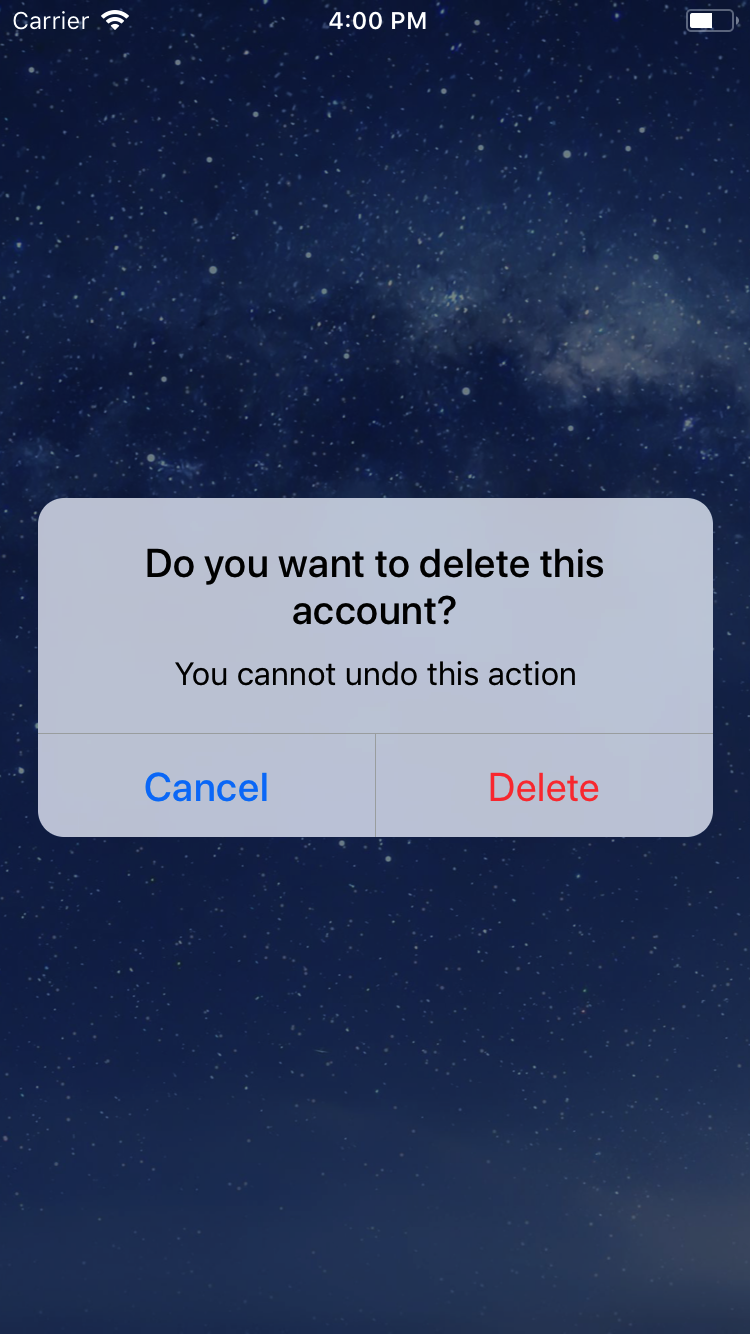
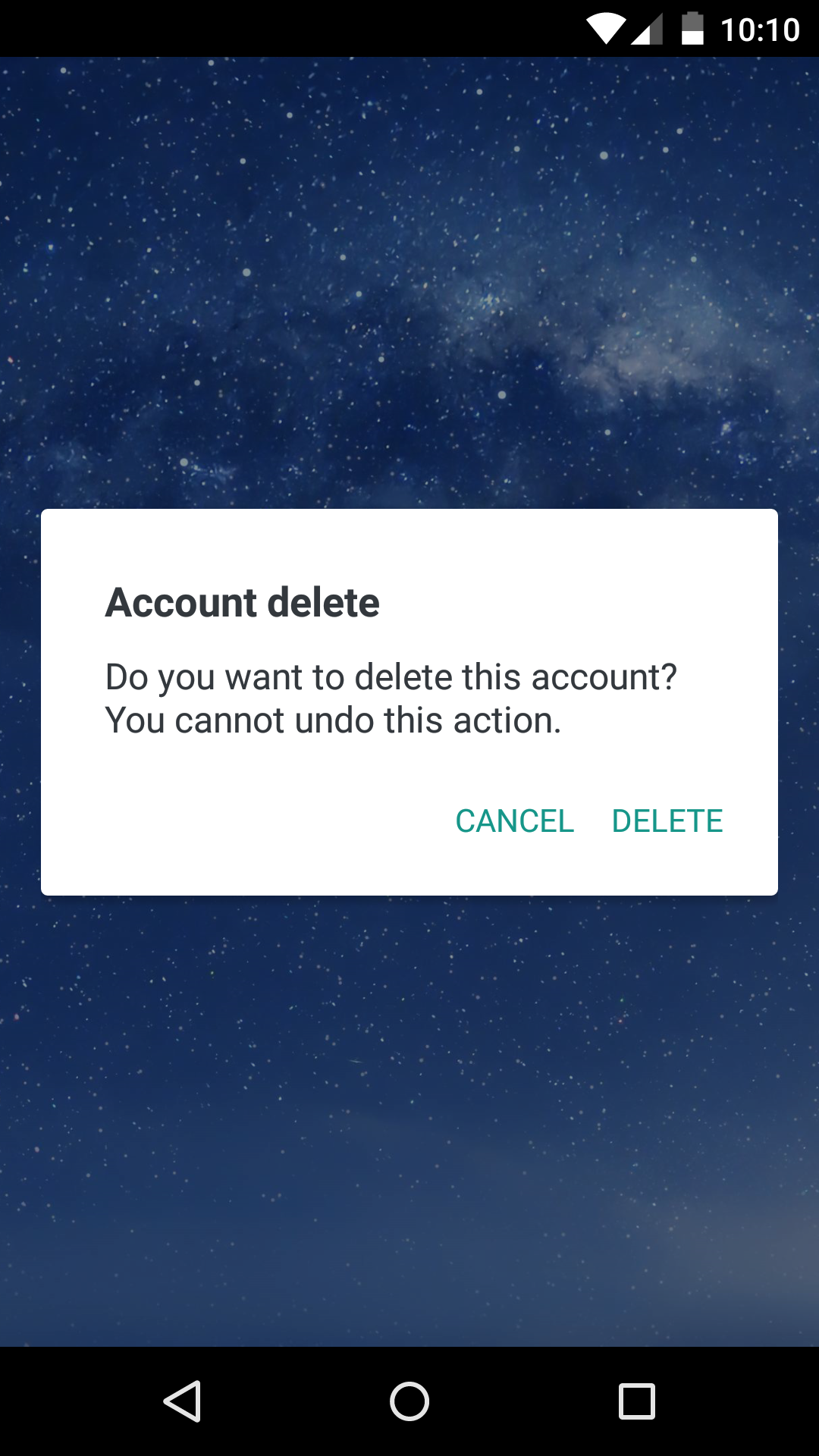
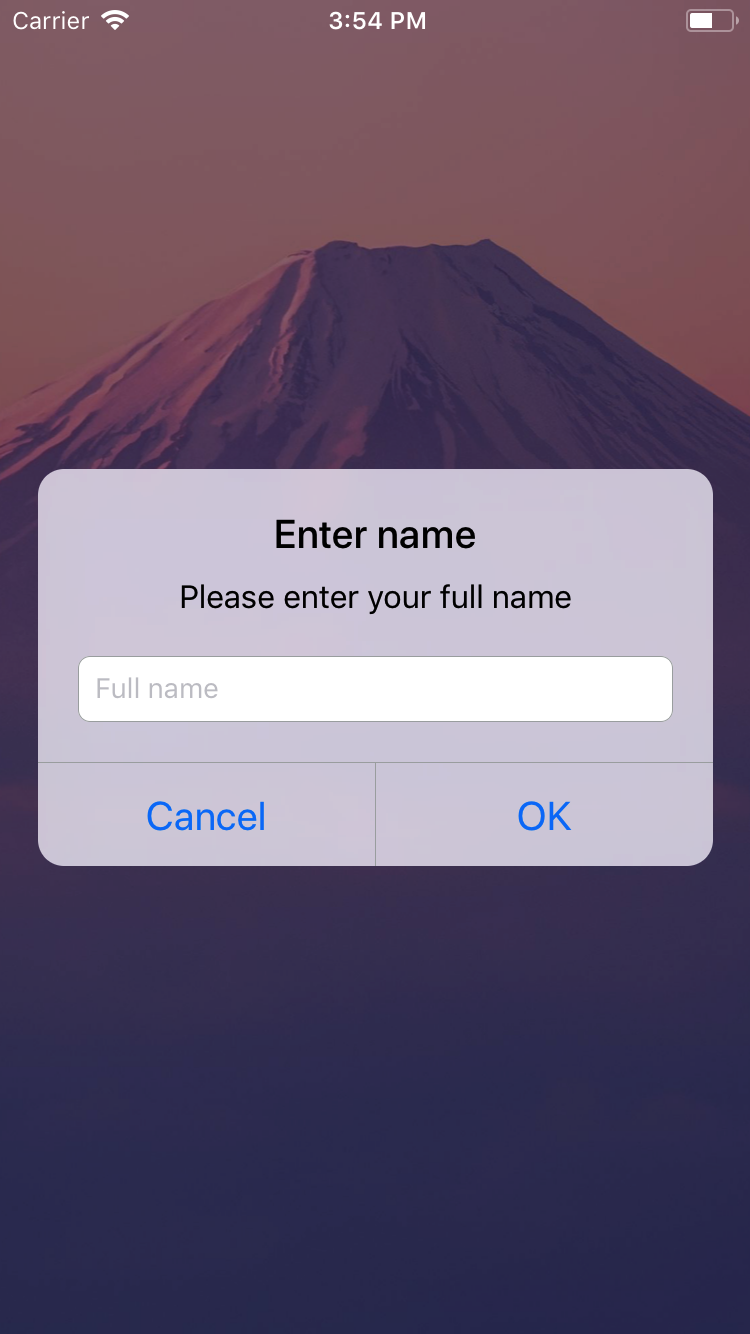
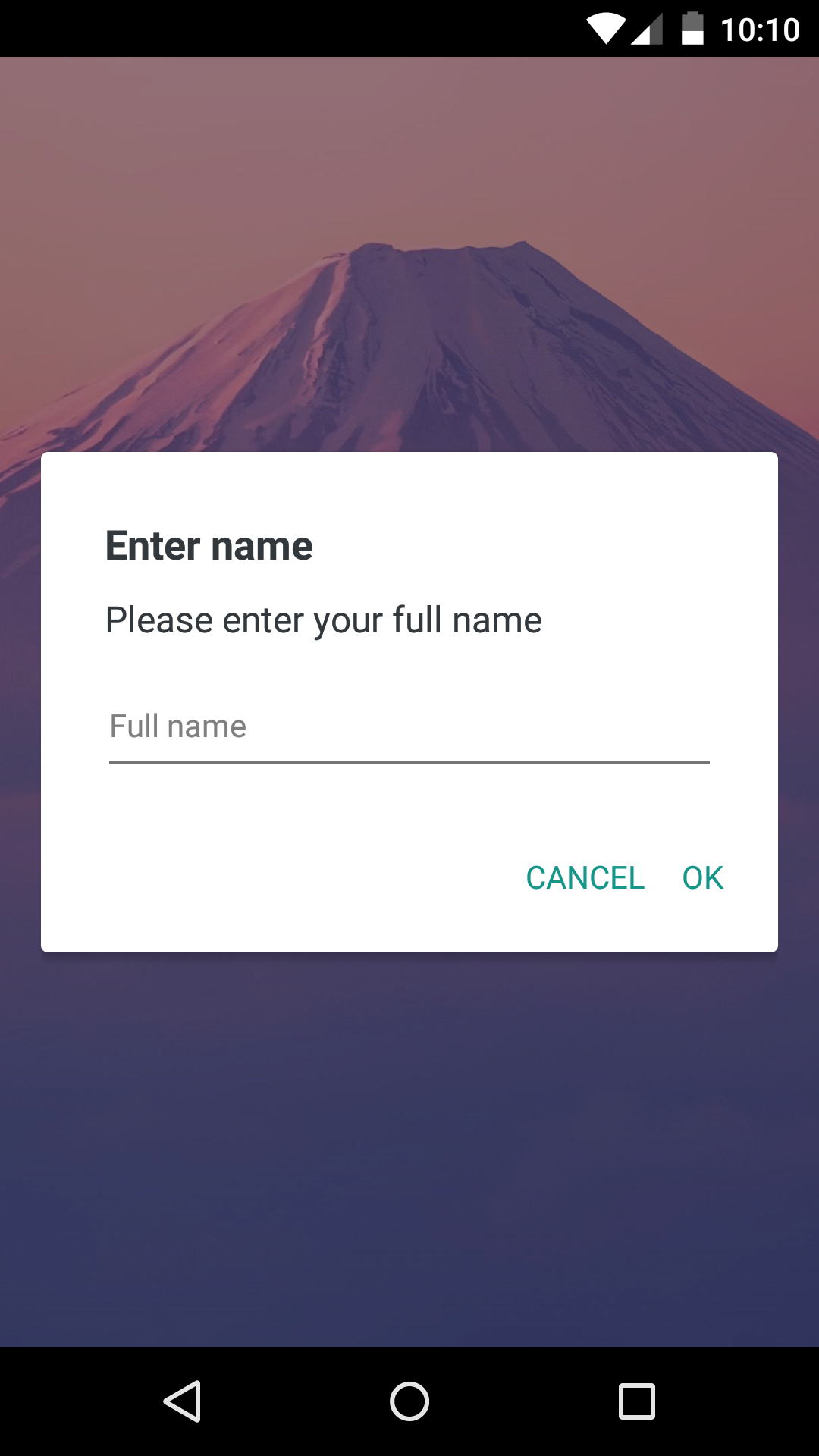
Setup
Install the library using npm or yarn:
``bash`Using npm:
$ npm install react-native-dialogUsing yarn:
$ yarn add react-native-dialog
Usage
React-native-dialog exposes a set of components that can be used to build the UI of the dialog:
- Dialog.Container: This component is the root component of the dialog and all the other components should be nested inside it.
- Dialog.Title: A Text component styled as a native dialog title.Text
- Dialog.Description: A component styled as a native dialog description.TextInput
- Dialog.Button: A component styled as a native dialog button.
- Dialog.Input: A component styled as a native dialog input.TextInput
- Dialog.CodeInput: A component styled as one time code input.Switch
- Dialog.Switch: A native component with an optional label.
1. Import react-native-dialog:
`javascript`
import Dialog from "react-native-dialog";
2. Create a dialog and nest its content inside of it:
`javascript`
return (
Do you want to delete this account? You cannot undo this action.
);
3. Then simply show it by setting the visible prop to true:
`javascript`
return (
Do you want to delete this account? You cannot undo this action.
);
The visible prop is the only prop you'll really need to make the dialog work: you should control this prop value by saving it in your state and setting it to true or false when needed.
A complete example
The following example consists in a component (DialogTester) with a button and a dialog.dialogVisible
The dialog is controlled by the state variable and it is initially hidden since its value is false.dialogVisible
Pressing the button sets to true, making the dialog visible.dialogVisible
Inside the dialog there are two buttons that, when pressed, set to false, hiding the dialog.
`javascript
import React, { useState } from "react";
import { Button, StyleSheet, View } from "react-native";
import Dialog from "react-native-dialog";
export default function App() {
const [visible, setVisible] = useState(false);
const showDialog = () => {
setVisible(true);
};
const handleCancel = () => {
setVisible(false);
};
const handleDelete = () => {
// The user has pressed the "Delete" button, so here you can do your own logic.
// ...Your logic
setVisible(false);
};
return (
Do you want to delete this account? You cannot undo this action.
);
}
const styles = StyleSheet.create({
container: {
flex: 1,
backgroundColor: "#fff",
alignItems: "center",
justifyContent: "center",
},
});
`
Available props
$3
| Name | Type | Default | Description |
| -------- | ------ | -------------------------------------- | --------------------------------------- |
| label | string | REQUIRED | The label text |
| color | string | #007ff9 on iOS, #169689 on Android | The label color |
| bold | bool | false | Show the label with a bold font weight? |
| disabled | bool | false | Disable the button? |
| onPress | func | REQUIRED | Called when the button is pressed |
$3
| Name | Type | Default | Description |
| -------- | ------ | ------------ | -------------------- |
| children | string | REQUIRED | The description text |
$3
| Name | Type | Default | Description |
| ---------------------- | ------ | ------------- | --------------------------------------------------------------------------------------------------- |
| blurComponentIOS | node | A low-opacity | The blur component used in iOS |
| visible | bool | REQUIRED | Show the dialog? |
| children | node | REQUIRED | The dialog content |
| contentStyle | any | undefined | Extra style applied to the dialog content |
| headerStyle | any | undefined | Extra style applied to the dialog header |
| footerStyle | any | undefined | Extra style applied to the dialog footer |
| buttonSeparatorStyle | any | undefined | Extra style applied to the dialog button separator |
| onBackdropPress | func | undefined | Callback invoked when the backdrop is pressed |
| onRequestClose | func | undefined | Callback invoked when the hardware back button on Android or the menu button on Apple TV is pressed |
| keyboardVerticalOffset | number | undefined | keyboardVerticalOffset for iOS |
| verticalButtons | bool | false | Renders button vertically |
| useNativeDriver | bool | false | Defines if animations should use native driver |
$3
| Name | Type | Default | Description |
| ------------------ | ------ | --------- | ----------------------------------------------------------------------- |
| label | string | undefined | The input floating label |
| wrapperStyle | any | undefined | The style applied to the input wrapper View |
| textInputRef | ref | undefined | Ref to the input |
| unstableLabelStyle | any | undefined | Likely to be removed in a future version. See issue #141 for discussion |
Dialog.Input also accepts all the React-Native's TextInput component props.
$3
| Name | Type | Default | Description |
| -------------------------- | ------ | --------- | ----------------------------------------------------------- |
| wrapperStyle | any | undefined | The style applied to the input wrapper View |
| digitContainerStyle | any | undefined | The style applied to the digit container View |
| digitContainerFocusedStyle | any | undefined | The style applied to the digit container View when in focus |
| digitStyle | any | undefined | The style applied to the digit text |
| codeLength | number | 4 | The total number of digits |
| onCodeChange | func | undefined | Called when the input changed |
Dialog.CodeInput also accepts all the React-Native's TextInput component props.
$3
| Name | Type | Default | Description |
| -------- | ------ | ------------ | -------------- |
| children | string | REQUIRED | The title text |
Dialog.Title also accepts all the React-Native's Text component props.
$3
| Name | Type | Default | Description |
| ------------------ | ------ | --------- | ----------------------------------------------------------------------- |
| label | string | undefined | The switch description text |
| unstableLabelStyle | any | undefined | Likely to be removed in a future version. See issue #141 for discussion |
Dialog.Switch also accepts all the React-Native's Switch component props.
Frequently Asked Questions
$3
To achieve a look even closer to the native iOS dialog you can provide your own component in the blurComponentIOS prop of a Dialog.Container and it will be injected in the dialog to be used as a background.blurComponentIOS
The can be useful for example if you want to apply a native blur effect to the dialog.react-native-blur
Here is an example using :
`javascript`
const blurComponentIOS = (
);
return (
Do you want to delete this account? You cannot undo this action.
);
$3
react-native-dialog uses a thin abstraction on top of the React-Native's modal component. Any properties you add to Dialog.Container are mapped through to the modal.onBackdropPress
The modal has an property that can be used to register clicks on the backdrop.
Below is an example of how you can close the dialog by tapping outside.
`javascript
const [visible, setVisible] = useState(true);
const handleCancel = () => {
setVisible(false);
};
return (
);
`
Acknowledgments
Thanks to the user @honaf who has kindly offered the react-native-dialog namespace.react-native-alert` (which has not been used since "Dialog" seems to suit better this component) and to @tyxou for the entire codebase refactoring to hooks.
Also thanks to the user @leecade who offered the namespace